
A new computer is exciting — but also the fear of losing everything: how to recover files, photos, documents, settings from the old one? One fears forgetting something or spending hours reinstalling everything. Good news: transferring your data to a new computer is much simpler than it seems, with several methods depending on your needs. Here’s how to migrate smoothly to your new computer, without losing anything or complicating your life — keeping the old one as a safety net.
First thing: back up and sort
The first step is not the transfer, but PREPARATION. First, BACK UP your old computer before any manipulation (our 3-2-1 backup guides) : thus, whatever happens during the migration, your data are safe. Then, SORT OUT : a change of computer is an ideal opportunity not to transfer the unnecessary (old useless files, duplicates, programs you no longer use) ; identify what really counts — your personal documents, your photos and videos (the real treasures, irreplaceable), your favorites, your passwords (via your password manager — our password manager guides), and your work files. Also spot the SOFTWARE you will need to reinstall (most can be re-downloaded ; note those that require a license or reactivation). This preparation avoids two pitfalls: forgetting important data, and cluttering the new computer with old junk from the start. A reassuring point to keep in mind throughout: do not reset, sell, or give away your OLD computer until you have VERIFIED that everything has arrived and is working on the new one (our data transfer interruption guides). The old one remains your safety net: as long as it preserves your data intact, no loss is irreversible. This simple rule eliminates most of the stress of a migration: you can transfer confidently, knowing that the original is always there if you forget something. The preparation — backing up, sorting, keeping the old one — is half of a successful migration.
The key is to back up your old computer first, then sort through what you really need. Don’t delete or give away the old computer until you’re sure everything is working on the new one. This way, you won’t lose anything important.
Imagine you have 500GB of photos, 200GB of work files, and 50GB of old software. You back up everything to an external drive, then sort out the 100GB of old files you don’t need. After transferring the remaining 650GB to your new computer, you wait a week to check everything. Only then do you wipe the old computer.
Transfer methods according to your needs
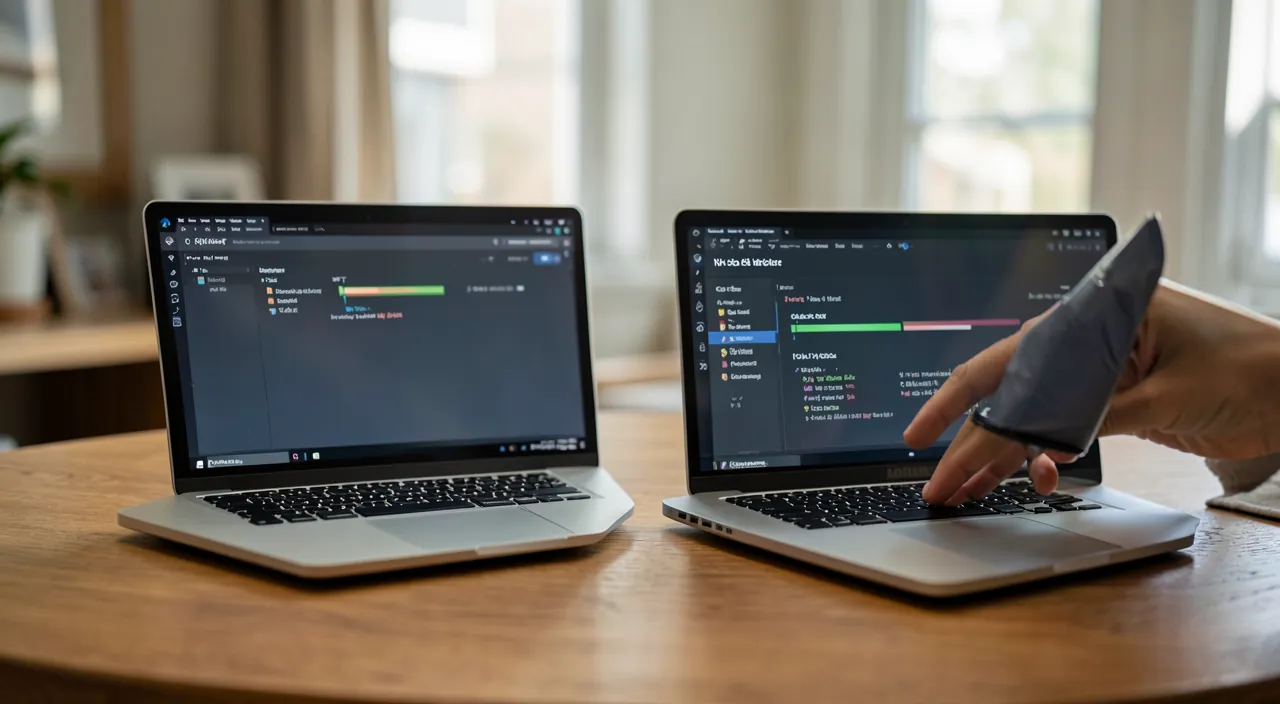
Several ways to transfer, choose according to your situation: the INTEGRATED MIGRATION TOOLS — systems often offer a transfer assistant that automatically copies files, settings, and sometimes applications from the old to the new computer (the simplest if you stay within the same universe — little effort, everything follows) ; the CLOUD — if your files, photos, and documents are already synchronized online, they simply reappear by connecting to your accounts on the new computer (a very fluid method, provided everything is synchronized — our cloud file synchronization guides) ; the EXTERNAL HARD DRIVE — copy your files from the old one to an external hard drive, then copy them to the new one (a universal method, without internet, ideal for large volumes — our 3-2-1 backup guides) ; the DIRECT TRANSFER — connect the two computers (by cable or network) to copy directly ; and the FILE TRANSFER SERVICES for occasional files (our heavy file transfer guides). The choice depends on: the amount of data, your equipment, and if you are switching universes (from one brand to another). For most people: if everything is in the cloud, simply connecting to your accounts is enough ; otherwise, the integrated migration tool or the external hard drive are the safest methods. Don’t forget what’s not in the « files »: your PASSWORDS (a manager makes them available everywhere — our password manager guides), your BROWSER favorites (often synchronized via your account), your EMAILS (generally online, found by connecting), and your SOFTWARE (to be reinstalled). Once the transfer is done, take the time to VERIFY that everything is there: browse your files, photos, test your applications. Only after this complete verification can you, confidently, erase and give away the old computer.
- Integrated migration tools: Best for staying within the same brand.
- Cloud: Fastest if everything is already synced.
- External hard drive: Best for large transfers without internet.
- Direct transfer: Good for quick, wired transfers.
- File transfer services: Useful for occasional large files.
The right reflex. Do not reset, sell, or give away your OLD computer until you have VERIFIED, on the new one, that everything is there and working: browse your documents, your photos (both old and recent), your favorites, check that your key software works and that you are connected to your accounts. Take the time for this verification over several days of real usage. The old computer is your absolute safety net: as long as it preserves your data intact, no loss during the transfer is irreversible — you can always go back to it for a missing file. It is only once certain that nothing is missing on the new one that you can erase the old one (thinking then to properly reset it to erase your personal data before giving it away — our data deletion guides). The rush to get rid of the old computer is the only real way to lose data during a migration. Combine this safety net with a PREVIOUS BACKUP of the old one (our 3-2-1 backup guides): backup before, old one kept until complete verification — these two precautions make any migration smooth, whatever happens during the transfer.
Successfully migrate without stress
Some tips to make everything go well: plan TIME (a large volume transfer can be long — don’t do it in a rush), keep your IDENTIFIERS handy (you will need to reconnect to your accounts, your password manager is invaluable — our password manager guides), and proceed METHODICALLY (files, then settings, then software, then verification). Think about SPECIFIC data that do not always follow automatically: some software (email, games, applications with their own data) may require a specific export/import — check before erasing the old one. Use the migration to properly CONFIGURE the new computer from the start: organize it clearly (our file organization guides), secure it (password, updates — our security guides), and set up a good BACKUP (to never fear losing your data — our 3-2-1 backup guides). And above all, once everything is verified and the old computer is ready to be given away: properly RESET it to erase your personal data before giving it away, selling it, or recycling it (never leave your information on a device that changes hands — our data deletion guides). In summary, transferring your data to a new computer is much simpler than feared, provided you do it right. Prepare (backup the old, sort, identify what really counts), choose the appropriate method (migration assistant, cloud, external hard drive according to your needs), don’t forget what’s not in the files (passwords, favorites, emails, software), and VERIFY that everything is there before erasing the old one. The golden rule: keep the old computer as a safety net until complete verification — as long as it preserves your data, no migration can go wrong. With this method, you migrate smoothly, without losing anything, and enjoy your new, well-configured computer from the start.
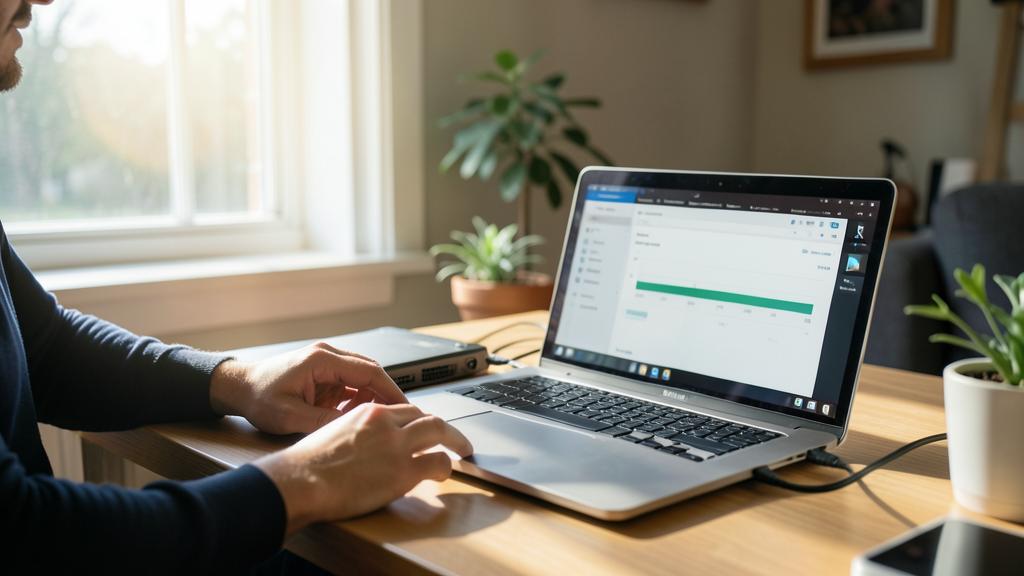
Caution: do not rush to erase the old one and back up first. The biggest danger of a migration is NOT the transfer (which can be redone), but erasing, selling, or giving away the old computer before verifying that everything is there on the new one: as long as the old one preserves your data, nothing is lost; once erased prematurely, what was not transferred is lost forever. Keep the old computer intact and available until a complete verification (documents, photos, software) over several days. Second imperative: BACK UP the old computer before any transfer manipulation (our 3-2-1 backup guides): this is the ultimate backup, independent of the transfer. Think also about SPECIFIC data that do not always follow automatically (some software — email, games — may require a specific export/import): check them before erasing the old one. Finally, when you finally give away the old computer, properly RESET it to erase your personal data (never leave your documents, saved passwords, history, and information on a device that changes hands: our data deletion guides). The serenity of a migration depends on two rules: backup before, and do not erase anything until everything is verified. Thus, transferring to a new computer becomes a risk-free formality, regardless of the chosen method.
Frequently asked questions
What is the simplest way to transfer my data?
It depends on your situation. If your files, photos, and documents are already synchronized in the CLOUD, the most fluid method is simply to connect to your accounts on the new computer: everything reappears. Otherwise, the INTEGRATED MIGRATION TOOL in the system (which automatically copies files and settings from the old to the new) is the simplest if you stay within the same universe. The EXTERNAL HARD DRIVE (copy from the old, copy to the new) is the universal method, without internet, ideal for large volumes. For most people, the cloud or the integrated migration tool suffice. Choose according to the amount of data, your equipment, and if you are switching brands. And don’t forget to reinstall passwords, favorites, and software.
Will I lose everything when changing computers?
No, if you do it right: back up the old one before any manipulation, transfer with the appropriate method, and keep the old computer as a safety net until you verify that everything is there on the new one. As long as the old one preserves your data intact, no loss is irreversible: you can always go back to it for a missing file. Think about everything: files, photos, but also passwords (via your manager), favorites, emails (often online), and software to reinstall. Verify over several days of real usage before erasing the old one. The migration seems intimidating, but with preparation and the safety net of the old device, it becomes a risk-free formality: data are only lost if the old one is erased too soon.
What to do with my old computer after the transfer?
Once you are certain that everything is there and working on the new one (after verification over several days), you can dispose of the old one. But before selling, giving away, or recycling it, properly RESET it to erase your personal data: never leave your documents, saved passwords, history, and information on a device that changes hands (our data deletion guides). A computer given away without proper erasure exposes your data to its new owner. If you keep it as a backup, a proper reset or at least some security is prudent. And think about responsible recycling if it is at the end of its life (our obsolescence fight guides). The key: do not separate from it until complete verification, and erase carefully your data before giving it away.
What to remember
Transferring your data to a new computer is much simpler than feared, with the right method. PREPARATION is half the success: back up the old one before any manipulation (ultimate backup), sort out (don’t transfer the unnecessary), and identify what really counts (documents, irreplaceable photos, passwords, favorites, software to reinstall). Choose the APPROPRIATE method: the integrated migration tool (simplest in the same universe), the cloud (very fluid if everything is synchronized — connect to your accounts), or the external hard drive (universal, ideal for large volumes). Don’t forget what’s not in the « files »: passwords (via your manager), favorites (often synchronized), emails (online), software (to reinstall), and specific data of some software (to export). The golden rule, which eliminates all stress: keep the old computer as a safety net until you have VERIFIED that everything is there and working on the new one (over several days) — as long as the old one preserves your data, no loss is irreversible. It is only after this verification that you erase the old one, properly resetting it to erase your personal data before giving it away. Use the migration to properly configure and secure the new computer from the start, and set up a good backup. With this method — backup before, choose the right method, keep the old one until verification — you migrate smoothly, without losing anything: the only way to lose data is to erase the old one too soon.
Want to gain ease with your digital tools? Our personalized training adapts to your level.
Leave a Reply
You must be logged in to post a comment.