
The Apple Watch comes out of the box, wraps around your wrist — and surprises you: a tiny screen, a rotating crown, endless watch faces, taps for notifications, and the question of the first week: « But what do I actually do with it? » The watch reveals itself through its settings — watch faces built for YOUR life, notifications sorted from the source, three gestures that do it all, and functions that justify the object (health, safety, payment, life without pulling out your phone). The guide to successful first days — and the habits that convince the wrists.
The first settings: the watch on your hand
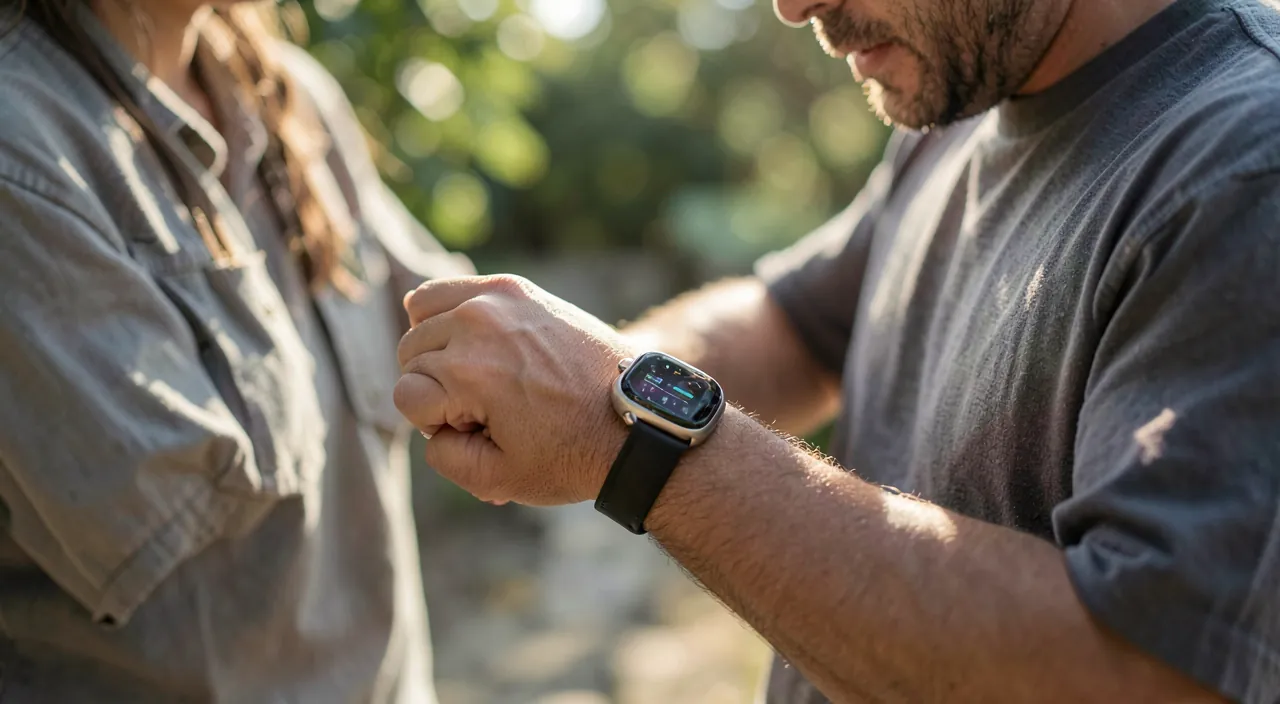
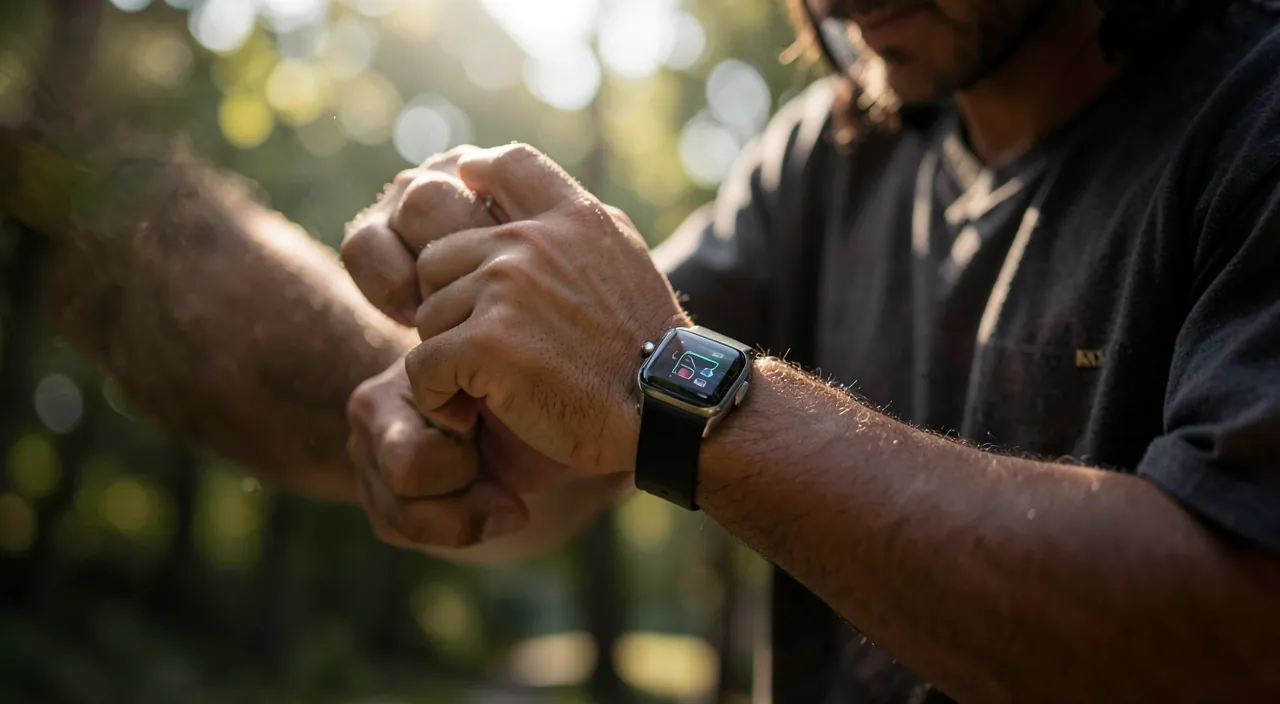
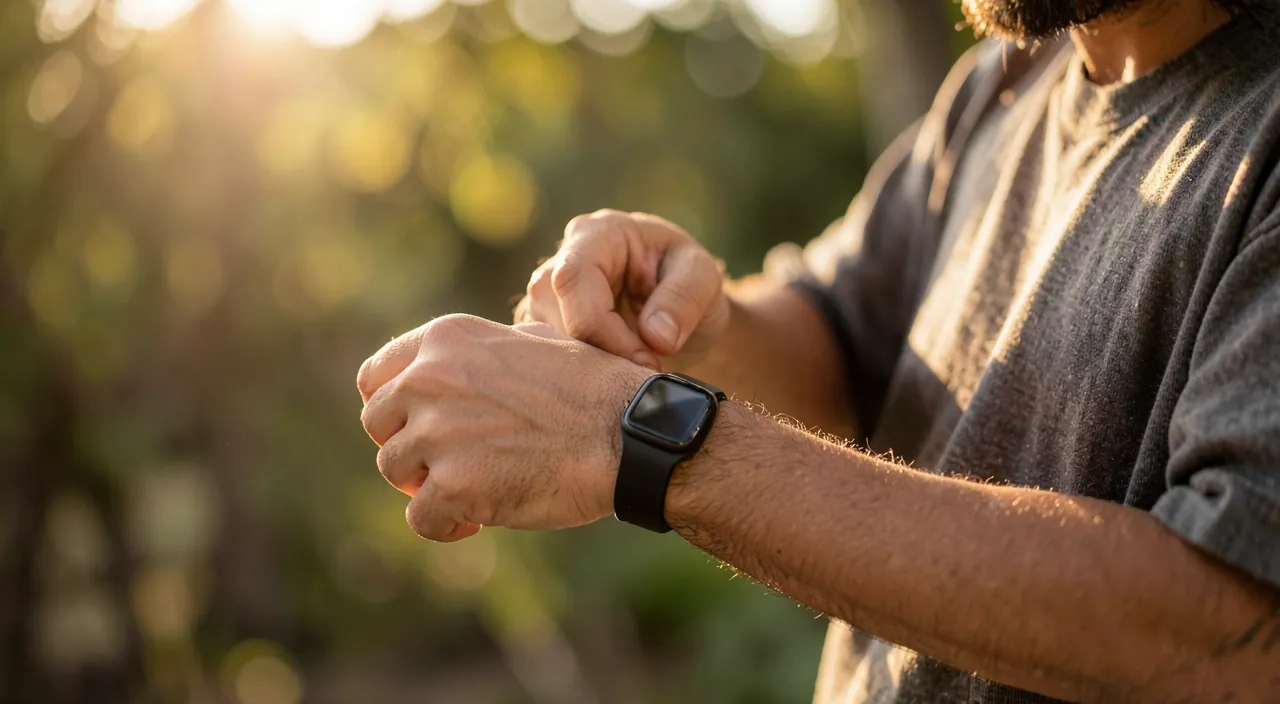
The changing configuration hour: the face built — the face is not a wallpaper: it’s your dashboard (long press on the face → customize) — choose a model with COMPLICATIONS (the small tiles of info and shortcuts) and populate it with YOUR life — the weather, today’s agenda, the rings, the timer, the running app — the beginner’s rule — ONE face for the week (the useful), ONE face for the day (the elegant), and the swipe at the edge of the face — the sorted notifications — the trap of the first days: the watch inherits ALL the phone’s notifications (the wrist that vibrates incessantly makes the watch go into a drawer in fifteen days) — in the Watch app → Notifications, cut everything EXCEPT the essentials (calls, family messages, agenda — our notification guides doctrine at the wrist is VITAL: the watch is a filter, not a drain — well set, it allows the phone to stay far away while still being reachable — that’s its whole meaning) —; the three gestures — the crown that turns (scroll without obscuring the screen with your finger), the bottom swipe (quick settings: silent mode, flashlight, airplane), the top swipe or smart battery (widgets) — and the comfort settings — text size (raise it without hesitation), always-on display or not (the autonomy trade-off), enhanced haptic feedback (the « tap » of the wrist set to be felt), and theater mode for movies. An hour — and the watch ceases to be a battery-powered gadget and becomes a finely tuned instrument.
The Apple Watch is all about customization. Start by setting up a watch face that shows the info you need, then control which notifications you get to avoid being overwhelmed. Learn the three main gestures to navigate quickly, and adjust the display settings for comfort. This setup makes the watch useful instead of annoying.
Imagine you’re a busy professional. You set up a work face with your calendar and timer, disable social media notifications, and use the crown to scroll through emails hands-free. At the gym, you switch to a sports face with activity rings. This way, the watch adapts to your day without distracting you.
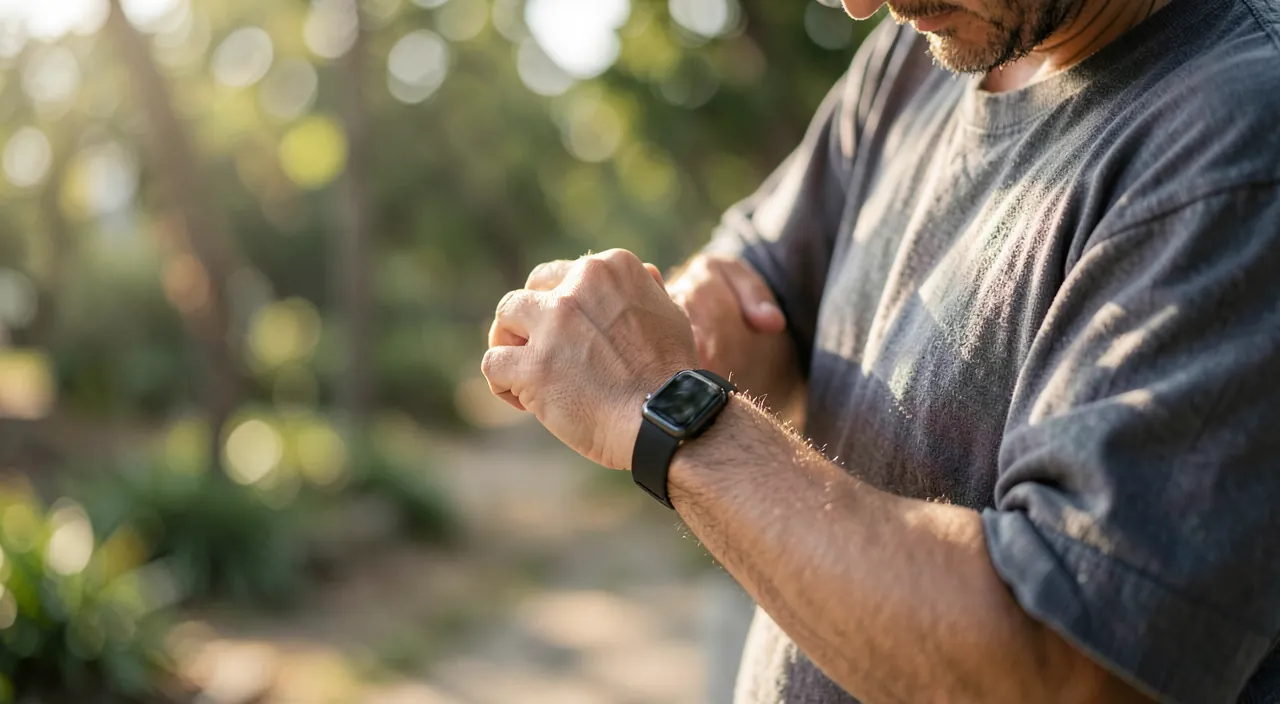
Health on the wrist: what the watch monitors (and how to use it well)
The heart of the proposition (our Health app guides for the whole — here, the role of the watch): the activity rings — the daily trio (move, exercise, stand) to be HONESTLY calibrated (goals are set — the achievable ring that closes motivates, the heroic ring that never closes discourages: start low, then climb — the mechanics of our wrist pedometer guides) and the sit reminders that punctuate sedentary days — the heart — continuous heart rate, alerts for abnormal rhythms (high, low, irregular — the Health settings: activate them, they are the ones that made the life-saving stories) and the on-demand ECG according to models (with the posture of our guides: the watch ALARMS and documents — the doctor diagnoses) —; the sleep — worn at night, complete tracking (our sleep guides: the watch is the king of the sensor — and the tap to wake up without waking the other — the couple function of the year) —; the sport — the Exercise app for everything (steps counted precisely, swimming — it’s waterproof —, cycling: our guides find their wrist coach) —; and the security that reassures families — fall and accident detection (automatic emergency call if you don’t respond — activated by default after a certain age, can be activated before) — emergency call by long press on the crown, medical record on the wrist: for oneself, and for elderly parents — the watch has become one of the best benevolent guardians on the market (our autonomy guides: configured TOGETHER, assumed, never imposed).
The right reflex. Get used to the routine charging — battery anxiety kills more watches than the battery itself: the watch charges at a fixed and short time (morning shower, coffee — 30-45 minutes suffice for the day AND the night of sleep tracking: the charger placed where the ritual takes place), and economy mode takes over for long days. The watch that has its charging ritual wears 24/7 without thinking about it — the one that charges « when you think of it » ends up in the drawer: the difference between the two is a well-placed charger.
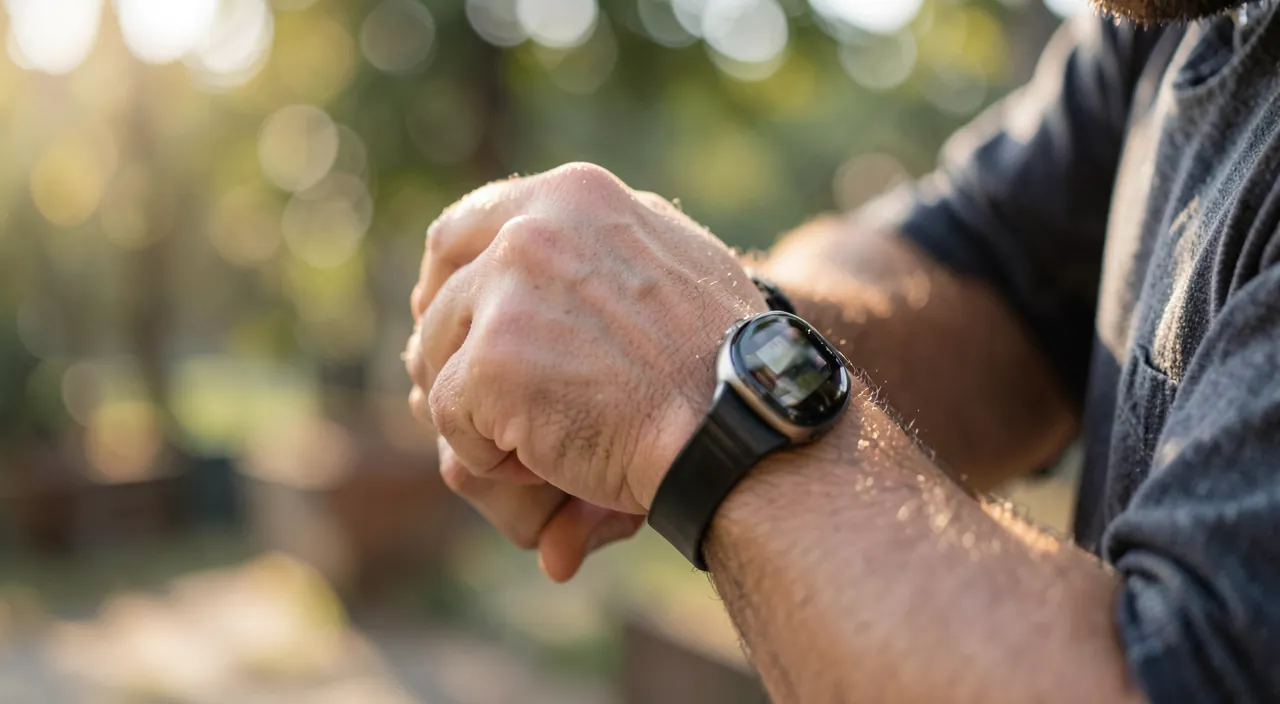
Life without pulling out your phone: daily usages
The watch pays its price in micro-moments: the payment on the wrist — Apple Pay with double-click of the button (grocery shopping with your hands, getting bread while running — our payment guides: the watch pays even away from the phone), loyalty cards and tickets on the wrist (boarding code that doesn’t require digging through your bag) —; the quick responses — message read on the wrist, response dictated or scribbled (dictation is the watch’s main input — our guides: three words on the wrist solve what would have required pulling out the phone… and its distraction tunnel: the watch makes interactions QUICK, its hidden virtue) —; the timers and voice reminders (cuisine on the wrist — « timer 8 minutes » — and the geolocalized reminders from our guides that tap at the right place) —; the music and podcast control (volume at the crown, skipping songs while walking — and the watch autonomous with earbuds to run WITHOUT phone: the playlist synced to the watch, only the cellular model needed for calls) —; the found phone (button that makes the iPhone ring — the most used function of all, admit it) —; the flashlight, compass, photo remote (family photo finally ON the photo — our guides) —; and the unlocking — the Mac that opens at the approach of the watch (the session password gone — our guides). None of these moments justify the watch alone — their daily addition does: it’s the object of the hundred small frictions removed.
Going further (or not): watch faces, apps, and their rightful place
The second level, keeping in measure: the contextual watch faces — work face (agenda, timer), sport face (activity rings, exercise, music), travel face (dual time, tickets) — the swipe at the edge of the screen — and photo faces (family on the wrist) for pleasure —; the apps to install with parsimony — the watch is not a small phone: the apps worth the wrist are those of MICRO-interactions (checklist app, exercise timer, loyalty card, home automation — the « Good Night » scene on the wrist: our HomeKit guides) — the rest clutter —; the synchronized concentration modes (sleep mode that turns off the wrist, work mode that only allows essential tapping — our guides) —; and the right place assumed — the watch is a FILTER and a sensor — not a compulsive third screen to check (the wrist that wakes up every two minutes missed the notification settings, didn’t buy the wrong object) —: well set, it does the opposite — less phone, shorter interactions, and the presence restored (dinner where the phone stays in the entryway BECAUSE the watch is the elegant use case). The object keeps its promise under this condition — which costs only settings.
The Apple Watch isn’t just a fancy gadget. It’s designed to reduce phone dependency by handling small tasks quickly. Use it for payments, quick replies, timers, and health tracking. Avoid overloading it with apps, and set it up to filter notifications. This way, it helps you stay focused and present.
During a workout, you use the sports face to track your heart rate and steps. Afterward, you pay for a smoothie with Apple Pay, check a reminder to call your mom, and control your workout playlist—all without touching your phone. This saves time and keeps you in the moment.
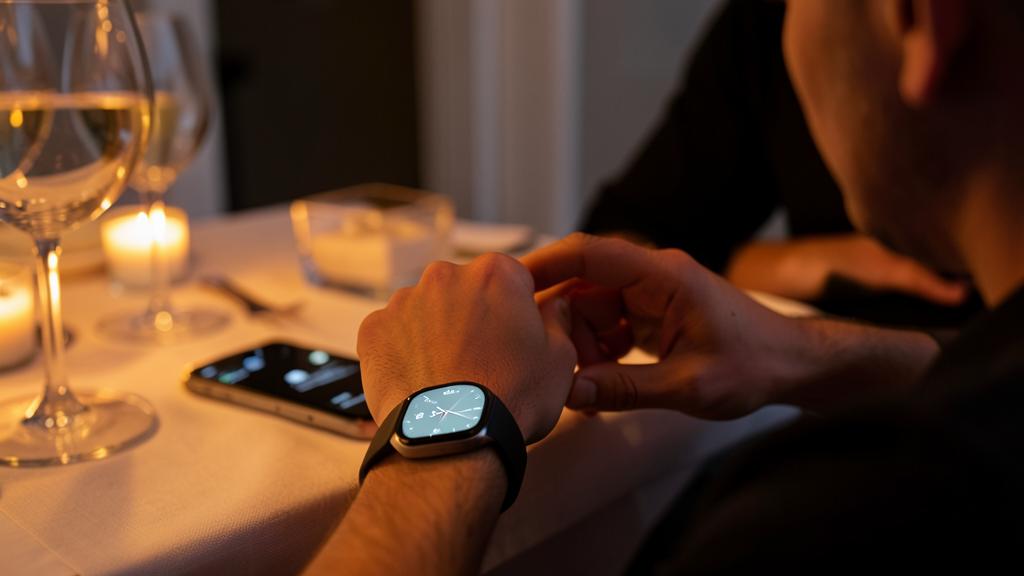
Be wary of health data — on the wrist, they accumulate quickly. The watch is the most intimate sensor on the market (continuous heart rate, sleep, cycles, exercise tracking) — the rules of our Health guides apply in full — the data are numerical and protected by the phone’s code (put a strong one), third-party apps are AUDITED before any Health access (the free face app has no place in your heart rate — permissions are refused and revoked), family health sharing is CONSENTED and understood (our guides), and clarity on the numbers — the watch estimates, trends, alerts — it does not diagnose (the anxiety of the sensor — checking your heart 20 times a day — calls for a break, not an additional app). The wrist that watches is precious — the wrist that worries needs adjustment — or a doctor, not a gadget.
Frequently asked questions
Which model to choose for beginners — and the opportunity?
The standard model (or SE) covers the essentials (health, fitness, notifications, payment) — higher models add always-on display, sensors, and robustness — the beginner doesn’t need them to KNOW if they are a watch wearer. The reconditioned one or two generations back is the ideal entry (our guides — check compatibility with your iPhone and updates) — judge at a low price, upgrade convinced.
Is the cellular (watch with plan) worth the extra cost?
For two profiles, yes: the athlete who goes out without a phone (calls and streaming while running) and elderly or child supervision (the watch is reachable alone — some family models can be managed from your iPhone without an iPhone of their own — the dedicated family configuration) — for others, the Wi-Fi/Bluetooth watch does it all, the phone is never far — the monthly subscription is judged by actual usage.
The Apple Watch on an elderly parent’s wrist: where to start?
The kit of our autonomy guides: fall detection ACTIVATED, medical record filled, emergency contacts, large face with big complications (agenda, weather, family call button), minimal notifications, charging ritual anchored to an existing habit — and installation done TOGETHER, explaining (an imposed object ends up in the drawer; a comprehended object becomes the wrist guardian). The follow-up visit at 15 days adjusts — that’s what makes the difference.
What to remember
The Apple Watch earns its place in the first week: the face built for your life (useful, charged, sober), the sorted notifications (wrist-filter that allows you to PUT down the phone — the whole meaning of the object), the three gestures (crown, swipes), the charging ritual anchored (30 minutes fixed = 24 hours of wear, including sleep). Then the watch pays each day: health that watches (calibrated activity rings, heart alerts, fall — for oneself and the elderly), the hundred micro-frictions removed (paying, responding to three dictated words, timing, finding the phone, unlocking the Mac), and the restored presence when well set — less screen, not more. The Monday morning reflex: long press on the face — your watch starts there.
Want to unlock the full potential of your iPhone, iPad, or Mac? Our Apple training courses take you to the next level.
Leave a Reply
You must be logged in to post a comment.