
For a long time, the question « where is my file? » had no answer on iPhone — each document was trapped in its app. The Files app changed the game: a real file explorer, with folders, search, tags, access to third-party clouds, and even USB keys. For those who learn how to use it, the iPhone and iPad become capable of replacing the computer for a good part of administrative tasks. Guided tour of the explorer that many people ignore they own.
Understanding geography: where your files live
Open Files, « Browse » tab: the map of the territory. “On my iPhone/iPad” — local storage, which doesn’t depend on any connection; iCloud Drive — your synchronized space, also visible on Mac, on the web, and on your other devices: this is where important documents should live (synchronized = backed up); and third-party clouds — because it’s an underrated feature: install the app of another storage service (professional or personal) and it appears as a location in Files — all your spaces gathered in a single explorer, with copying from one to another by simple drag-and-drop. Add recent folders, color tags, and favorites, and the geography is complete. First structuring decision: choose ONE main location (iCloud Drive for most) and create a small hierarchy — Administrative, Health, Home, Work are largely sufficient.

The gestures that change everything
The explorer comes to life with a few gestures: press and hold on a file opens the full menu (rename, move, duplicate, compress, share, tags); multi-select (button « Select » or two-finger swipe on iPad) processes entire batches; drag-and-drop moves a document from one folder — or one cloud — to another, and on iPad, from one app to another in split screen (a PDF dragged from mail to Files, a photo to a document); search digs through names and contents, all locations combined; and the sort and display button (list, icons, columns on iPad) adapts the view. Two underrated bonus features: compress/decompress ZIP files natively (no more « I can’t open your archive »), and scan a document directly from Files (menu ⋯) — automatic framing, clean PDF, filed in the right place in thirty seconds.
The Files app lets you organize and access all your documents in one place, just like on a computer. You can move files between different storage locations (like iCloud or a USB drive) with simple gestures, and even scan documents directly into the app.
You receive a PDF contract via email. Instead of keeping it in your mail app, you use “Save to Files” to move it to your “Administrative” folder in iCloud Drive. Later, you can drag it from Files into a notes app to annotate it, or share it directly from Files via AirDrop to a colleague.
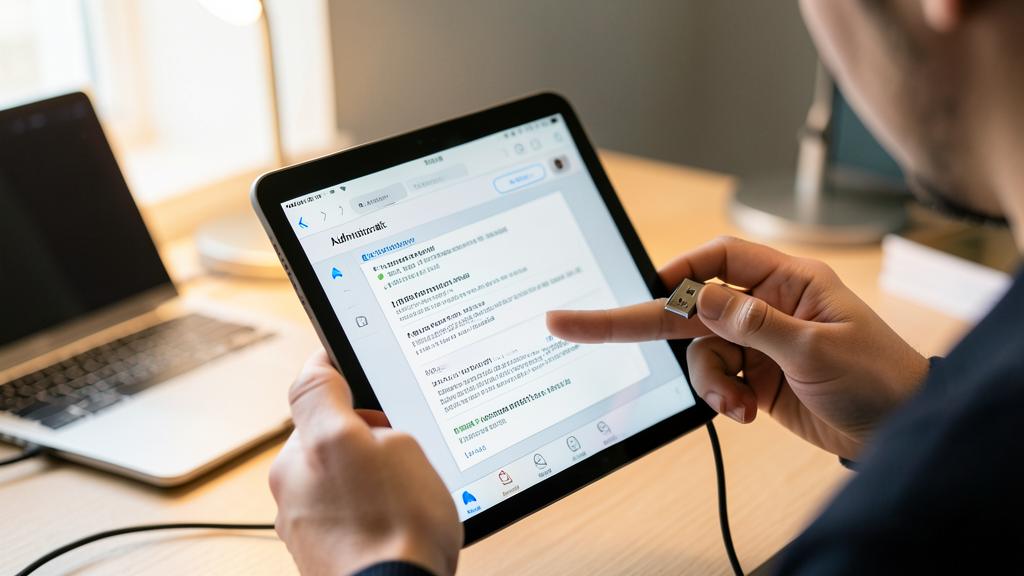
The right reflex. Create the folder “Administrative” in iCloud Drive and adopt the unique habit: every document received (certificate, invoice, contract) goes straight into it via « Save to Files » from the share menu — instead of staying buried in the email thread or messaging. Six months later, the difference is spectacular: every document is found in ten seconds, even from the Mac or the web. One folder, one reflex — that’s all personal document management.

The bridge to the world: USB keys, servers, sharing
Files also talks to the physical world and the network: a USB key or external disk plugged in (direct USB-C or adapter) appears as a location — read, copy, write, like on a computer: practical for recovering photos from a camera, transmitting large documents, or emptying a saturated phone; the SD card is read with the appropriate reader; and the option “Connect to a server” opens home or office network shares (family NAS, shared folder of a computer). To send: file sharing offers AirDrop (immediate neighbor), email, messaging — and for large volumes, the iCloud link that avoids the rejected attachment. The iPad with keyboard becomes a real lightweight workstation here: explorer in split screen, drag-and-drop, peripherals — the complete office gesture.
Find, recover, master
Three reliability habits: the “Recently deleted” — Files keeps deletions for thirty days (dedicated location in Browse): the safety net against false moves; the download indicator — in iCloud Drive, a file may only exist online (cloud icon): tap it to retrieve it, and think about it before a flight or a dead zone (“Keep download” forces local presence); and space management — storage is monitored in settings, and forgotten large files (received videos, archives) are tracked by sorting by size. Last underrated power: documents in Files are accessible to other apps — an attachment is chosen directly from the hierarchy in the email, a PDF opens in the annotation app of your choice. The file no longer belongs to the app: it belongs to you.

Warning. “On my iPhone” is not synchronized: a document that only exists there disappears with the phone (unless a complete and recent iCloud backup). For everything that has value, the rule is simple: iCloud Drive (or a third-party cloud) by default, local storage for temporary files. And when connecting an unknown USB key — classic caution also applies on iPhone: don’t open suspicious files from a found or received key, social engineering doesn’t stop at computers.
Frequent questions
I can’t find a document received yesterday in a messaging app:
Messaging apps keep their attachments to themselves until you export them — the reflex “Save to Files” at the time of receipt is the solution. First, look in the original app (its “documents” or “shared files”), then export to your Administrative folder.

Can I work with two people on the same folder?
Yes — an iCloud Drive folder can be shared (read or edit) with other people: everyone sees the updates. Practical for household papers or a project — each participant finds the folder in their own Files explorer.
Can Files replace a real file manager on a computer?
For personal and administrative uses, largely — especially on iPad with a keyboard. Heavy flows (batch renaming, deep hierarchies, specialized tools) are still more comfortable on a computer: the two complement each other via iCloud Drive, which shows the same thing everywhere.

What to remember
The Files app transforms the iPhone and iPad into real document tools: a clear geography (local, iCloud Drive, third-party clouds combined), powerful gestures (long press, multi-select, drag-and-drop, global search), integrated scanning, USB keys and servers as natural guests, and a 30-day safety net on deletions. The two habits that change everything: an Administrative folder in iCloud Drive fed by the “Save to Files” reflex, and the rule “local is for temporary”. The day someone asks you for a certificate in the middle of a queue and you produce it in fifteen seconds — the ignored explorer will have become indispensable.

Want to unlock the full potential of your iPhone, iPad, or Mac? Our Apple training courses take you to the next level.
Leave a Reply
You must be logged in to post a comment.