
You worry about the noisy fan — you should be alarmed by the silent fan: a computer whose ventilation has stopped cooks slowly, throttles its performance to survive, then shuts down abruptly — and over time, prematurely wears out its components. The suspicious silence is all the more treacherous as it is seen as a quality. This guide teaches you how to distinguish normal silence from failure silence, diagnose a stopped fan, and react before the heat causes lasting damage.
Normal silence or failure silence?
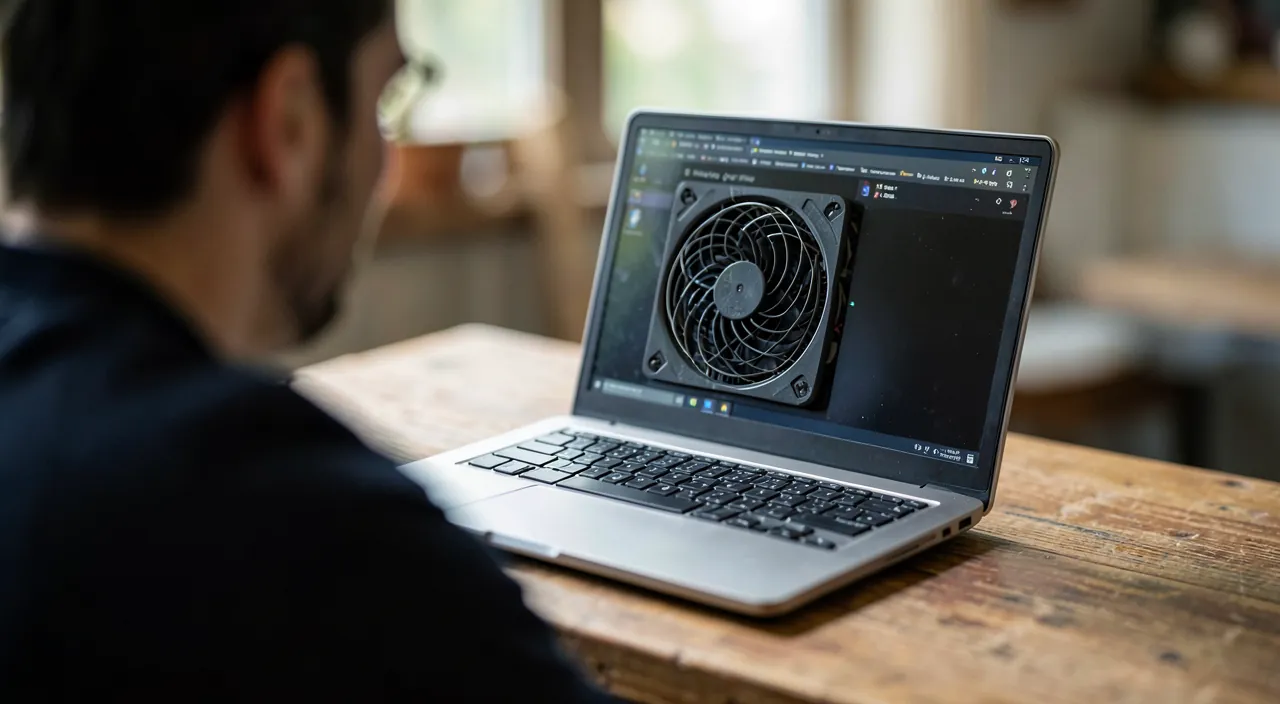
First point: a stopped fan is not always faulty — modern machines cut off ventilation when idle (passive mode), and some ultraportables simply don’t have one. The silence becomes suspicious when it coexists with overheating signs: abnormally hot chassis, marked slowdowns under load (the processor throttles to survive), sudden shutdowns or reboots during heavy tasks, temperature warning messages at startup — and above all, a fan you never hear anymore, even under heavy load (video, game, update), where it used to blow. The simple test: run a heavy task for ten minutes, hand near the vents — an airflow should establish; increasing heat without the slightest breath = ventilation failure, diagnosis confirmed.

Why a fan stops
Four main causes: mechanical blockage — compacted dust, cable or object stuck in the blades, seized bearing (the fan that squeaked before going silent tells this story); the fan’s own failure — worn-out motor, after years of service: a classic wear part; the control fault — the sensor or board controlling the speed malfunctions: the fan works but no longer receives the order to spin (software track or motherboard); and the false stop — the ventilation spins but the air no longer circulates: grilles and radiators clogged with dust — the effect is identical (heat builds up), the remedy much simpler. The context of appearance refines it: after a shock or transport (mechanical), gradually with noises (wear), after an update or setting change (control), on a never-dusted machine (clogging).
The right reflex. While waiting for diagnosis or repair, spare the machine: light use only, placed on a hard and clear surface (never on the knees or a fabric), vents free, cool room — and breaks as soon as the chassis heats up. A computer without ventilation survives very well with light use; it’s the heavy load that puts it in danger. This waiting behavior avoids damage — it doesn’t replace the repair.

What you can do yourself
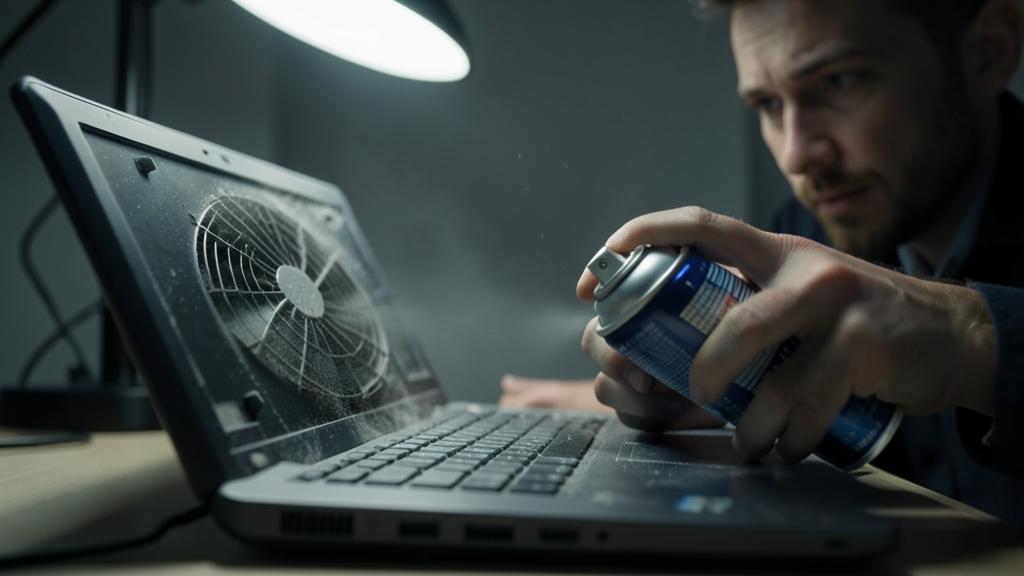
Three accessible interventions: dust removal — machine turned off and unplugged, dry air in a can into the vents and vents, in short bursts and at an angle (ideally blocking the blades to avoid overspeeding them): the remedy for clogging, and sometimes for light blockage; software check — power and ventilation settings (too zealous silent mode, aggressive “economy” profile), a manufacturer utility that displays temperatures and fan speed (precious: zero speed under load = confirmed failure in black and white), and system and driver updates; the electrical reboot — the classic purge that also resets the ventilation controllers. Beyond that — opening, fan replacement, thermal paste —, it’s the workshop’s territory: the intervention is common and reasonable in cost, and often replaces the dried thermal paste at the same time, for cooling better than new.
The damage from heat (and why not to delay)
Running without ventilation is not a sustainable option: in the short term, the computer protects itself — massive performance throttling (the “slow machine” whose real failure is thermal) and safety shutdowns mid-task (with their risk of corrupted files); in the medium term, chronic heat ages everything: battery (whose degradation it accelerates — even swelling), disk, solder joints, components — the machine’s lifespan is then counted in months of thermal abuse. Repairing a fan costs a fraction of what heat destroys: it’s one of the most profitable maintenance decisions — and one of the most urgent.
What not to do. Don’t “compensate” for a dead fan with a desk fan blowing on the keyboard — illusion of freshness, internal components still overheating; don’t spin the blades at full speed with compressed air (destructive overspeed for the bearing); never disable thermal alerts or shutdowns “to finish a job” — they are the last protection; and don’t oil a laptop fan with household products: proper replacement costs less than cleaning an oiled board. Heat forgives little: thermal tinkering even less.
Frequently asked questions
My laptop has never made noise: how do I know if it has a fan?
The model’s specs say so (fanless or ventilated design) — and the presence of ventilation grilles gives a clue. On a fanless model, heat is managed by design: the usage tips (hard surface, free vents) remain the same.

The fan spins but the computer still overheats:
Air circulating but persistent heat = clogged radiator or dead thermal paste: the duo dust removal + new paste in the workshop restores new machine temperatures. It’s THE rejuvenation cure for laptops over three years old.
Can I replace a laptop fan myself?
On accessible models (trap, exact model guides available), a careful DIYer can do it — original or quality-compatible part, battery precautions included. On glued and compact chassis, the workshop wins: the cost of the mistake exceeds that of the intervention.

What to remember
The stopped fan is a silent failure in the literal sense: suspect it when silence coexists with heat, slowdowns, and shutdowns — and confirm with the load test, hand on the vents. Causes range from clogging (dust removal) to wear (workshop replacement, reasonable and profitable), through settings and false radiator stop from clogging. While waiting for repair: light use, hard surface, cool room — never heavy load or thermal tinkering. Heat is the accelerated aging of the entire machine: a fan that regains its breath is years of life returned to the computer — and the return of a noise we learn to love again.


Persistent failure, temperamental computer? Our remote troubleshooting service solves your problem quickly, without jargon.
When a computer fan stops, the machine can’t cool itself properly. This causes it to slow down, shut off unexpectedly, and wear out faster. Fixing it quickly can save your computer from serious damage.
A gaming laptop (like a Dell XPS 15) running a heavy game (e.g., Cyberpunk 2077) at 80°F (27°C) ambient temperature suddenly stops its fan. The user notices the laptop gets too hot to touch, slows down, and shuts off after 10 minutes. This confirms the fan failure, requiring immediate cleaning or replacement.
Leave a Reply
You must be logged in to post a comment.