
You type, and suddenly the letters are no longer in the right place: the A and Q are reversed, characters have moved, or the spell checker corrects you in a foreign language. Your keyboard has « changed language » on its own! It’s confusing, but rest assured: it’s a very common and completely harmless issue that can be fixed in a few seconds. Most often, you have multiple keyboards/languages installed, and a shortcut has switched from one to another by accident. All you need to do is return to the correct keyboard, and optionally delete unnecessary languages so it doesn’t happen again. No complicated settings, no breakdown: just the wrong keyboard selected. Let’s see why the keyboard changes language, how to return to the correct one, and how to prevent it from happening again.
Why the keyboard changes language on its own
Understanding why the keyboard switches helps to fix and avoid it; let’s look at the causes. MULTIPLE keyboards installed: you have several languages/keyboard layouts; the device can switch from one to another; the root cause; frequent. A TOGGLE SHORTCUT: a key combination (or a button) changes the keyboard; pressed by mistake; the usual trigger; common. The GLOBE/language key: on a phone, a button (often a globe) changes the keyboard; pressed unintentionally; frequent. AZERTY vs QWERTY: switching from FR (AZERTY) ↔ another layout reverses the letters (A/Q, Z/W); hence the « letters moved » effect; typical. An UNINTENTIONAL PRESS: a manipulation, a shortcut brushed; switches without you noticing; common. A LANGUAGE ADDED by mistake: a language installed accidentally; it joins the rotation; possible. An APP that imposes its language: some apps change the keyboard depending on the context; variable; possible. The SPELL CHECKER in the other language: if the keyboard has switched, the spell checker follows; hence the strange corrections; to know. An UPDATE/setting: a modified setting may have reactivated a language; possible; to check. An AUTO TOGGLE: on a computer, an automatic switch of layout; to deactivate; possible. In summary, if the keyboard « changes language on its own, » the cause is almost always the same and very benign: you have MULTIPLE keyboards (languages or layouts) installed, and a SHORTCUT has switched from one to another — most often WITHOUT you realizing it. On a PHONE, it’s usually the « GLOBE » (or language) key, next to the space bar, that you touch by accident: it cycles through the installed keyboards. On a COMPUTER, it’s often a KEY COMBINATION (brushed by mistake) that changes the layout. The most confusing effect comes from switching between AZERTY (the French keyboard) and another layout like QWERTY: letters seem « moved » (the A and Q are reversed, as are the Z and W), when in reality it’s the LAYOUT that has changed. And since the keyboard has switched, the SPELL CHECKER follows: it starts correcting in the other language, hence the strange corrections. So it’s NOT a breakdown: just the wrong keyboard selected, which you just need to reset. Let’s see how.
Your keyboard switches because you have multiple languages installed, and a shortcut (like the globe key on phones or a key combo on computers) was pressed by accident. The letters seem moved because you’re now using a different layout (like QWERTY instead of AZERTY). It’s not broken—just a setting to fix.

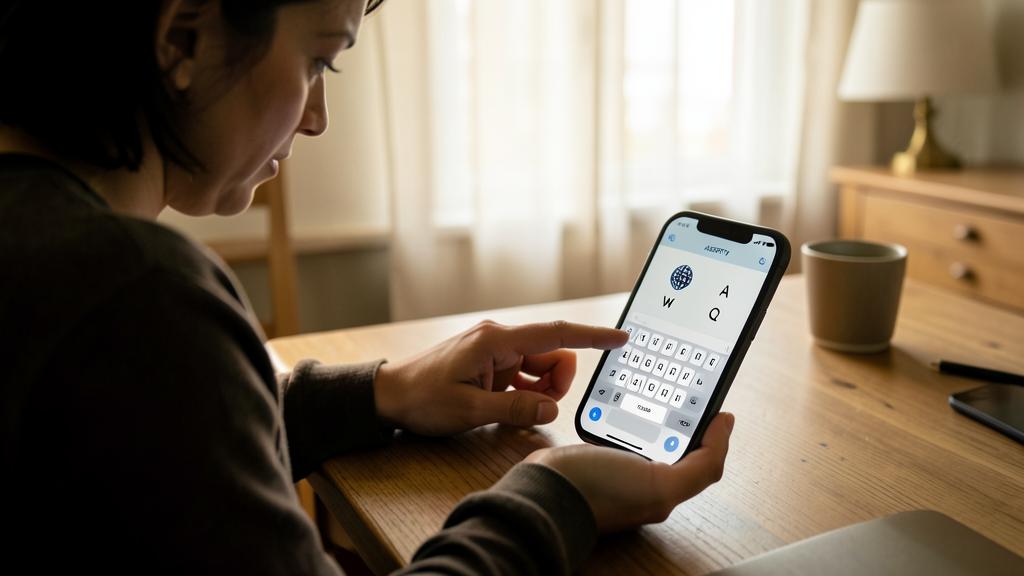
You’re typing on your iPhone and suddenly the A key produces a Q. This happens because you accidentally pressed the globe key (🌐) next to the space bar, switching from AZERTY (French) to QWERTY (English). Press the globe key again to return to French.
How to return to the correct keyboard
Here’s how to find your usual keyboard, from the fastest to the most durable; let’s follow these steps. Press the GLOBE key (phone): press the globe/language button near the space bar to cycle back to the correct keyboard; immediate; effective. LONG PRESS on the globe: a long press displays the list of keyboards; choose the correct one directly; practical; useful. The KEYBOARD SHORTCUT (computer): the combination that changes the language can also switch back; redo it; useful. The LANGUAGE INDICATOR: on a computer, an indicator (often at the bottom/top) shows and allows you to change the language; click the correct one; useful. Check in SETTINGS: go to the keyboard/language settings to see the installed keyboards; set the correct one as default; advice. DELETE unnecessary languages: remove the keyboards you don’t use; no more switching possible; durable solution; effective. SET the correct one first: place your usual keyboard at the top of the list/default; it returns on its own; advice. RESTART if needed: in case of a freeze, a restart fixes it; simple; useful. CHECK the spell checker: make sure the spell checker’s language is correct; no more strange corrections; advice. TEST by typing: type a few words to confirm everything is back to normal; check; useful. In summary, returning to the correct keyboard is very QUICK. On a PHONE: simply press the GLOBE (or language) key, next to the space bar, to cycle through the keyboards until you find yours — or do a LONG PRESS to display the LIST of keyboards and choose the correct one directly. On a COMPUTER: redo the KEY COMBINATION that changed the language (it toggles in a loop), or click on the LANGUAGE INDICATOR (often displayed in a corner of the screen) to select the correct one. That’s the immediate fix. To prevent it from HAPPENING AGAIN, act in the SETTINGS (section « keyboard » or « language »): DELETE the keyboards/languages you don’t use (if there’s only one keyboard left, it can’t switch anymore — this is the most durable solution), and SET your usual keyboard as FIRST (default). Also, make sure the language of the AUTO SPELL CHECKER is correct (to avoid corrections in a foreign language). If there’s a persistent freeze, a RESTART fixes everything. Finally, TEST by typing a few words to confirm everything is back to normal. In a few seconds, your keyboard is back to the correct one.
On a phone, the « globe » key next to the space bar changes the keyboard: press it (or long press to choose) to return to yours. And to prevent it from switching again: delete the keyboards you don’t use. This « language change » has a simple explanation and an immediate solution. The lifesaving gesture (on a phone): the GLOBE key. Look at your on-screen keyboard: next to the space bar (often at the bottom left), there’s often a small key shaped like a GLOBE 🌐 (or sometimes marked with another language). IT’S THE CULPRIT: it’s used to CHANGE the keyboard, and you’ve probably touched it WITHOUT realizing it while typing. The good news is that it’s also the SOLUTION: press it, and the keyboard switches to the next one in your list; re-press until you return to YOUR usual keyboard (the French AZERTY, with the A at the top left). Even more practical: do a LONG PRESS (hold your finger) on this globe key: the LIST of all your keyboards appears, and you can choose the correct one directly. In two seconds, everything is back to normal. How to recognize that it’s a layout issue? If the letters seem « mixed up » — typically the A and Q reversed, the Z and W swapped, the M moving around — you’ve switched from AZERTY (French) to QWERTY (English) or another layout. Nothing is broken: the keys are just ARRANGED differently. The DURABLE SOLUTION: delete the extra keyboards. If the problem happens REGULARLY, it’s because you have MULTIPLE keyboards installed, and it only takes a brush to switch. The definitive fix: only KEEP the keyboard you need, and DELETE the others. Go to your device’s SETTINGS, find the « Keyboard » section (or « General » → « Keyboard, » or « Languages and Input » depending on the device), look at the list of INSTALLED KEYBOARDS, and REMOVE those you never use (for example, an English QWERTY keyboard you never wanted). If only ONE KEYBOARD remains, it can no longer SWITCH: the problem disappears for good. If you NEED multiple languages (for example, to write in French AND English), keep them but SET your main language as FIRST (default); you’ll then know that the globe key is used to switch, and you’ll use it intentionally. Also, while you’re at it, check the language of the AUTO SPELL CHECKER (in the same settings): if it was correcting in the wrong language, set it back to French. In summary: the GLOBE key near the space bar changes the keyboard (press it, or long press to choose, to return to yours — it’s immediate); and to never suffer these switches again, DELETE in the settings the keyboards you don’t use (one keyboard = no more switching possible), or set your main language as default. A « language change » is never a breakdown: just a brushed key, fixed in an instant.
Preventing the keyboard from switching back
A few simple settings prevent the keyboard from changing language again; let’s see them. DELETE unnecessary keyboards: only keep those you need; fewer possible switches; the most effective; advice. ONE keyboard if possible: if you only write in French, keep only the AZERTY; no more changes; radical; useful. SET the correct one as default: place your usual keyboard first; it takes precedence; advice. KNOW the globe key: know that this button changes the keyboard; avoid it while typing; useful; to know. DISABLE auto switching: on a computer, disable automatic layout switching; stability; advice. CHECK after an update: an update may reactivate a language; take a look; foresight; useful. SET the spell checker: set the correct language for the spell checker; consistency; advice. BE CAREFUL with presses: while typing, avoid brushing the language key; reduce accidents; advice. NOTE the return action: remember how to return (globe key); no more panic; reassuring; useful. KEEP settings simple: a simple keyboard config = fewer surprises; simple; advice. In summary, to prevent the keyboard from switching back, the most effective way is to SIMPLIFY your configuration. If you only write in ONE language (French), keep only ONE KEYBOARD (the AZERTY): go to the settings and DELETE all the others — with no competing keyboard, there’s NO POSSIBLE switch, and the problem disappears forever. If you need MULTIPLE languages, keep them but SET your main language as DEFAULT (first), and know that the GLOBE key (or the shortcut on a computer) is used to switch: by knowing it, you’ll avoid it while typing and know how to return instantly if you brush it. On a computer, you can often DISABLE automatic layout switching in the settings. Remember to CHECK your keyboards after a major UPDATE (which sometimes reactivates a language), to SET the language of the spell checker to keep it consistent, and to REMEMBER the return action (the globe key) to never panic again. A SIMPLE keyboard configuration means fewer surprises. With these few settings, your keyboard stays quietly in the correct language.
Warning: don’t reinstall anything and don’t modify complicated system settings — the problem is benign. And if you need multiple languages, don’t delete the keyboard you actually use. A few precautions when your keyboard has changed language. First point: don’t DRAMATIZE, it’s BENIGN. A keyboard that « changes language » is NEVER a breakdown, a virus, or a sign that your device is broken: it’s simply the wrong keyboard selected, fixed in two seconds with the globe key. Don’t launch DISPROPORTIONATE manipulations: no need to reset your device, reinstall anything, or modify complicated system settings you don’t master. The remedy is simple: return to the correct keyboard, and optionally delete extra languages. Nothing more. Second point: before deleting a keyboard, check that you don’t NEED it. The durable solution is to delete unnecessary keyboards; but make sure you don’t remove a keyboard you ACTUALLY USE. If you sometimes write in another language (English, Spanish…), or if you need a keyboard with accents or specific characters, KEEP it: only delete those you never use. If in doubt, keep your main keyboard as FIRST (default) rather than deleting everything. Third point: don’t confuse « layout » and « device language. » Changing the KEYBOARD (its layout: AZERTY, QWERTY…) is NOT the same as changing the DEVICE’S LANGUAGE (menus, settings). For your issue with misplaced letters, it’s the KEYBOARD you need to adjust (not the device’s general language): don’t change the language of the entire system by mistake, you’d complicate things. Stay in the « keyboard » settings. Fourth point: if your keyboard seems REALLY stuck (the typed letters correspond to NO known layout, or nothing displays correctly), it might not just be a language issue: try closing and reopening the app, or restarting the device (consult our guides on troubleshooting a keyboard that doesn’t respond). Fifth point: beware of THIRD-PARTY keyboards you may have installed. If you’ve installed an additional KEYBOARD app (a downloaded « alternative » keyboard), it might be interfering in the rotation or changing the language: in this case, you can disable or delete it in the keyboard settings, to return to the original keyboard, simpler and safer. Be careful with third-party keyboards in general: some see what you type (consult our guides on online security before installing any). Sixth point: don’t worry about having « lost » something. A layout change DELETES NOTHING, MODIFIES NONE of your already written texts: it only changes the key positions for the future. Once the correct keyboard is back, everything types normally again. In summary: the problem is BENIGN, don’t do disproportionate manipulations (no reset or complicated system settings: the globe key suffices), don’t delete a keyboard you actually NEED (keep your useful languages, set the main one as default), don’t confuse keyboard layout and device language (adjust the keyboard, not the general language), and if you have a third-party keyboard installed, it might be the troublemaker (disable it to return to the original keyboard). A « changed language » keyboard is fixed smoothly, without breaking anything.
Frequent questions
Why are the A and Q (or Z and W) reversed?
Because your keyboard has switched from the French AZERTY layout to a foreign one like QWERTY (English), where these letters are placed differently: nothing is broken, you just need to return to the AZERTY keyboard (globe key on a phone) to find the letters in their place. Let’s see. AZERTY = the FRENCH keyboard: in France, the keyboard starts with A-Z-E-R-T-Y; it’s the usual layout; reference; to know. QWERTY = ENGLISH: the English keyboard starts with Q-W-E-R-T-Y; the letters are placed differently; hence the reversal; the cause. The A and Q SWAPPED: between AZERTY and QWERTY, the A and Q are in reversed positions; hence the effect; typical. The Z and W too: similarly, Z and W are swapped between the two; classic symptom; to know. The LAYOUT, not the keys: it’s the letters « assigned » to the keys that change; nothing physically broken; important. A simple TOGGLE: you’ve switched from one layout to another (via the globe key/shortcut); that’s all; benign; reassuring. RETURN to AZERTY: toggle back to the French keyboard; the letters return to their place; solution; simple. On PHONE: globe key to return to AZERTY; immediate; advice. On COMPUTER: language shortcut/indicator to return; useful; advice. Nothing LOST: your already written texts are intact; only the following input was offset; reassuring. The ADVICE: the keyboard has switched from AZERTY (French) to QWERTY (English), where A/Q and Z/W are reversed; nothing is broken, return to the AZERTY keyboard (globe key) to find the letters in their place. In summary, if the A and Q (or Z and W) seem REVERSED, it’s because your keyboard has switched from the FRENCH layout, called AZERTY, to a FOREIGN one, most often the English one, called QWERTY. These strange names simply come from the SIX FIRST LETTERS at the top left of the keyboard: in French, you read A-Z-E-R-T-Y; in English, Q-W-E-R-T-Y. You see the difference? Between these two layouts, several letters CHANGE places: notably the A and Q that SWAP, as well as the Z and W. That’s exactly what’s happening to you: when typing, you press the key that gave an A in French, but gives a Q in English (and vice versa). KEY REASSURING POINT: NOTHING is broken. It’s not the PHYSICAL keys that have « moved »; it’s simply the LETTER assigned to each key that has changed, because the layout has toggled. Your ALREADY WRITTEN texts are perfectly intact: only the input following the toggle was offset. The solution is therefore simple: RETURN to the AZERTY layout (French). On a PHONE, press the GLOBE key (near the space bar) until you return to the French keyboard; on a COMPUTER, use the language shortcut or click on the language indicator to reselect French. As soon as you’re back in AZERTY, the letters return to their usual place, and everything types normally again. In summary: A/Q and Z/W reversed = your keyboard has switched from French (AZERTY) to English (QWERTY), where these letters are placed differently; nothing is broken (only the layout has changed), and you just need to return to the AZERTY keyboard (globe key on a phone) to find your letters in their place. A classic, with no gravity.
How to delete a keyboard language you don’t use?
Go to your device’s settings, section « Keyboard » (or « Languages and Input »): you’ll see the list of installed keyboards; select « Edit » and remove those you don’t use; if only yours remains, no more switching possible. Let’s see. Open SETTINGS: go to the device’s settings; the starting point; simple. Find « KEYBOARD »: look for « Keyboard » (often in « General » or « Languages and Input »); the correct section; to spot. The LIST of keyboards: you see all installed keyboards; spot the extras; useful. « EDIT »/remove: tap « Edit » (or a delete button) and remove unnecessary keyboards; the key action; effective. KEEP yours: keep your usual keyboard (French AZERTY); don’t delete it; important; attention. ONE remaining: if only one keyboard remains, it can’t switch; problem solved; the goal; advice. CONFIRM: confirm the deletion; it’s saved; simple. REVERSIBLE: you can always re-add a language later if needed; not definitive; reassuring. CHECK by typing: open a text, check that only the correct keyboard remains; check; useful. Depending on the DEVICE: the menus vary slightly; the idea is the same; adapt; to know. The ADVICE: settings → « Keyboard » (or « Languages and Input ») → « Edit » → remove unnecessary keyboards while keeping yours; one keyboard = no more switching; it’s reversible. In summary, to delete a keyboard language you don’t use, the process is simple (the exact words vary slightly depending on the device, but the idea is the same everywhere): 1) Open the SETTINGS of your device. 2) Look for the « KEYBOARD » section: it’s often in « General » → « Keyboard » → « Keyboards » (on some phones), or in « Languages and Input » / « System » (on others). 3) You then see the LIST of all installed keyboards: spot the one(s) you NEVER use (for example, an English QWERTY keyboard that’s lingering). 4) Tap « EDIT » (or the delete icon, often a red « – » or a « Delete » button), and REMOVE the unnecessary keyboard. 5) CONFIRM. IMPORTANT POINT: make sure to KEEP your usual keyboard (the French AZERTY) — only delete those you don’t use. The ideal goal: if only ONE KEYBOARD remains in the list, it can no longer SWITCH, and your « language change » problem will disappear forever. Reassure yourself: this deletion is REVERSIBLE — if one day you need another language, you can always RE-ADD it the same way (button « Add a keyboard »). After the operation, open a text and CHECK (via the globe key, or by typing) that only your keyboard remains. In summary: go to settings → « Keyboard » (or « Languages and Input »), display the list of keyboards, tap « Edit » and remove those you don’t use, while keeping yours; one keyboard remaining = no more switching; and it’s reversible if you change your mind. A small operation that fixes the issue for good.
Is it a virus or a breakdown if my keyboard changes language?
No, absolutely not: a keyboard that changes language is neither a virus, nor a breakdown, nor a sign that your device is hacked or broken; it’s simply another keyboard selected (often by an unintentional press on the globe key), which is fixed in two seconds. Let’s see. NEITHER virus NOR breakdown: it’s totally benign; no relation to a virus or damage; reassuring; important. A simple KEYBOARD CHANGE: another keyboard (language/layout) has been selected; that’s all; harmless; to know. Often an UNINTENTIONAL PRESS: the globe/language key pressed by mistake; the usual trigger; frequent. NOTHING hacked: a hacker wouldn’t manifest by changing your keyboard layout; it’s not a sign of intrusion; reassuring. NOTHING damaged: no broken keys, no destroyed settings; just a selection to correct; important. FIXED in 2 seconds: globe key to return; immediate; proof it’s benign; reassuring. No WORRY: no need to panic or reset everything; the remedy is simple; advice. Avoid EXCESSIVE manipulations: don’t reinstall anything, don’t reset; disproportionate; advice. Real SECURITY elsewhere: for your security, rather watch your passwords/updates; not this detail; nuance. REASSURE yourself: a keyboard that changes = a common issue with no gravity; everyone gets it; reassuring. The ADVICE: no, neither virus nor breakdown; just another keyboard selected (often the globe key pressed by mistake); return to the correct keyboard, delete unnecessary languages; no need to worry. In summary, NO, it’s absolutely NOT a virus or a breakdown — reassure yourself fully. A keyboard that « changes language » is one of the most BENIGN and COMMON issues: it has NO relation to a virus, hacking, or a broken device. The explanation is simple and harmless: ANOTHER keyboard (another language or layout) has been SELECTED, almost always because you’ve touched WITHOUT realizing it the « globe » key (or a shortcut) used to change the keyboard. That’s all. Let’s dispel false fears: a HACKER would never manifest by changing your keyboard layout (it’s neither useful nor discreet for them) — so it’s NOT a sign of intrusion. And NOTHING is damaged: no broken keys, no destroyed settings, no lost data; just a bad selection to correct. The proof it’s benign? It’s FIXED in two seconds: a press on the globe key (on a phone) or the language shortcut (on a computer), and your usual keyboard returns. So DON’T PANIC and don’t take disproportionate measures: no need to reset your device, have it « disinfected, » or reinstall anything. The remedy is simple: return to the correct keyboard, and optionally delete unnecessary languages to prevent it from happening again. That said, your SECURITY vigilance is a good thing: just reserve it for real subjects (strong passwords, updates, caution with suspicious links — consult our guides on online security), not this small keyboard detail that’s nothing to worry about. In summary: no, a keyboard that changes language is neither a virus nor a breakdown, but a simple keyboard change (often the globe key touched by accident); return to the correct keyboard, delete extra languages, and have no worries — it’s one of the most harmless issues.
What to remember
A keyboard that « changes language on its own » — reversed letters, spell checker in a foreign language — is confusing, but it’s a VERY COMMON and totally BENIGN issue: no virus, no breakdown, no hacking. The explanation: you have multiple keyboards (languages/layouts) installed, and a SHORTCUT has switched from one to another, almost always due to an unintentional press on the « GLOBE » key (near the space bar) on a phone, or a key combination on a computer. The most classic effect: switching from the French AZERTY keyboard to the English QWERTY, which reverses the A and Q, the Z and W — nothing is broken, only the LAYOUT has changed (your already written texts are intact). The immediate solution: on a phone, press the GLOBE key (or long press to choose from the list) until you return to your AZERTY keyboard; on a computer, redo the language shortcut or click on the language indicator. To prevent it from HAPPENING AGAIN — the durable solution —: go to the settings, section « Keyboard » (or « Languages and Input »), and DELETE the keyboards you don’t use; if only one keyboard remains, it can’t switch, and the problem disappears forever (it’s reversible: you can re-add a language if needed). If you need multiple languages, keep them but set your main language as DEFAULT, and remember to set the language of the AUTO SPELL CHECKER. As for precautions: don’t dramatize and don’t do disproportionate manipulations (no reset or complicated system settings: the globe key suffices), don’t delete a keyboard you actually NEED (keep your useful languages), don’t confuse the keyboard layout with the device’s general language (adjust the keyboard, not the general language), and if you’ve installed a THIRD-PARTY keyboard, it might be the troublemaker (disable it to return to the original keyboard, simpler and safer). In short, a keyboard that has changed language is nothing to worry about: a press on the globe key fixes it, and a bit of cleanup in the installed keyboards prevents it from happening again — enough to type serenely, with your letters in their place.

Persistent breakdown, capricious device? Our remote troubleshooting service quickly resolves your problem, without jargon.
Leave a Reply
You must be logged in to post a comment.