
« Almost full storage » : this message that appears on the iPhone at the worst moment — when you want to take a photo, install an app, or perform an update — is one of the most frustrating. Your iPhone is overflowing, and you’re not quite sure what to delete or how to free up space without losing your precious memories. Good news: cleaning up your iPhone’s storage is simple once you know where to look, and the iPhone itself helps you identify what’s taking up space and free it up without losing anything important. Photos and videos are almost always the main culprit, but there are effective tricks to lighten them. Let’s see how to understand what’s filling up your iPhone, how to intelligently free up space, and how to avoid running out of space again.
Understanding what’s filling up your iPhone
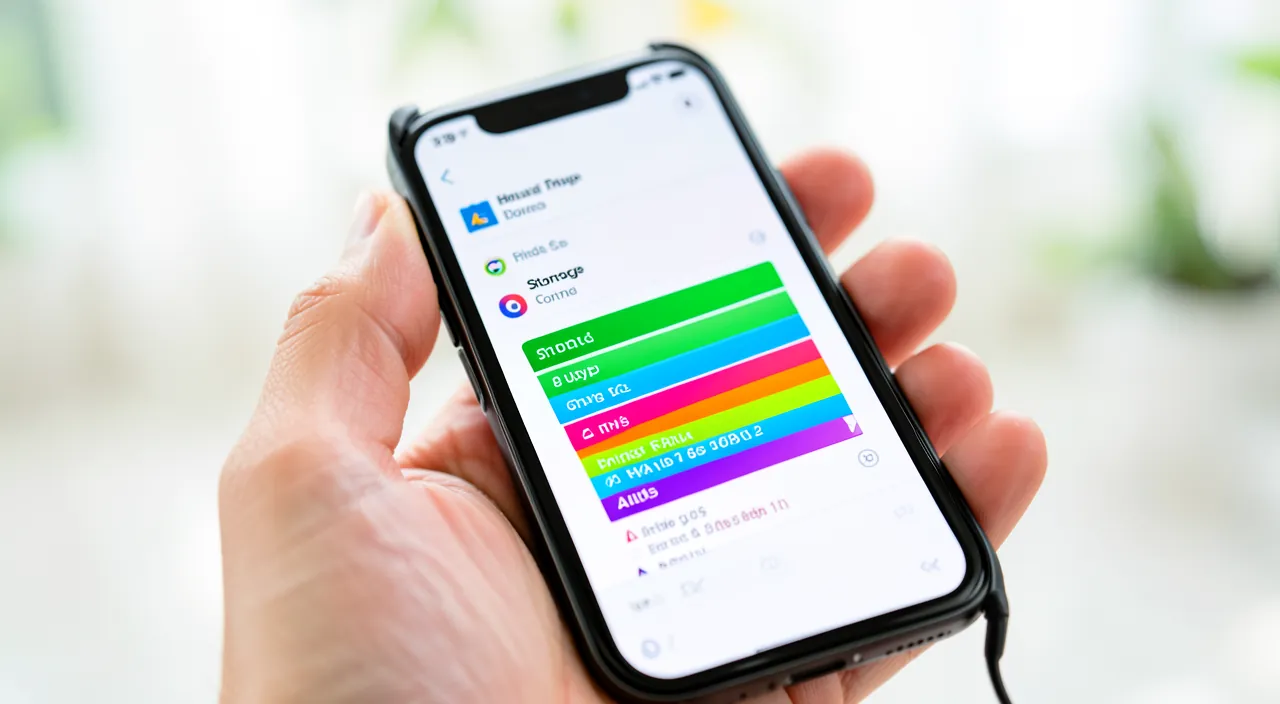
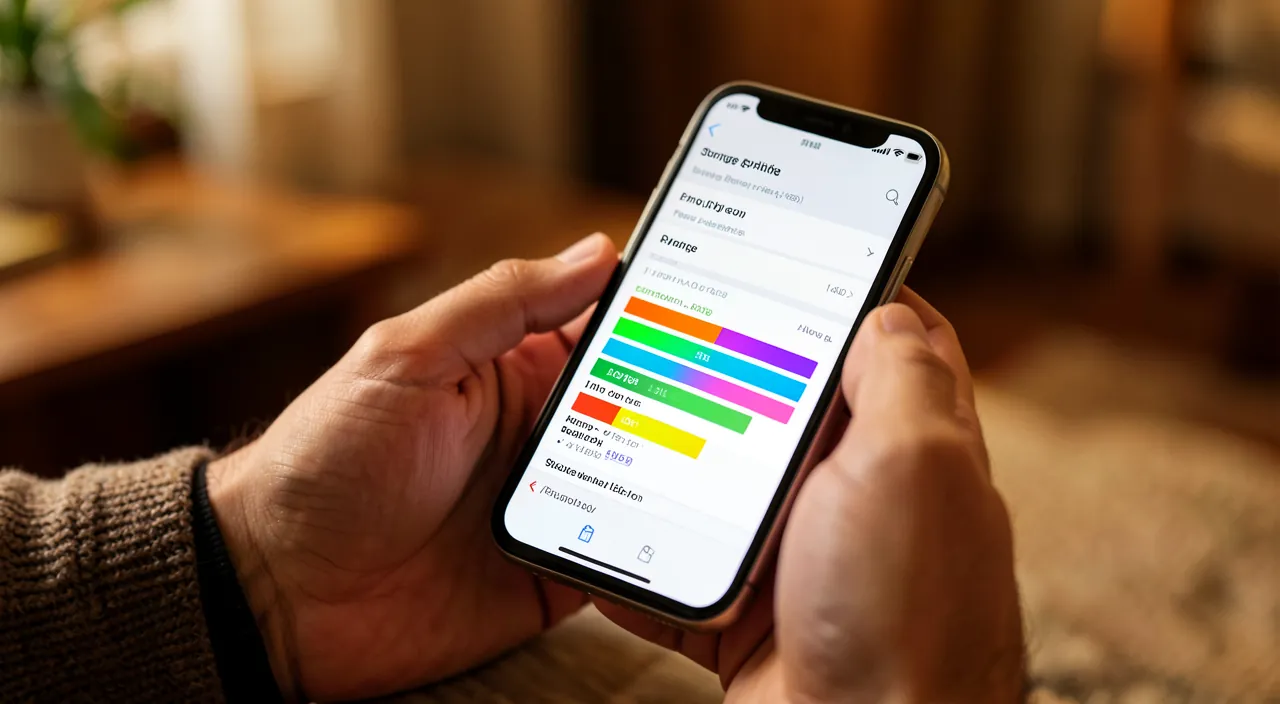
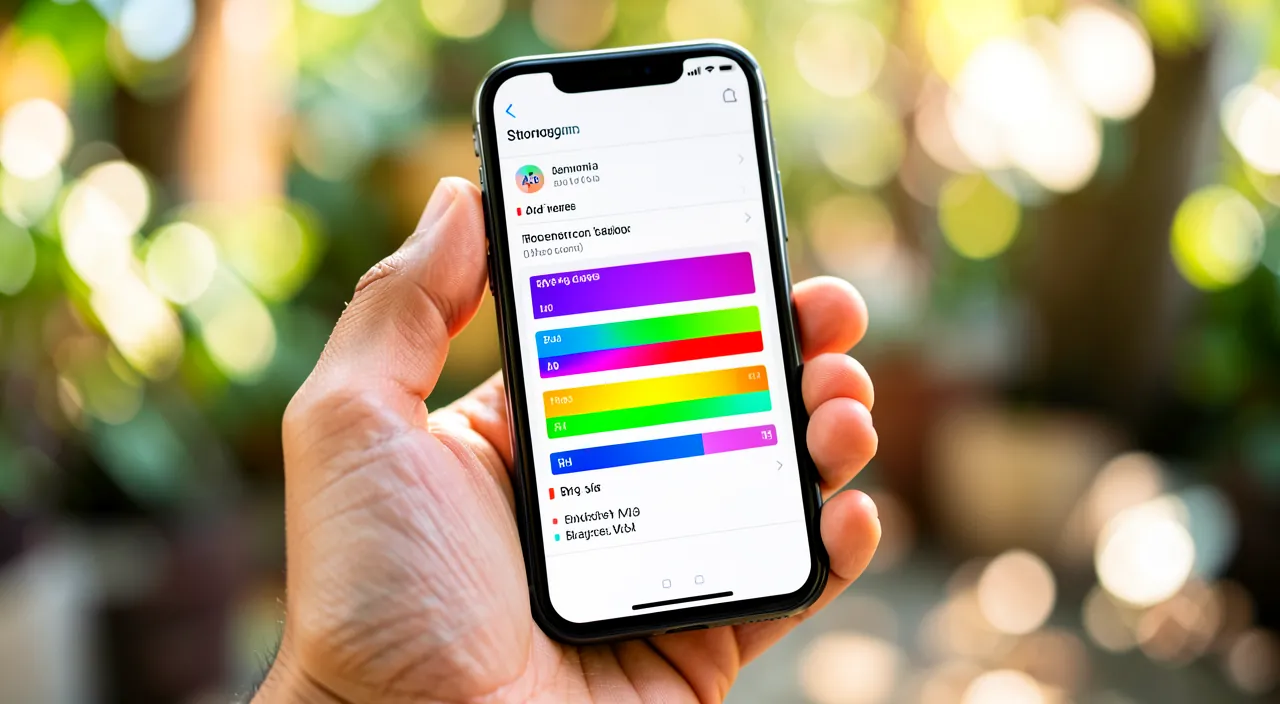
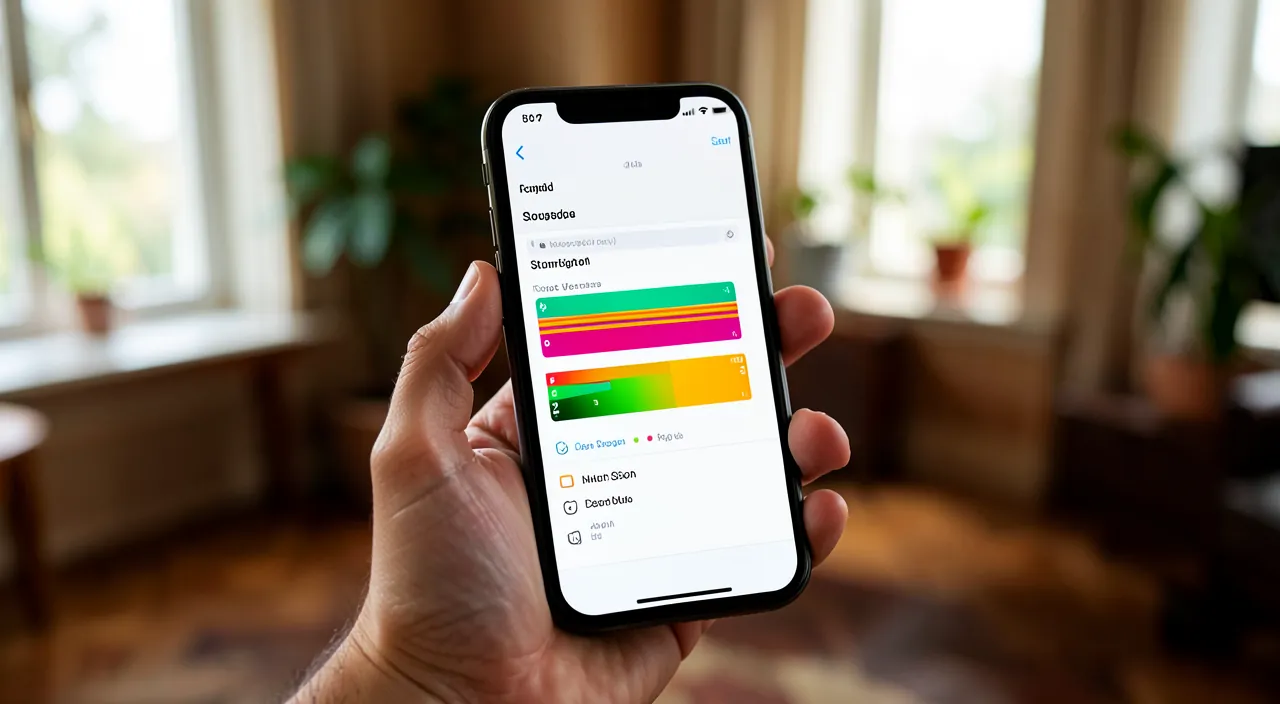
Before cleaning up, you need to know what’s taking up space; the iPhone shows you. The STORAGE TOOL: the iPhone has a tool (in settings, « iPhone Storage ») that shows WHAT’S TAKING UP your space, by category and by app; this is the starting point; it reveals the biggest items; always start here (we’ll come back to it). PHOTOS and videos, main culprit #1: in the vast majority of cases, PHOTOS and especially VIDEOS take up the most space; they accumulate quickly and weigh heavily (especially videos); this is often where the problem lies; look at them first. APPS and their data: the apps themselves, and especially their DATA (messaging full of media, games, streaming with downloaded content) take up a lot; some apps are very resource-heavy; identify them. MESSAGES and attachments: conversations accumulate photos, videos, received voice messages; over the years, this weighs heavily; a often large and overlooked item; keep an eye on it. The CACHE and temporary files: apps keep temporary data (cache) that accumulates; sometimes classified as « other » or « system »; you can often clean them up; a discreet item. DOWNLOADS and files: downloaded files, documents, offline content (podcasts, music, downloaded videos) take up space; you forget about them; a quick sort often frees up space; check this. The SYSTEM: the operating system takes up a normal and uncompressible portion; this is partly unavoidable (the iPhone needs space to function); don’t try to delete it; this is normal. The « OTHER » category: a « other/system » category groups caches, various data; it may seem large and mysterious; partly normal, partly cleanable (cache); don’t worry too much about it. View by APP: the storage tool lists apps by size (the app + its data); you spot the most resource-heavy ones; target them for cleaning; the list guides your efforts. DON’T guess: instead of deleting randomly, LOOK at what’s really taking up space (via the tool); act on the biggest items; measuring before acting is much more effective (we’ll come back to it). What this SERVES to understand: knowing that photos/videos and app data are the main culprits helps you target cleaning on the biggest items rather than deleting small, useless things. The key idea: before cleaning up, understand what’s filling your iPhone using the built-in tool (settings → « iPhone Storage »), which shows what’s taking up your space by category and by app. In the vast majority of cases, PHOTOS and especially VIDEOS are the main culprit #1 (they accumulate quickly and weigh heavily); then come the APP DATA (messaging full of media, games, streaming with downloaded content), accumulated MESSAGES and their attachments, the CACHE and temporary files, and forgotten DOWNLOADS. The SYSTEM takes up a normal and uncompressible portion that you shouldn’t try to delete, and the « other » category (caches, various data) is partly normal, partly cleanable. The key is not to delete randomly, but to MEASURE first what’s really taking up space, to then target the biggest items. Understanding where the space goes is the first step to effective cleaning.
Your iPhone shows exactly what’s using up storage in its settings. Photos and videos usually take up the most space, followed by apps and their data. The “Other” category contains temporary files that can sometimes be cleaned. Always check what’s taking up space before deleting anything.
If your iPhone shows 128GB used with 100GB from photos, 15GB from apps, and 10GB from messages, you should first delete some old videos (which take up much more space than photos) and then clean up your message attachments. This targeted approach will free up space much faster than deleting random files.
How to intelligently free up space
Here’s how to recover space efficiently, without losing what matters. CHECK the storage tool first: go to settings, « iPhone Storage »; identify the biggest items and apps; the iPhone often provides AUTOMATIC RECOMMENDATIONS to free up space; follow them; start by measuring and following the advice. SORT PHOTOS and videos: the biggest item; delete blurry photos, duplicates, and especially VIDEOS you don’t keep (they take up the most); this sort frees up a lot; start with useless videos; guaranteed big gain. Use « OPTIMIZE » photos: enable the option that keeps your photos in full quality in iCloud and LIGHTWEIGHT versions on the iPhone; you keep all your photos accessible, but they take up less local space; a very effective trick (we’ll come back to it). EMPTY « recently deleted »: photos « deleted » remain for 30 days in a « recently deleted » album and still take up space; empty this album to really free up space; a classic trap; don’t forget this step. UNLOAD unused apps: the iPhone can « unload » rarely used apps (deletes the app but keeps your data; reinstallable with a gesture); or just delete those you don’t use anymore; free up space. MANAGE resource-heavy apps: for large apps (messaging, streaming), clear their cache, delete useless received media, manage offline downloaded content; target the resource-heavy ones identified by the tool; a big gain possible. CLEAN MESSAGES: delete old heavy conversations (full of photos/videos), set messages to not keep them indefinitely; message attachments take up a lot; a cleanup frees up space. DELETE downloads: delete files, podcasts, music, downloaded videos you no longer need; offline content takes up space; a quick sort recovers space; check this. USE iCLOUD or storage: put your large photos/files in iCloud or on another storage, lightening them locally; check our iCloud guides; the cloud offloads the iPhone; a durable solution. RESTART to clean the cache: restarting the iPhone cleans some temporary caches; a simple gesture that can recover a bit of space (« other »); worth trying; it doesn’t cost anything. In summary, to intelligently free up space: FIRST CHECK the « iPhone Storage » tool (and follow its automatic recommendations), then SORT your photos and especially your VIDEOS (the biggest item), enable the « OPTIMIZE » photos option (keeps everything in iCloud, lightens local storage), EMPTY the « recently deleted » album (photos there take up space for 30 days), UNLOAD or delete unused apps, manage resource-heavy apps (cache, media, offline content), clean old heavy MESSAGES and forgotten DOWNLOADS, and use iCloud to offload the iPhone. Restart to clean some caches. This targeted approach recovers a lot of space without losing anything important; the storage tool, video sorting, and photo optimization are the keys.
The queen trick: « optimize » photos to keep all your memories without saturating the iPhone. Since photos and videos are almost always what fills up the iPhone the most, and you really don’t want to lose them, there’s a particularly precious trick that elegantly solves this dilemma: the photo storage OPTIMIZATION option (linked to iCloud). The usual problem is as follows: you accumulate thousands of photos and videos over the years, each in full quality (therefore heavy), and all stored on the iPhone, which eventually becomes saturated. You then hesitate to delete, for fear of losing memories. The « Optimize Storage » option offers an ingenious solution. Its principle: your photos and videos, in FULL QUALITY, are securely stored in iCloud (Apple’s online storage), while your iPhone only keeps LIGHTWEIGHT versions (smaller in size) of the least recent photos. Result: ALL your photos remain visible and accessible on your iPhone as usual — you lose nothing, you see your entire photo library — but they take up MUCH LESS local space. When you open an old photo in full size, the iPhone automatically retrieves its full-quality version from iCloud (you just need an internet connection at that moment). It’s the best of both worlds: you keep all your memories, without them saturating your phone. This option is found in the Photos settings (an option of the type « Optimize iPhone Storage », as opposed to « Download and Keep Originals »). For many people, enabling it instantly frees up a considerable amount of space, without deleting a single photo. Two important clarifications for proper use. First, this trick relies on iCloud: your full-quality photos being stored online, you need enough iCloud space for your entire photo library (the free space is modest; a small iCloud+ subscription may be necessary if you have a lot of photos). Your photos « leave » the iPhone in part to live in iCloud — which is exactly the point. Then, keep in mind that, in this system, iCloud becomes the repository of your originals: for your truly irreplaceable memories, it remains wise to keep an ADDITIONAL COPY elsewhere (on a computer or external drive), in addition to iCloud, to never depend on a single place. Beyond this trick, two reflexes effectively complement the photo cleanup: SORT and especially delete USEFUL VIDEOS (they weigh much more than photos; deleting a few long videos you never watch frees up a lot of space at once), and never forget to EMPTY the « recently deleted » album (deleted photos and videos remain there for 30 days and continue to take up space as long as you don’t empty it — a classic trap that makes you think « deleting doesn’t free up anything »). By combining photo optimization (to keep all your memories lightened), video sorting (for big gains), and emptying « recently deleted » (to really free up space), you recover a lot of space while preserving all your photos: this is the key to never again seeing the « full storage » message because of your memories.
Avoid running out of space again
A one-time cleanup isn’t enough; a few habits keep space free durably; here are the ones to adopt. MANAGE your photos regularly: sort your photos and videos from time to time (delete blurry ones, duplicates, useless videos); don’t let years accumulate without sorting; regular maintenance prevents saturation; make it a habit. USE optimization and iCloud: keep the « optimize photos » option enabled and your memories in iCloud; the iPhone stays lightened durably; the best protection against storage full due to photos; maintain this setting. MONITOR resource-heavy apps: keep an eye on large apps (messaging, streaming); clear their cache and manage their content regularly; they grow back; monitor them. UNINSTALL what you don’t use: regularly delete apps you no longer use; don’t keep forgotten apps that take up space; regular sorting lightens; do some sorting. KEEP a MARGIN: don’t let the iPhone fill up to the brim permanently; always keep some free space; a full iPhone slows down and prevents photos, updates; a margin is healthy (we’ll come back to it). MANAGE downloads: delete podcasts, music, videos downloaded after consuming them; don’t let them accumulate; offline content is forgotten; clean them regularly. SET UP messages: set messages to not keep conversations and attachments indefinitely (automatic deletion after a delay, if you wish); this prevents accumulation; a preventive setting; to consider. MAKE backups: beyond space, back up your iPhone (iCloud or computer); thus, your data is protected and you can lighten the iPhone serenely; check our backup guides; backup secures. A PERIODIC cleanup: check the storage tool from time to time; do a small regular cleanup rather than a big one when it’s saturated; regularity prevents emergencies; anticipate. ANTICIPATE before a need: before a trip (lots of photos), an update, or an installation, check your space and make room in advance; avoid the « full storage » at the wrong time; anticipate needs. In summary, to avoid running out of space again: manage your PHOTOS regularly (sort, delete useless videos), keep PHOTO OPTIMIZATION and iCloud enabled (the iPhone stays lightened durably), monitor resource-heavy apps, uninstall what you don’t use, always keep a MARGIN of free space, clean downloads and set up messages, make BACKUPS (to lighten serenely), and do a small periodic cleanup rather than a big one in an emergency. Anticipate before a trip or an update. These habits maintain space durably and a fluid iPhone; photo management, iCloud optimization, and regular maintenance are the keys.
Warning: don’t delete your memories without backing them up, and beware of the « recently deleted » album trap. Two points of vigilance will prevent you from losing precious memories or getting discouraged unnecessarily when cleaning up. The first, essential: NEVER delete your precious photos and videos without making sure they are BACKED UP elsewhere. The pressure of « full storage » can push you to massively and quickly delete to make room — and that’s where irreplaceable memories are lost. Before deleting photos or videos, always ask yourself: « is there a copy elsewhere ? ». If your photos are synced with iCloud, beware of an important trap: with sync, deleting a photo on the iPhone also deletes it from iCloud and all your devices (this is not a « backup » that protects you from your own deletions). To really secure your memories, the good practice is to have an INDEPENDENT copy — on a computer, an external drive, or another service — BEFORE cleaning up. The ideal is to regularly transfer your photos to such storage: thus, you can lighten the iPhone with peace of mind, knowing that nothing is lost. The distinction is crucial: the « optimize storage » option (which keeps your photos in iCloud while lightening local storage) does NOT DELETE your photos, it intelligently moves them; on the other hand, « deleting » a photo really erases it. Don’t confuse lightening (without loss) and deleting (definitive). If you’re in doubt about a photo, don’t delete it; or first check that it exists in a copy elsewhere. The second point of vigilance, more technical but very common: the trap of the « RECENTLY DELETED » album. Many people clean up, delete hundreds of photos and videos to free up space… and notice with annoyance that their storage hasn’t moved much at all! The reason: on iPhone, when you « delete » a photo or video, it doesn’t disappear immediately — it is placed in a « Recently Deleted » album, where it stays for 30 DAYS (a security that allows you to recover an accidental deletion), and during all this time, it CONTINUES to take up storage space. As long as you don’t empty this album, you haven’t freed up anything at all! The essential reflex after deleting photos is therefore to go to the « Recently Deleted » album and EMPTY it (definitely delete its content) to really recover space. Be careful, however, this emptying is definitive: make sure one last time that you don’t want to recover anything from it before emptying it (it’s exactly the opportunity to check that you haven’t deleted something by mistake). This double logic — « delete » puts in the trash, « empty the trash » really frees up — explains most of the « I deleted a lot of things but it doesn’t free up anything ». In summary: before deleting memories, make sure they are backed up elsewhere (an independent copy, because iCloud sync doesn’t protect you from your own deletions), don’t confuse « lighten » (optimize, without loss) and « delete » (definitive), and never forget to EMPTY the « recently deleted » album to really free up space. With these precautions, you clean up efficiently and safely, without ever losing what matters.

Frequent questions
How to free up space without losing my photos?
Enable the « optimize storage » option (keeps your photos in iCloud while lightening local storage), or transfer your photos to a computer/external drive before removing them from the iPhone: you keep all your memories. Let’s detail. The « OPTIMIZE » trick: the best solution; enable the « optimize iPhone storage » option (in the Photos settings); your photos remain in full quality in iCloud, the iPhone only keeps lightweight versions; you see ALL your photos, but they take up less space; without losing anything. How it WORKS: all your photos remain visible and accessible on the iPhone; when you open one in full size, the iPhone retrieves the full-quality version from iCloud; you keep everything, lightened; the best of both worlds. Plan for iCLOUD SPACE: this trick keeps your photos in iCloud; you therefore need enough iCloud space for your entire photo library; the free space is modest, a small iCloud+ subscription may be necessary; check your iCloud space. TRANSFER to a computer: another solution; transfer your photos to a COMPUTER or an EXTERNAL DRIVE, then remove them from the iPhone; you keep your photos safe elsewhere, the iPhone is lightened; check our photo transfer guides; a reliable method. KEEP a COPY before deleting: the golden rule; only delete photos from the iPhone after making sure they exist elsewhere (iCloud, computer, drive); thus, « freeing up space » never means « losing »; back up before. SORT useless VIDEOS: you can delete without regret useless videos, duplicates, unnecessary captures; those, you won’t miss; sorting the superfluous frees up space without losing memories; distinguish precious and superfluous. Beware of SYNCHRONIZATION: if your photos are synced with iCloud, deleting on the iPhone erases everywhere; to keep, you need an INDEPENDENT COPY; don’t count on sync as a backup; keep a separate copy of the precious. EMPTY « recently deleted »: after sorting, empty the « recently deleted » album to really free up space; otherwise, deleted photos still take up space for 30 days; the step not to forget. The ADVICE: enable « optimize storage » (keeps everything in iCloud, lightens the iPhone) and/or transfer your photos to a computer/drive before removing them; sort the superfluous (useless videos) without fear, keep a copy of the precious, and empty « recently deleted ». In summary, to free up space WITHOUT losing your photos, the best solution is to enable the « OPTIMIZE iPhone storage » option (in the Photos settings): your photos and videos remain in full quality in iCloud, while the iPhone only keeps lightweight versions; you continue to see ALL your photos (the iPhone retrieves the full quality from iCloud when you open one), but they take up much less space — without deleting anything. This trick requires enough iCloud space for your entire photo library (a small iCloud+ subscription may be useful). An alternative, or a complement, is to TRANSFER your photos to a computer or an external drive, then remove them from the iPhone: your memories are kept elsewhere, and the iPhone is lightened. The golden rule in all cases: only delete photos from the iPhone AFTER making sure they exist in a copy elsewhere — and beware, if your photos are synced with iCloud, deleting on the iPhone erases them everywhere (sync is not a backup against your own deletions), hence the importance of an independent copy for precious memories. You can, however, delete without fear the obvious superfluous (useless videos, duplicates, unnecessary captures). And never forget to EMPTY the « recently deleted » album afterwards to really free up space. With these methods, you recover space while keeping all your memories.

What is the « Other » or « System » category that takes up space?
It’s a set of caches, temporary files, and system data; partly normal and uncompressible, partly cleanable; a restart and cleaning app caches can reduce it. Let’s explain. What it is: the « Other » (or « System ») category groups various data; APP CACHES, temporary files, system data, iPhone operating elements; a « catch-all » technical; hence its mysterious aspect. Partly NORMAL: part of this space is normal and uncompressible; the iPhone needs system data, caches to function; don’t try to delete everything; it’s partly unavoidable; don’t worry too much. Partly CLEANABLE: another part (accumulated caches, temporary files) can be cleaned; that’s where you can recover some space; without it being huge; the cleanable part is limited but real. RESTART the iPhone: a restart cleans some temporary caches and can reduce this category a bit; a simple gesture to try; it doesn’t cost anything; the restart helps. Clear APP CACHES: app caches (browser, streaming, messaging) feed « other »; clear them (in the app settings or by managing them); this reduces this category; target the large apps. Don’t OBSSESS: no need to obsess over « other »; the bulk of the cleanup is on photos/videos and app data (much more voluminous); focus your efforts where there’s the most to gain; « other » is secondary. The case of a HUGE « Other »: if « other » is abnormally large, an app cache may have run wild; identify the resource-heavy app, clear its cache or reinstall it; an abnormally large « other » signals an app to treat; investigate. An UPDATE may help: sometimes, system updates manage these data better and reduce « other »; keep the iPhone up to date; software updates optimize; update. Don’t DELETE risky files: don’t try to delete system files you don’t understand to reduce « system »; you might destabilize the iPhone; leave the system alone; act on the caches, not the system. The ADVICE: « other/system » is a mix of caches and system data, partly normal; reduce it by restarting and clearing app caches, without obsessing; the real cleanup is on photos and apps. In summary, the « Other » (or « System ») category that appears in iPhone storage groups a set of various data: APP CACHES, temporary files, and system data necessary for the iPhone’s operation. It has a mysterious aspect because it’s a « catch-all » technical, but there’s no need to worry too much: part of it is perfectly NORMAL and uncompressible (the iPhone needs these data to function, and you should never try to delete system files you don’t understand). Another part, however, is CLEANABLE: it’s mainly the accumulated caches. To reduce it, two simple gestures: RESTART the iPhone (this cleans some temporary caches), and clear the CACHES of resource-heavy apps (browser, streaming, messaging), which feed the most into this category. That said, don’t obsess over it: the bulk of the cleanup is always on PHOTOS and VIDEOS and on APP DATA, much more voluminous — that’s where there’s the most to gain. If « other » is abnormally huge, it’s probably because an app cache has « run wild »: identify the app in question (via the storage tool) and clear its cache or reinstall it. Keeping the iPhone up to date also helps, as updates often manage these data better. In short, « other » is partly normal and doesn’t deserve to be obsessed over: a restart, clearing app caches, and focusing on the real big items are enough.
What to do when storage is full just before taking a photo or an update?
Free up space quickly: delete a few large useless videos (immediate gain), empty « recently deleted », unload a large app; then anticipate to not be caught off guard. Let’s see the quick actions. The URGENT need: the « full storage » at the wrong time (taking a photo, installing, updating) requires freeing up space QUICKLY; a few quick actions often suffice; act targeted. Delete a few VIDEOS: the fastest gain; delete one or two large USEFUL VIDEOS (they take up the most); you free up a lot at once; videos are the most effective lever in an emergency; start with that. EMPTY « recently deleted »: if you’ve already deleted things recently, empty the « recently deleted » album; you immediately recover the space from these deletions; a quick gain often forgotten; check it. UNLOAD a large app: temporarily unload a large app you’re not using right now (keeps your data, reinstallable later); you free up its size without losing your data; a quick fix; reinstall later. Follow RECOMMENDATIONS: the « iPhone storage » tool offers quick recommendations to free up space; follow one or two; the iPhone guides you to easy gains; use these suggestions. DELETE a download: delete a large downloaded content (movie, podcast, offline music) that you’ve already consumed; immediate gain; downloads are easy to remove; target them. For an URGENT photo: to just take THE photo, deleting a few items is enough to unlock; then do a real cleanup later; fix on the spot, clean up afterwards; two steps. For an UPDATE: an update often requires more temporary space; free up enough space (several items), or perform the update via a computer (which sometimes bypasses the space need); ensure the necessary space. ANTICIPATE next time: after fixing, implement the habits (optimize photos, regular cleanup, space margin) to not be caught off guard; anticipation prevents emergencies; learn the lesson. The ADVICE: in an emergency, delete a few large useless videos (quick gain), empty « recently deleted », unload a large app or delete a download; then anticipate with good habits to avoid it happening again. In summary, when storage is full just at the moment of taking a photo, installing an app, or performing an update, you need to quickly free up some space, and a few targeted actions usually suffice. The fastest and most effective gain: delete one or two large USEFUL VIDEOS (they take up the most, so deleting a few frees up a lot at once). Then, EMPTY the « recently deleted » album (you immediately recover the space from your past deletions, often forgotten), UNLOAD a large app you’re not using at the moment (this frees up its size while keeping your data, reinstallable later), or delete a large DOWNLOADED CONTENT already consumed (movie, podcast, offline music). The « iPhone Storage » tool also offers QUICK RECOMMENDATIONS to follow. To just take an urgent photo, deleting a few items is enough to unlock; for an update (which often requires more temporary space), free up more space, or go through a computer that sometimes bypasses this need. Once the fix is done, learn from it and implement good habits (enable photo optimization, do regular cleanup, always keep a margin of free space): this is how you avoid being blocked again at the worst moment. Fix on the spot, anticipate for next time.
What to remember
The « almost full storage » message on the iPhone is frustrating, but cleaning up is simple once you know where to look — and the iPhone itself helps you. The first step is to UNDERSTAND what’s taking up space using the built-in tool (settings → « iPhone Storage »), which shows the biggest items by category and by app, and provides recommendations. Never delete randomly: MEASURE first, then target. In the vast majority of cases, PHOTOS and especially VIDEOS are the main culprit #1; then come the DATA of resource-heavy apps (messaging, streaming), accumulated MESSAGES, the CACHE and forgotten DOWNLOADS. The SYSTEM takes up a normal and uncompressible portion that you shouldn’t touch. To intelligently free up space: the queen trick is to enable the « OPTIMIZE storage » option for photos, which keeps all your memories in full quality in iCloud while only keeping lightweight versions on the iPhone — you see all your photos, but they take up much less space, without deleting anything (this requires enough iCloud space). Complete with sorting USEFUL VIDEOS (the most effective lever, as they take up the most), unloading unused apps, managing resource-heavy apps (cache, media), cleaning messages and downloads. Two essential points of vigilance. First, NEVER delete your precious memories without making sure they exist in an INDEPENDENT COPY elsewhere (computer, external drive) — because if your photos are synced with iCloud, deleting on the iPhone erases them everywhere (sync doesn’t protect you from your own deletions). Don’t confuse « lighten » (optimize, without loss) and « delete » (definitive). Then, beware of the trap of the « RECENTLY DELETED » album: deleted photos remain there for 30 days and continue to take up space as long as you don’t empty it — hence the famous « I deleted a lot of things but it doesn’t free up anything ». Always empty this album to really free up space (it’s also the opportunity to check one last time that you haven’t deleted anything by mistake). To no longer run out of space: manage your photos regularly, keep optimization and iCloud enabled (the iPhone stays lightened durably), monitor resource-heavy apps, uninstall what you don’t use, always keep a margin of free space, make backups, and anticipate before a trip or an update. In an emergency (storage full at the wrong time), quickly delete a few large videos, empty « recently deleted », or unload a large app. In short, cleaning up your iPhone’s storage is nothing complicated: first measure where the space goes, act on the biggest items (especially photos and videos), use optimization to keep all your memories without saturating, protect the precious before deleting, and don’t forget to empty the trash. With these reflexes, the « full storage » message will be just a bad memory, and your iPhone will keep space and fluidity.
Want to unlock the full potential of your iPhone, iPad, or Mac? Our Apple training courses take you to the next level.
Leave a Reply
You must be logged in to post a comment.