
Long seen as a leisure device — watching videos, reading, playing — the iPad has become a genuine work tool for many: writing, managing emails, taking notes, drawing, creating presentations, or even replacing the computer for certain uses. With a keyboard, a stylus, and a few good features (multitasking, gestures, apps), it can transform into a lightweight and versatile workstation. You just need to know its possibilities… and its limits. Here’s how to work efficiently on iPad, what it really allows, and in which cases the computer remains preferable.
What makes the iPad a work tool
The iPad combines several strengths that make it, for many uses, a credible work tool. Its VERSATILITY: touchscreen, lightweight, long battery life, but also capable of serious tasks; it adapts to many situations. The ACCESSORIES that change everything: a KEYBOARD (physical) transforms the iPad for comfortable typing (emails, texts, documents); a STYLUS allows handwriting, drawing, annotating; these accessories shift the iPad from leisure to work. MULTITASKING: you can display multiple apps at once (side by side, in a window); for example, write a document while consulting a webpage or your emails; this brings the iPad closer to a computer. GESTURES: finger gestures allow quick navigation between apps, returning to the home screen, switching; once mastered, they streamline work. APPS: many productivity apps exist: word processing, spreadsheets, presentations, note-taking, task management, drawing, editing; many are powerful. HANDWRITTEN NOTE-TAKING: with the stylus, the iPad excels at handwritten notes, document annotations, drawing (see our guide on Notes); a real asset for students, creatives, and meetings. SYNCHRONIZATION: the iPad syncs with your other Apple devices (your files, notes, emails follow you). MOBILITY: lightweight, with good battery life, it’s easy to carry; ideal for travel, meetings, or public transport. FOR WHAT USES? Writing, managing emails, taking notes, drawing and creating, making and presenting presentations, consulting and annotating documents, managing tasks, browsing; for many, this covers the basics of everyday work. What is it for? TO WORK on the go (lightweight, autonomous); to TAKE notes and draw (stylus); to REPLACE the computer for certain uses; and to enjoy a versatile tool. The key idea: the iPad, often seen as just a leisure device, has become a genuine lightweight and versatile work tool — especially when equipped with a KEYBOARD and a STYLUS. Thanks to multitasking, gestures, and many productivity apps, it allows writing, managing emails, taking handwritten notes, drawing, presenting — and replacing the computer for many everyday uses, while benefiting from its mobility. However, it has its limits, which we’ll come back to: for certain tasks, the computer remains preferable. Knowing the strengths AND limits of the iPad helps you know when it’s enough, and when the computer is better.
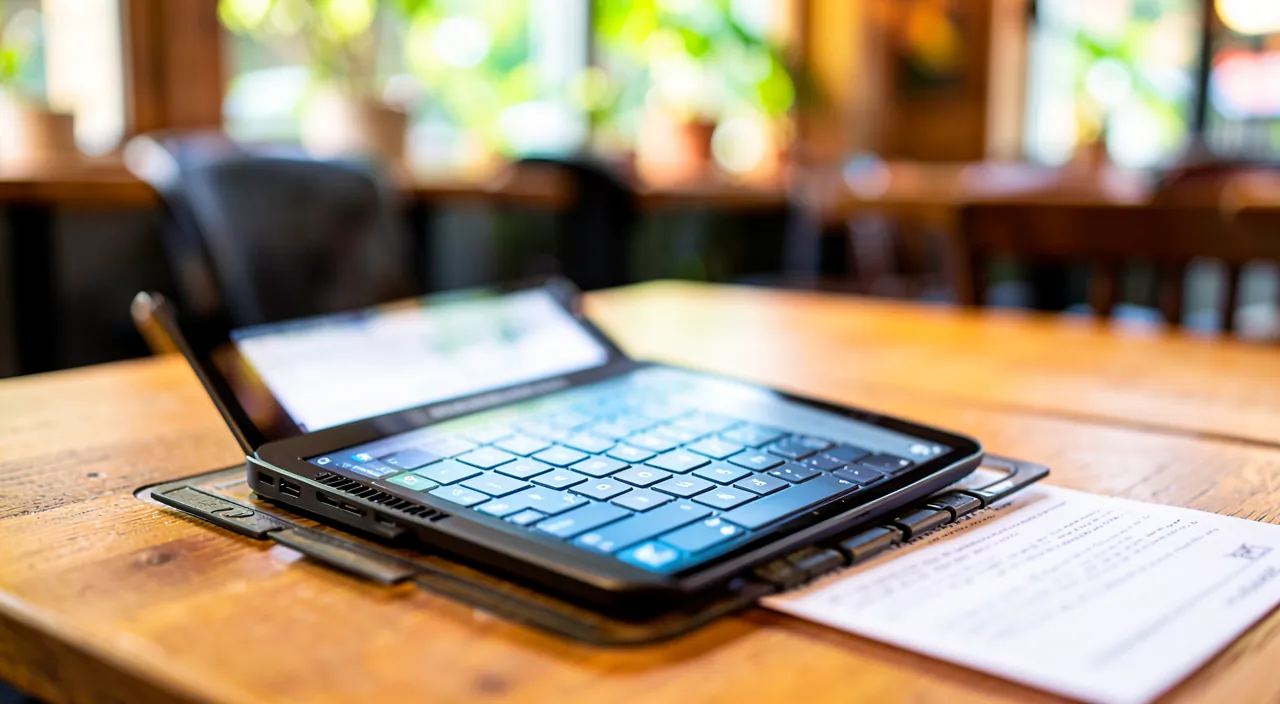
The iPad can do many work tasks like a computer, but it’s not as powerful. It’s great for writing, notes, and presentations, but struggles with complex files and special software. Think of it as a lightweight helper, not a full replacement.
A graphic designer might use an iPad with stylus to sketch concepts on the go, but switch to a MacBook for finalizing large Photoshop files with multiple layers. The iPad handles the creative brainstorming, while the computer manages the heavy processing.
How to work efficiently on iPad
Here’s how to get the most out of the iPad for work. Get a KEYBOARD — for anything that involves typing (emails, texts, documents), a physical keyboard changes everything: much more comfortable and faster than the on-screen keyboard; it’s the number one accessory for work. Add a STYLUS if useful — if you take handwritten notes, annotate documents, or draw, a stylus unlocks the full potential of the iPad; essential for creatives, students, and note-taking. Master MULTITASKING — learn to display multiple apps at once (side by side): write while consulting a source, manage emails while keeping a document open; this multiplies your efficiency. Learn the GESTURES — a few finger gestures (return to home, switch between apps, open the app selector) greatly streamline work; take the time to learn them. Choose good PRODUCTIVITY APPS — install apps tailored to your needs: word processing, spreadsheets, presentations, note-taking, task management; many are excellent and cover most uses. Organize your FILES — use the file management app to store and retrieve your documents; take advantage of syncing with your other devices. Use KEYBOARD SHORTCUTS — with a keyboard, many shortcuts speed up work (copy-paste, switching, etc.), like on a computer. Use the STYLUS for notes and annotations — in meetings, classes, or to review a document, writing or annotating by hand on the iPad is very practical; your notes are digital, retrievable, shareable. Know the LIMITS — be realistic about what the iPad does less well than a computer (see below), to avoid being stuck on a task that would have been simple on a real computer. BACK UP and sync — make sure your work is backed up (cloud) and synced, to retrieve it on your other devices and not lose anything. A few TIPS: the keyboard is the key accessory for typing; master multitasking and gestures; and know the limits to avoid being stuck. In short: equip yourself with a keyboard (and a stylus if useful), master multitasking and gestures, choose good productivity apps, organize your files, use keyboard shortcuts, use the stylus for notes, and know the device’s limits. Thus equipped and mastered, the iPad becomes a lightweight and efficient workstation.
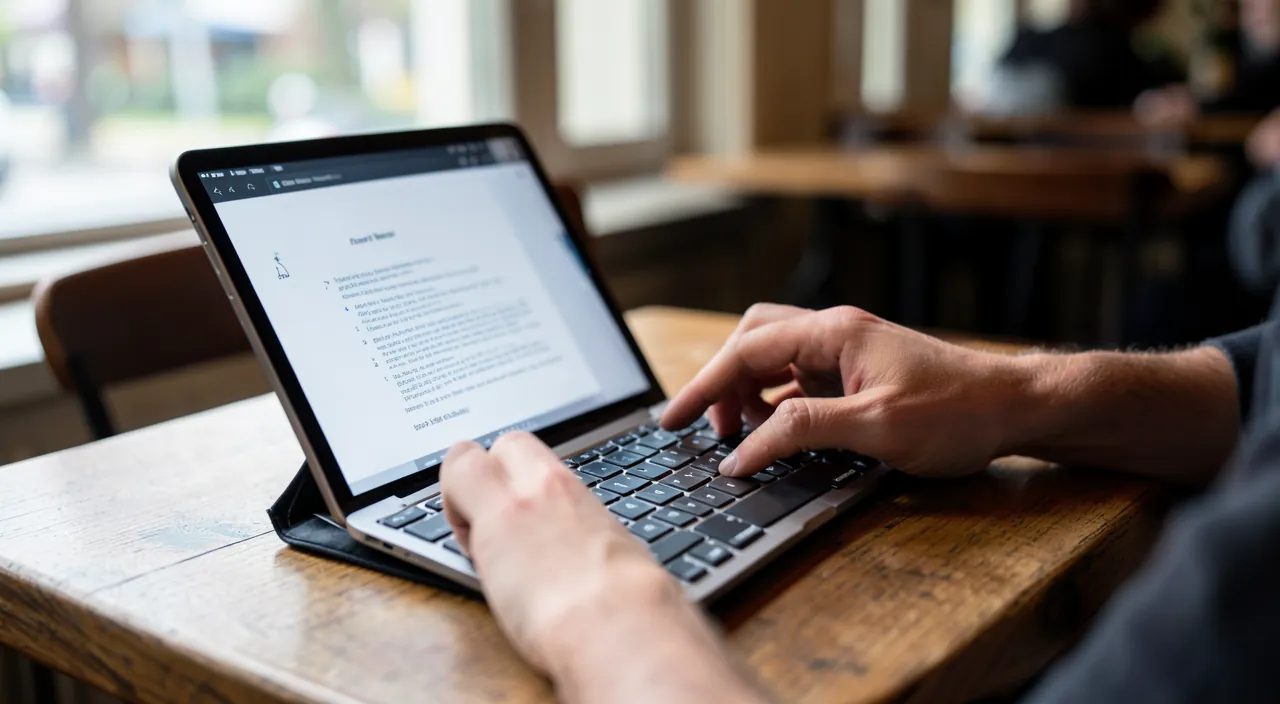
The right reflex. To transform your iPad from a simple leisure device into a genuine work tool, the most decisive investment is a PHYSICAL KEYBOARD. Typing for long periods on the on-screen keyboard is quickly tiring and slow; with a real keyboard, the iPad becomes comfortable for writing emails, texts, documents — almost like a laptop, but lighter. It’s the number one accessory for serious work. If your work involves taking handwritten notes, annotating documents, or drawing, add a STYLUS: it unlocks the unique potential of the iPad, that of writing and drawing directly on the screen, something no classic computer allows as naturally; it’s a major asset for students, creatives, and note-taking in meetings. Once equipped, two skills make all the difference in your efficiency. First, MULTITASKING: learn to display multiple apps side by side, for example, write a document while consulting a webpage or your emails, without constantly switching; this really brings the iPad closer to a computer. Then, GESTURES: a few finger movements (to return to the home screen, switch between apps, open the selector) greatly streamline navigation; take the time to learn them, they quickly become natural. Complete with good PRODUCTIVITY APPS tailored to your needs, and KEYBOARD SHORTCUTS that speed up work. But always keep in mind one last essential reflex: know the LIMITS of the iPad. It excels at many everyday tasks, but some work remains simpler, faster, or even only possible on a computer; knowing this prevents you from being stuck at the wrong time on a task that would have taken two minutes elsewhere. Keyboard for typing, stylus for notes, multitasking and gestures for efficiency, and clarity on limits: with these reflexes, the iPad becomes a lightweight, mobile, and surprisingly capable workstation — for most of your everyday work.
The limits: when the computer is still preferable
The iPad is capable, but it has limits you need to know to avoid bad surprises; in some cases, the computer is the better choice. FILE MANAGEMENT is more rigid: on the iPad, handling files (moving, organizing complex folders, managing multiple formats) is possible but often less flexible than on a computer; for work involving a lot of file management, the computer is more comfortable. SPECIFIC SOFTWARE: some professional software doesn’t exist on iPad, or only in a simplified version; if your work depends on specific software (advanced accounting, heavy editing, development, industry software), check that it works well on iPad, otherwise the computer is a must. COMPLEX WORK: for very complex tasks (large elaborate spreadsheets, long documents with advanced layout, intensive multitasking with many windows), a computer offers more power and comfort. COMPATIBILITY: some websites or services work better (or only) on a computer; you can be blocked on an online procedure designed for a computer. PERIPHERALS: connecting and using certain peripherals (specific printers, professional equipment, multiple screens) can be more limited on iPad. MULTITASKING, more limited: even if it improves, the iPad’s multitasking remains less flexible than a computer’s for juggling many windows. HABITS: switching from a computer to the iPad requires relearning certain ways of doing things; an adaptation period is normal. THE COST of accessories: to really work, you often need to add a keyboard and stylus, which increases the budget; take this into account. WHEN TO PREFER the iPad: mobility, handwritten note-taking, drawing, consulting, everyday writing, emails, presentations, simple tasks on the go. WHEN TO PREFER the computer: specific professional software, intensive file management, very complex work, maximum compatibility, demanding peripherals. The right usage: many people use the iPad AS A COMPLEMENT to the computer (the iPad for mobility and notes/drawing, the computer for heavy work), rather than as a total replacement; it’s up to you depending on your needs. In short: the iPad covers most everyday work, especially on the go, but it has limits (file management, specific software, complex work, compatibility); for these cases, the computer remains preferable; most often, the iPad complements the computer rather than replacing it entirely. Knowing these limits prevents you from relying on the iPad for a task it doesn’t handle well.
Warning: the iPad doesn’t replace the computer for everything — check that it covers YOUR needs before relying on it. The iPad has become a surprisingly capable work tool, but it would be reckless to believe it can replace a computer for absolutely everything; knowing its limits will avoid bad surprises, sometimes at the worst moment. The most important point: some PROFESSIONAL or industry SOFTWARE doesn’t exist on iPad, or only in a simplified version. If your work depends on specific software (advanced accounting software, heavy video editing, development, specific industry software, or even certain common professional tools), CHECK, BEFORE relying on the iPad, that it actually and fully works on it; otherwise, you risk being stuck, unable to complete an essential task. Similarly, FILE MANAGEMENT is more rigid on iPad; if your work involves handling many files, juggling various formats, or organizing complex folders, a computer will be much more comfortable. Also beware of COMPATIBILITY: some online procedures, websites, or services are designed for a computer and work poorly (or not at all) on iPad; it would be unfortunate to find yourself unable to complete an important online procedure because you only have the iPad at hand. Finally, for very COMPLEX work (long documents with elaborate layout, large spreadsheets, intensive multitasking with many windows) or the use of certain PERIPHERALS, the computer remains more powerful and flexible. The conclusion isn’t that the iPad is a bad work tool — on the contrary, it excels at many everyday and mobile uses — but that you need to HONESTLY assess whether it covers YOUR specific needs before making it your main tool. For most people, the best approach is to see the iPad as a COMPLEMENT to the computer (the iPad for mobility, note-taking, drawing, consulting, everyday writing; the computer for heavy work and specific software) rather than as a total replacement. Before leaving for a trip relying only on your iPad for important work, make sure it can really do everything you’ll need; this simple check will prevent you from being caught off guard. Knowing the limits means using the iPad for what it does best, and keeping the computer for the rest.
Frequently asked questions
Can the iPad replace a laptop?
For some people and some uses, yes; for others, no: it all depends on what you do. The iPad, especially equipped with a keyboard and a stylus, can perfectly cover the basics of everyday work for many people: writing emails and documents, taking notes, consulting and annotating, creating presentations, browsing, managing simple tasks. For someone whose work is limited to these uses, the iPad can indeed replace a laptop, with the added benefits of mobility, lightweight design, good battery life, and the ability to write or draw by hand with the stylus — an asset that no classic laptop offers as naturally. However, the iPad won’t suit as a sole device if your work requires: professional or industry software that doesn’t exist (or only in a limited version) on iPad; intensive and complex file management; very elaborate work (large spreadsheets, long documents with advanced layout); maximum compatibility with websites or services designed for a computer; or certain demanding peripherals. In these cases, a computer remains indispensable. To decide, the right approach is to honestly assess YOUR real needs: list what you do daily, and verify that the iPad can accomplish everything (especially that your essential software exists and works well on it). Many people find that the best solution isn’t to choose one OR the other, but to use the iPad AS A COMPLEMENT to the computer: the iPad for mobility, notes, reading, everyday writing; the computer for heavy work and specific software. In short, the iPad can replace a laptop for everyday and mobile uses, but not for everything: check that it covers your needs before making it your sole device, and don’t hesitate to see it as a complement rather than a total replacement.
What accessories for working on iPad?
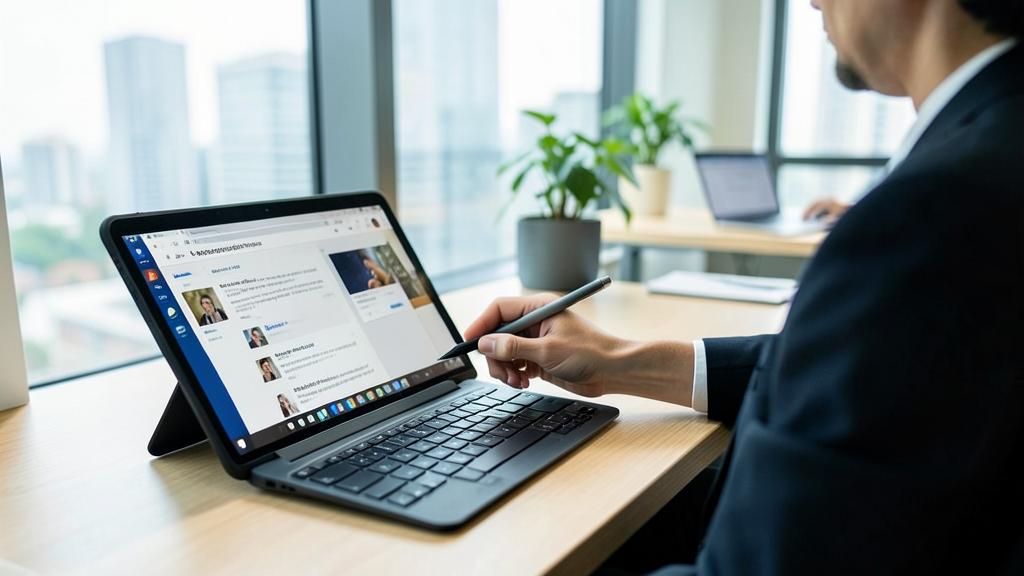
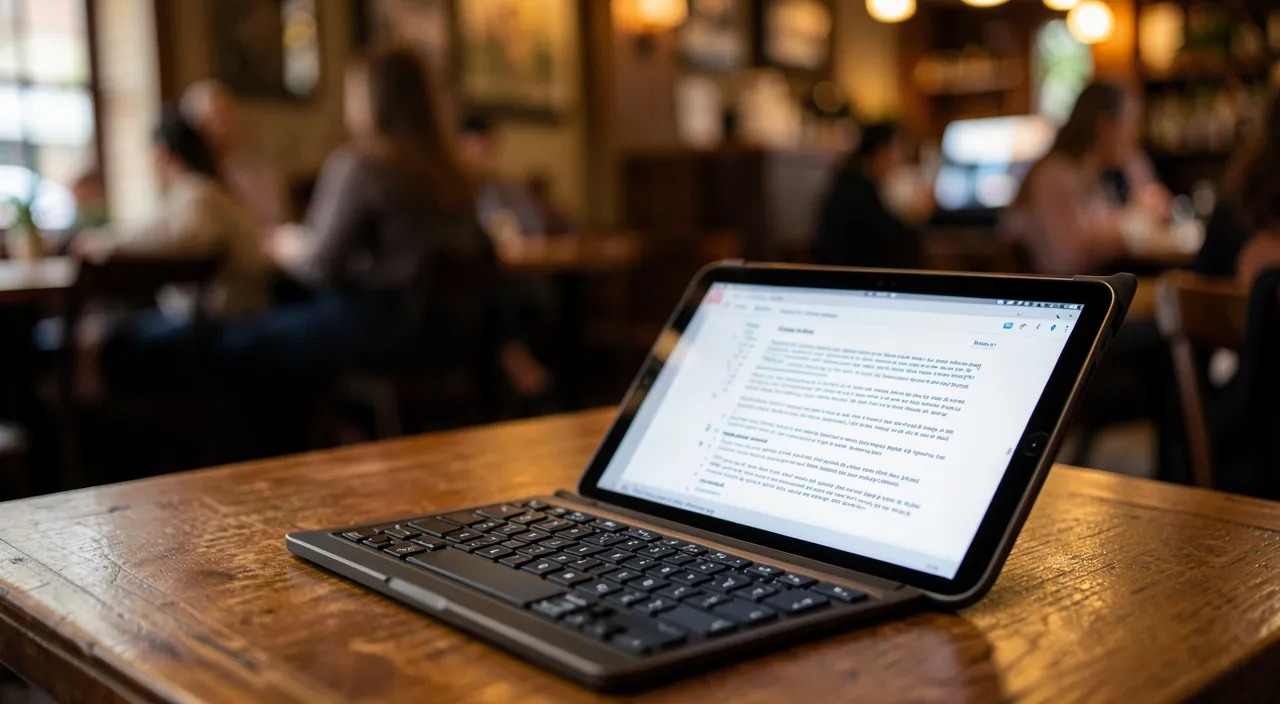
Two accessories truly transform the iPad into a work tool: the keyboard and the stylus; their usefulness depends on what you do. The KEYBOARD is the number one accessory for anyone who needs to TYPE (emails, texts, documents, anything that involves typing a lot). Typing for long periods on the on-screen keyboard is slow and tiring; a real physical keyboard makes the iPad comfortable and fast for writing, almost like a laptop. There are different types: some also serve as protection and support to tilt the iPad, others are separate keyboards; choose according to your use and budget. If you often work by typing, it’s the priority investment. The STYLUS is the key accessory for anything related to HANDWRITTEN WRITING and DRAWING: taking handwritten notes (in meetings, classes), annotating documents, drawing, creating. It unlocks the unique potential of the iPad — writing and drawing directly on the screen — making it a valuable tool for students, creatives, and anyone who prefers handwritten notes. If you don’t draw or take handwritten notes, the stylus is less essential; but for these uses, it’s irreplaceable. Other accessories can complement as needed: a stand to position the iPad well, adapters to connect certain peripherals, headphones or earbuds. However, keep in mind that these accessories have a COST: to really work on iPad, you often need to budget for a keyboard and stylus in addition to the device, which isn’t negligible; take this into account in your choice. In short, to work on iPad: a KEYBOARD if you type a lot (the essential), a STYLUS if you take handwritten notes or draw (essential for these uses); these two accessories shift the iPad from leisure to work, but represent an investment to anticipate.
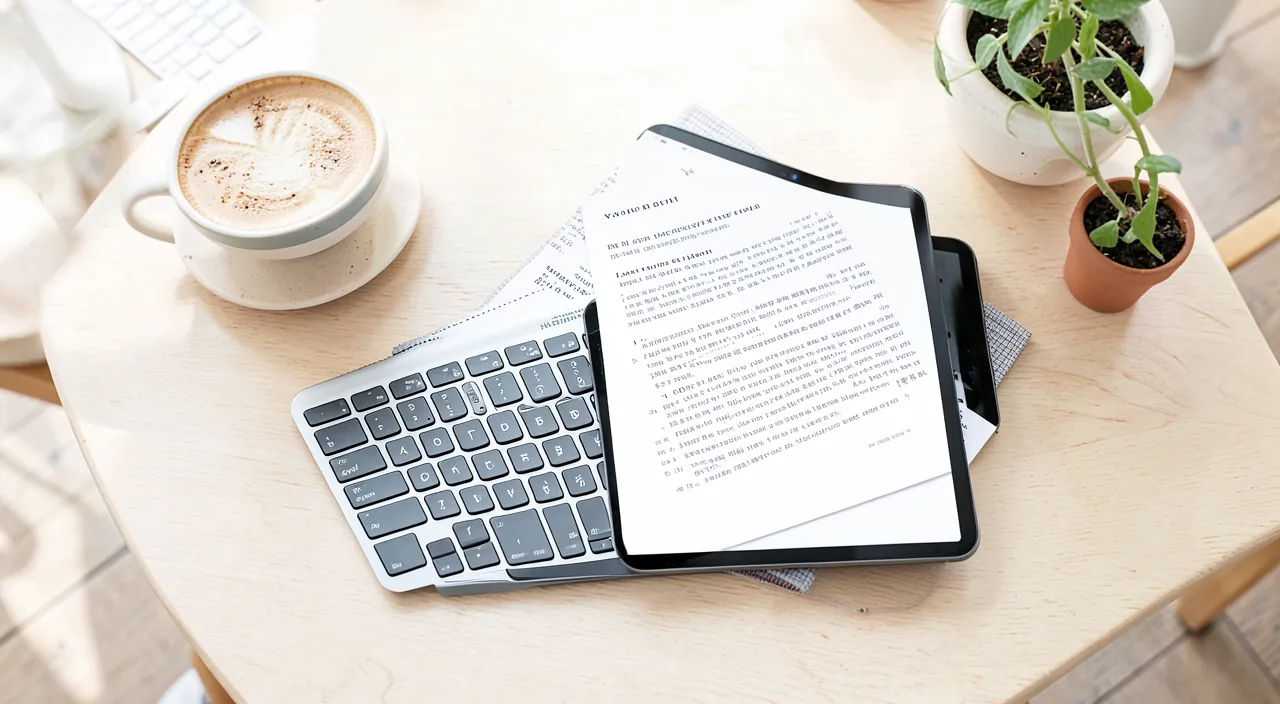
How to display two apps at the same time on iPad?
Displaying multiple apps at once (multitasking) is one of the features that make the iPad really effective for work; it allows, for example, writing a document while consulting a webpage or your emails, without constantly switching between apps. The iPad allows several forms of multitasking: displaying two apps SIDE BY SIDE (each occupying half the screen), or making one app float in a small window over another. The general principle to display two apps side by side: open a first app, then, depending on your iPad version, use the multitasking commands (often accessible via small dots or a button at the top of the screen, or by a gesture consisting of dragging a second app from the bottom or side); you then choose the second app to display next to it. You can then adjust the space allocated to each, and close or swap them. As the exact method of doing this evolves with system versions and may vary depending on the model, if you can’t find it, the best thing is to consult your iPad’s HELP by searching for “multitasking” or “display two apps”: you’ll find the precise method for your device. Take the time to familiarize yourself with these multitasking gestures: at first, it requires a bit of learning, but once mastered, it’s a considerable efficiency gain, really bringing the iPad closer to a computer for work. Note, however, that the iPad’s multitasking, even if it improves, remains a bit less flexible than a computer’s for juggling many windows; for two or three simultaneous apps, it’s very practical. In short, yes, you can display two apps at the same time on iPad: learn the multitasking gestures (side by side or floating window) via your device’s help, and you’ll gain a lot in efficiency for work.
What to remember
Long confined to leisure, the iPad has become a genuine lightweight and versatile work tool, capable of covering the basics of everyday work for many people: writing, managing emails, taking notes, drawing, presenting, consulting and annotating documents — all with the advantage of mobility. Two accessories shift the iPad from leisure to work: a PHYSICAL KEYBOARD (essential as soon as you type a lot, much more comfortable than the on-screen keyboard) and a STYLUS (essential for handwritten note-taking, annotation, and drawing, a unique asset of the iPad). Two skills then multiply your efficiency: MULTITASKING (displaying multiple apps at once, to write while consulting a source) and GESTURES (to quickly navigate between apps). Complete with good productivity apps, keyboard shortcuts, and syncing that keeps your work on all your devices. But keep an essential clarity on the LIMITS of the iPad, to avoid being stuck: some professional software doesn’t exist (or only in a simplified version) on it, file management is more rigid, some sites and online procedures work poorly, and very complex work or certain peripherals remain the domain of the computer. Before relying on the iPad as your main tool, HONESTLY check that it covers YOUR specific needs — especially that your essential software works well on it. For most people, the best approach isn’t to choose the iPad OR the computer, but to use them as COMPLEMENTS: the iPad for mobility, notes, drawing, consulting, and everyday writing; the computer for heavy work and specific software. Also consider the cost of accessories (keyboard and stylus), which adds to the cost of the device. Well equipped, well mastered, and used for what it does best while knowing its limits, the iPad becomes a lightweight, mobile, and surprisingly capable workstation: an excellent tool for working differently, provided you know when it’s enough and when the computer is better.
Want to unlock the full potential of your iPhone, iPad, or Mac? Our Apple training will take you to the next level.
Leave a Reply
You must be logged in to post a comment.