
Forgotten appointments, overlapping meetings, birthdays slipping through the cracks: our schedules overflow, and our memory is no longer enough. The iPhone Calendar app is there for that, but many only use it halfway, without taking advantage of its true strengths: automatic reminders, shared calendars, voice-created events, and synchronization across all devices. When used well, it becomes an assistant that never lets anything slip by. Here’s how to get the most out of the Calendar app to never forget anything, without spending hours on it.
What the Calendar app can do
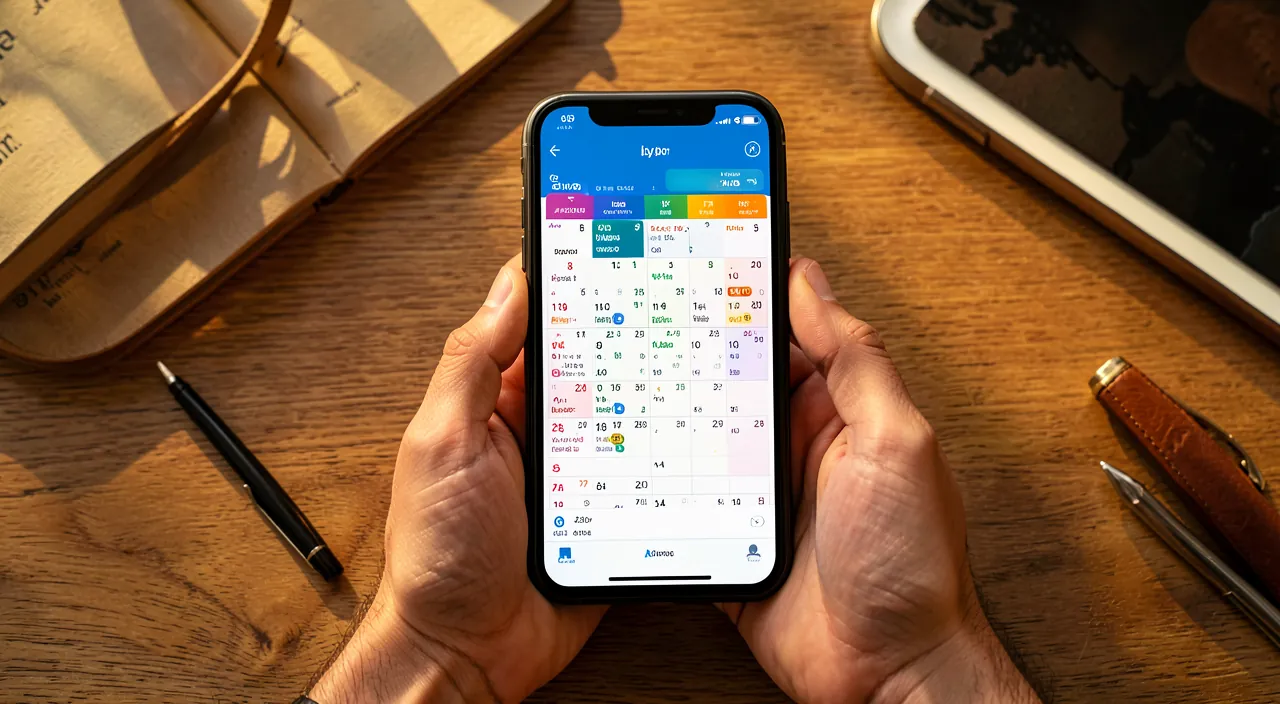
The Calendar app is more than just a simple planner: it’s an organization assistant. NOTE EVENTS: appointments, meetings, outings, with the date, time, location, and a note; the essentials to never forget anything. Receive REMINDERS: the core of its usefulness; the app ALERTS you before an event (the day before, an hour before, when it’s time to leave); you no longer rely solely on your memory. See your schedule AT A GLANCE: by day, week, month; visualize your days, spot free slots. Create RECURRING events: for things that repeat (a weekly class, a monthly appointment), without re-entering them. Manage MULTIPLE calendars: separate work, personal, family, with colors; display or hide as needed. SHARE a calendar: share a family or work calendar so everyone can see and add events; ideal for coordinating a family or a team. Add the LOCATION and route: an event with an address allows you to launch the route and be notified of travel time. Create BY VOICE: add an event by dictating it to the voice assistant, without typing. SYNCHRONIZE everywhere: your calendar appears on iPhone, iPad, Mac, always up to date. Integrate INVITATIONS: accepting an invitation received by email adds it to the calendar. What is it for? To no longer FORGET (reminders); to ORGANIZE (overview); to COORDINATE (shared calendars); and to save time (recurrence, voice, synchronization). The key idea: the Calendar app is an organization assistant that, when used well, never lets anything slip by. Its true strengths, often underused: AUTOMATIC REMINDERS (which alert you before each event, so you no longer rely solely on your memory), SHARED CALENDARS (to coordinate a family or a team), voice creation, and synchronization across all your devices. The secret: SYSTEMATICALLY note everything that has a date as soon as you learn about it, and let the reminders do the rest. This is how the planner goes from a simple calendar to a real assistant that offloads your memory.
The Calendar app helps you remember everything by letting you add events and set reminders. It can also show your schedule in different views, repeat events automatically, and sync across all your devices. The key is to add every event immediately and set reminders that work for you.
Imagine you have a doctor’s appointment on Friday at 2 PM. You add it to your calendar with the address, set a reminder for 24 hours before, and another “when it’s time to leave.” The app will alert you the day before, then calculate travel time and tell you exactly when to leave to be on time.
How to use your calendar effectively
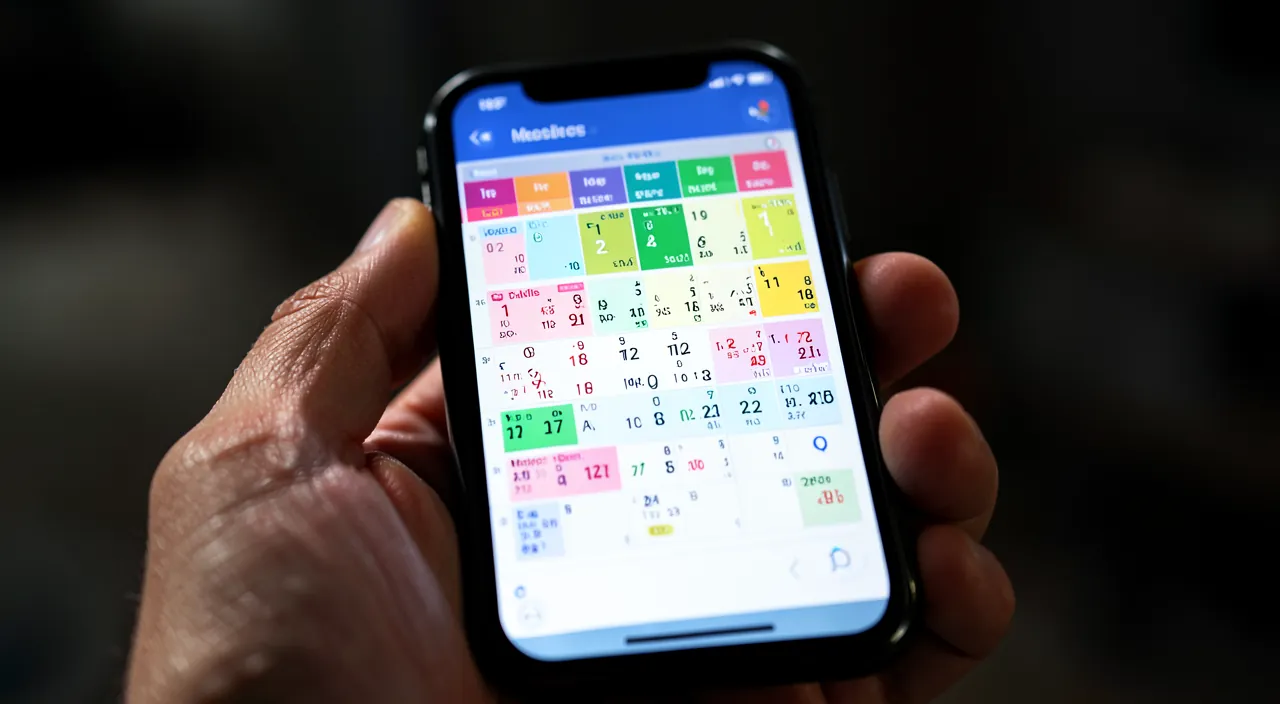
Here’s how to make it a true ally. NOTE EVERYTHING, right away — the fundamental reflex: as soon as you learn about an appointment, a date, or an event, add it IMMEDIATELY to the calendar; don’t rely on your memory to note it later; this is what guarantees you won’t forget anything. SET ADAPTED REMINDERS — for each event, choose when to be alerted: the day before for an important appointment, an hour before, or when it’s time to leave; reminders are the core of its usefulness; adapt them to what suits you. ADD THE LOCATION — enter the address of an appointment: the app can then remind you when to leave (taking travel time into account) and suggest the route; very practical to avoid being late. USE MULTIPLE CALENDARS with colors — separate work, personal, family with different colored calendars; you can see everything at a glance and hide what you don’t need at the moment. CREATE RECURRING EVENTS — for things that repeat (a weekly appointment, an annual birthday), create a recurring event just once; it will repeat automatically. SHARE A CALENDAR — for family or a team, share a common calendar: everyone can see and add events; no more “I didn’t know you had that”; ideal for coordinating (children’s errands, shared appointments). CREATE BY VOICE — to quickly add an event, dictate it to the voice assistant (“add an appointment tomorrow at 3 PM”); without typing (our guides command your devices by voice). ACCEPT INVITATIONS — when you receive an event invitation by email, accept it to automatically add it to the calendar. CHECK YOUR DAY — make it a habit to glance at your calendar in the morning (or see it in a widget on the lock screen); you start the day knowing what’s ahead. TAKE ADVANTAGE OF SYNCHRONIZATION — an event added on the phone appears on the computer; make sure synchronization is active. A few TIPS: note EVERYTHING immediately (the key reflex); set good reminders; and share a calendar for the family. In summary: note everything that has a date as soon as you learn about it, set adapted reminders, add locations, use multiple colored calendars, create recurring events, share a calendar to coordinate, create by voice, accept invitations, check your day, and take advantage of synchronization. Your planner becomes an assistant that never lets anything slip by.
The right reflex. The secret to a calendar that truly offloads your memory lies in a simple but decisive habit: note EVERYTHING, IMMEDIATELY. As soon as an appointment is announced, as soon as you set a date, as soon as you learn about an event — at the doctor’s, on the phone, in a conversation — add it to your calendar ON THE SPOT, before moving on. Never say “I’ll note it later”: that’s exactly how you forget. Once this habit is taken, you can stop keeping everything in your head, because your planner remembers for you. And that’s where the true strength of the calendar comes in: REMINDERS. Don’t just note an event; set an alert that will notify you BEFORE: the day before for an important appointment, an hour before, or even “when it’s time to leave” if you’ve indicated the location (the app then calculates travel time and notifies you at the exact moment you need to leave to be on time). These reminders are what transform a simple planner into an assistant: you no longer rely on your memory, the app alerts you at the right time. Another life-changing reflex for families and teams: SHARE A CALENDAR. A shared family calendar, where everyone adds and sees appointments (children’s activities, everyone’s obligations), puts an end to forgetfulness and “I didn’t know”: everyone is informed, and coordination becomes simple. To go faster, also get into the habit of adding events BY VOICE (“add an appointment Thursday at 10 AM”), and display your next appointment in a widget on your lock screen to have it in sight. Note everything immediately, set good reminders, share a calendar for the family: with these reflexes, your calendar never lets anything slip by, and frees your mind from the burden of remembering everything.
Privacy, sharing, and best practices
The calendar contains PERSONAL INFORMATION and is shared: a few good practices and precautions are necessary. PRIVACY of events: your calendar reveals a lot about you (your appointments, your habits, where you are and when); it’s personal data; be careful about what you put in it and who has access. SHARING, to master: sharing a calendar is very practical, but think about what you share and with whom; a shared calendar exposes your events to the people concerned; use SEPARATE CALENDARS to only share what needs to be shared (a shared family calendar, but your professional or personal calendar kept private). UNATTRACTIVE INVITATIONS: you can receive fake event invitations (calendar spam); don’t accept them, and there are ways to report them as unattractive; beware of invitations from strangers. ACCOUNT SECURITY: your calendar is linked to your account (iCloud); it synchronizes via it; secure this account well (strong password, double authentication), as it gives access to your schedule. What is VISIBLE: be careful about what your calendar displays on the lock screen (a widget for the next appointment can reveal information to anyone looking at your locked phone); adjust this according to your comfort (our guides customize your lock screen). Don’t OVERLOAD: a calendar too full of everything and anything becomes unreadable; keep only what has a date and importance; for tasks without a specific date, a reminder list is sometimes more suitable. TIME ZONES: be careful with events spanning time zones (travel, meeting with foreigners); check the time. BACKUP: your calendar being synchronized, it is already backed up online; but keep your account secure. SUBSCRIPTION CALENDARS: you can subscribe to calendars (holidays, sports, etc.); practical, but only add reliable sources. In summary: your calendar is personal data; master sharing (separate calendars, only share what’s useful); refuse unattractive invitations; secure your account; adjust what is visible on the lock screen; and only add reliable subscription calendars. Well managed, your calendar organizes you without exposing your privacy.
Warning: your calendar reveals a lot about you — control who has access, and beware of unattractive invitations. The Calendar app is a fantastic organization tool, but keep in mind that a planner is rich PERSONAL DATA: it reveals your appointments, your habits, your movements, where you are and when, who you see. This information deserves to be protected, which calls for a few precautions. First, master SHARING. Sharing a calendar is very practical for coordinating a family or a team, but it EXPOSES your events to the people you share with; think carefully about what you share and with whom. The good practice: use SEPARATE CALENDARS, to only share what needs to be shared. For example, a “Family” calendar shared with your loved ones (children’s activities, shared appointments), while keeping your professional calendar or your personal appointments on PRIVATE calendars, not shared. This way, you coordinate what needs to be coordinated without revealing your entire schedule. Next, beware of UNATTRACTIVE INVITATIONS: there is a phenomenon of “calendar spam”, where you receive fake invitations to events, sometimes from strangers, with the aim of making you click on a trap link or polluting your planner; NEVER ACCEPT an invitation for an event you don’t recognize, don’t click on its links, and report it as unattractive if your app allows it. Third point: ACCOUNT SECURITY. Your calendar is linked to your iCloud account and synchronizes with it; this account therefore gives access to your entire schedule; protect it solidly (strong password, double authentication). Finally, pay attention to what your calendar DISPLAYS on your lock screen: a widget showing your next appointment can reveal private information to anyone who glances at your locked phone (where you will be, with whom); adjust this display according to your comfort, and protect your device well (code, biometrics). In summary, take advantage of your calendar as an assistant that organizes you, but keep control over who has access: only share what needs to be shared via separate calendars, refuse suspicious invitations, secure your account, and control what remains visible. A well-managed planner offloads your memory without exposing your privacy.
Frequently asked questions
How to never forget an appointment again?
The recipe lies in two complementary habits: NOTE EVERYTHING immediately, and set REMINDERS. The first, and most important: as soon as you learn about an appointment or a date — on the phone, with a professional, in a conversation — add it to your calendar ON THE SPOT, without waiting. This is where everything happens: most forgetfulness comes not from a bad planner, but from the fact that it was never noted, counting on memory to do it “later”. By taking the reflex to note everything right away, you entrust the memorization to your planner, which, it, never forgets. The second habit: for each event, set one or more REMINDERS that will alert you BEFORE. Depending on the importance and type of appointment: a reminder the day before (to anticipate), a reminder an hour before (to prepare), and, if you have indicated the location, a reminder “when it’s time to leave” that takes into account travel time and notifies you at the exact moment you need to leave to be on time. These alerts are what transform your planner into a real assistant: you no longer have to “think about thinking about it”, the app takes care of it. Add to this a few good reflexes: check your calendar in the morning to see your day, display your next appointment in a widget to have it in sight, and create recurring events (regular appointments, birthdays) so they come back automatically. For birthdays in particular, the app can remind you every year if you record them. By combining “I note everything, right away” and “I set adapted reminders”, you should practically never forget an appointment again: your planner remembers for you and alerts you at the right time. It’s a real mental relief: you free your mind from the burden of remembering everything, with complete confidence.
How to share a calendar with my family?
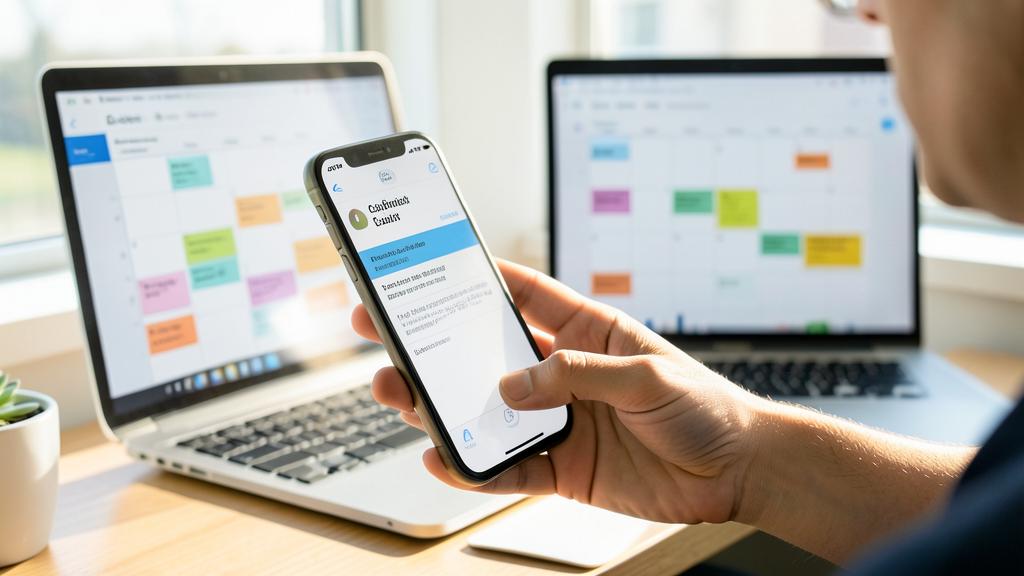
Sharing a family calendar is one of the best ways to coordinate everyone, and it’s simpler than you think. The principle: you create (or use) a calendar dedicated to the family, and you SHARE it with your loved ones; thus, everyone can SEE the events and ADD them, and everyone stays informed in real time. No more “I didn’t know you had an appointment” or forgotten children’s activities: the common calendar centralizes everything. To set it up: create a new calendar that you name, for example, “Family”, then look for the option to share it (often by modifying the calendar, an option “Add a person” or “Share”); invite family members (by their contact or identifier); once they accept, the calendar appears for them, and everyone can contribute. You can give each person the right to only view, or also to modify, depending on what you want. An important tip for privacy: use a SEPARATE CALENDAR for family sharing, and only share THAT ONE; keep your other calendars (professional, personal appointments) private and not shared; thus, the family sees the common events, but not your entire schedule. You can have multiple calendars of different colors and precisely choose which one to share. This shared family calendar system is particularly useful for families with children (activities, medical appointments, school events) or for any household where schedules need to be coordinated. Everyone adds what concerns them, everyone sees the whole picture, and family organization becomes fluid. In summary: create a dedicated “Family” calendar, share it with your loved ones, and keep your other calendars private: you get simple and effective family coordination, without exposing your personal planner.
What to do with event invitations I don’t recognize?
Don’t accept them, don’t click on any links they contain, and report them as unattractive if you can: these unrecognized invitations often fall under “calendar spam”, a sometimes trap nuisance. The phenomenon: you receive in your calendar invitations to events you never requested, often from strangers, with sometimes enticing titles (“you won”, “special offer”) or links. The goal of these spams can be to make you CLICK on a link leading to a trap site or a scam, or simply to pollute your planner. The right reflex: faced with an invitation whose sender or subject you don’t recognize, DON’T ACCEPT it (accepting it puts it in your calendar and sometimes confirms to the sender that your account is active), don’t click on any LINK it contains, and rather try to REPORT it as unattractive or delete it directly. Many calendar applications offer an option to mark an invitation as spam or to refuse it without notifying the sender; use it if it exists. In general, apply the same caution to the calendar as to emails and messages: anything that comes from an unknown source, pressures you to act, or seems too good to be true should raise suspicion (our guides recognize a phishing email). To limit these inconveniences in the future, you can adjust certain settings (for example to receive invitations differently than directly in the calendar), and avoid leaving your address or identifier on dubious sites, which feed these spams. In summary, an unrecognized event invitation is treated like a suspicious message: you don’t accept, you don’t click, you report or delete; thus, you keep your calendar clean and protect yourself from the traps that sometimes hide behind these fake invitations.
What to remember
The iPhone Calendar app is much more than a simple planner: it’s an organization assistant that, when used well, never lets anything slip by. Its true strengths, often underused: AUTOMATIC REMINDERS that alert you before each event (so you no longer rely on your memory), SHARED CALENDARS to coordinate a family or a team, voice creation, and synchronization across all your devices. The secret to an effective calendar lies in two habits: NOTE EVERYTHING, immediately (as soon as you learn about a date, add it on the spot, without relying on your memory to do it later — that’s where most forgetfulness happens), and set ADAPTED REMINDERS (the day before, an hour before, or “when it’s time to leave” if you’ve indicated the location). Complete with: adding locations (for the route and travel time), using multiple colored calendars (work, personal, family), creating recurring events, checking your day in the morning, and taking advantage of synchronization. For families, SHARE A COMMON CALENDAR: everyone sees and adds events, and coordination becomes simple. But keep in mind that your calendar is rich PERSONAL DATA (appointments, habits, movements): control who has access. Use SEPARATE CALENDARS to only share what needs to be shared (a shared family calendar, your professional or personal calendars kept private); beware of UNATTRACTIVE INVITATIONS (“calendar spam”: don’t accept, don’t click, report); secure your iCloud account (which gives access to your schedule); and pay attention to what your calendar displays on the lock screen. By taking the reflex to note everything immediately, letting the reminders do the work, and intelligently sharing a family calendar while protecting your privacy, you transform your planner into a real assistant that offloads your memory: you no longer rely on your head to remember everything, you no longer forget your appointments, and you free your mind — with complete confidence, and without exposing your schedule.
Want to unlock the full potential of your iPhone, iPad, or Mac? Our Apple training courses will take you to the next level.
Leave a Reply
You must be logged in to post a comment.