
This is the first screen you see when you take your iPhone, dozens of times a day: the lock screen. Long limited to a simple photo and the time, it has become much richer and customizable: clock styles, widgets with useful information at a glance, filters, animated photos. You can turn it into a dashboard in your image, both beautiful and practical. But the lock screen is also the gateway to your phone: its customization touches security and privacy issues that you’d better know. Here’s how to customize your lock screen, with taste and security.
What you can customize on the lock screen
The modern lock screen offers many customization options. The BACKGROUND: choose a photo (yours, a memory), an image, a pattern; sometimes with effects (photo that moves slightly, depth that places the time behind an element). The CLOCK STYLE: change the font, color, and size of the displayed time; a detail that changes the look a lot. The WIDGETS: this is the most useful addition; add small pieces of information that can be consulted at a glance without unlocking: weather, next appointment, battery, reminders, activity; your screen becomes a dashboard. Multiple lock screens: you can create SEVERAL lock screens and switch between them (one for work, one for the weekend); sometimes linked to a focus mode. The FILTERS and colors: apply a tint, a style to your background. The PHOTOS highlighted: the device can beautifully showcase your photos (cropping, depth). The display of NOTIFICATIONS: how notifications appear on the locked screen (in a list, stacked, counted)—a setting that is both aesthetic and privacy-related. What is it for? To PERSONALIZE your phone to your taste (make it pleasant, in your image); to have USEFUL information at a glance (widgets); to ADAPT according to the context (multiple screens, linked to modes); and to enjoy your PHOTOS. The main idea: the lock screen has become a rich and customizable space that you can transform into a dashboard that is both beautiful and practical: a beautiful photo, a clock style to your taste, and above all WIDGETS that display at a glance the useful information (weather, next appointment) without even unlocking. It’s a pleasure of customization, but also a gain in practicality on a daily basis. However, be careful: this screen being the gateway to the phone, its customization involves SECURITY and PRIVACY issues—especially what remains visible without unlocking—which we will see.
Your lock screen can show more than just a photo. You can add widgets for weather, calendar, and battery levels, change how the time looks, and even have different screens for work and personal use. But remember, anything visible on the lock screen can be seen by others, so be careful with private information.
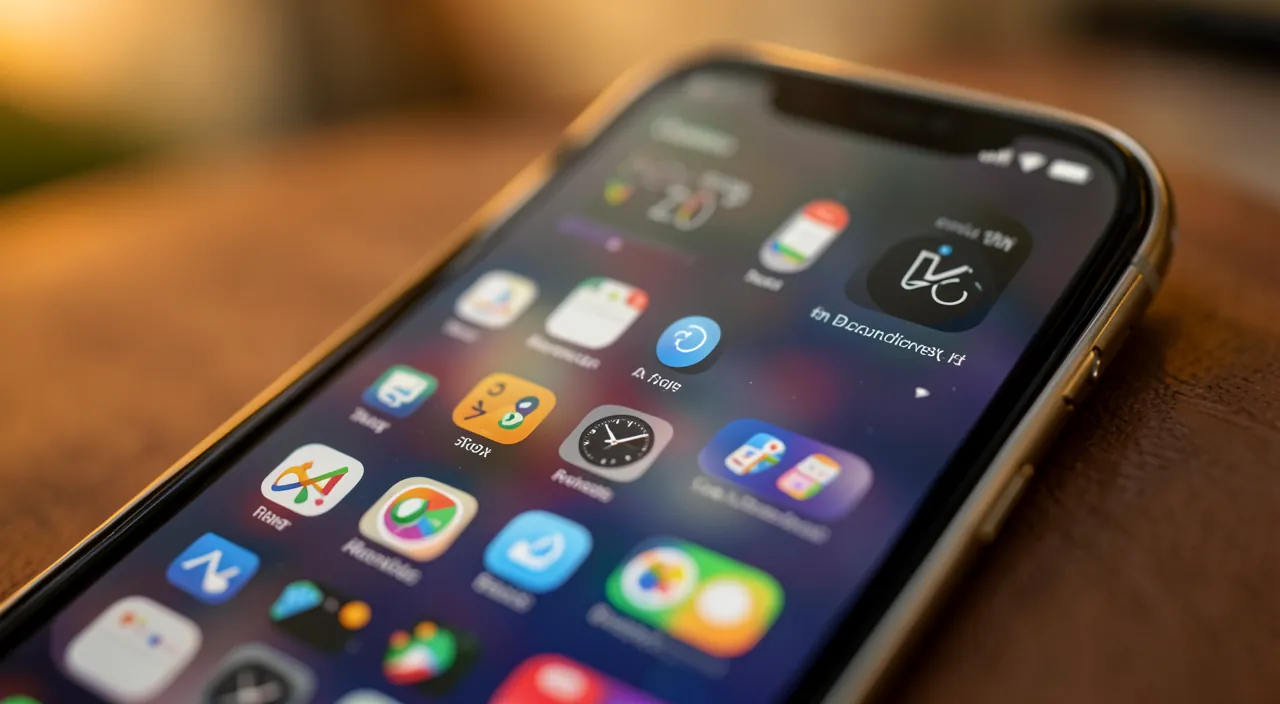
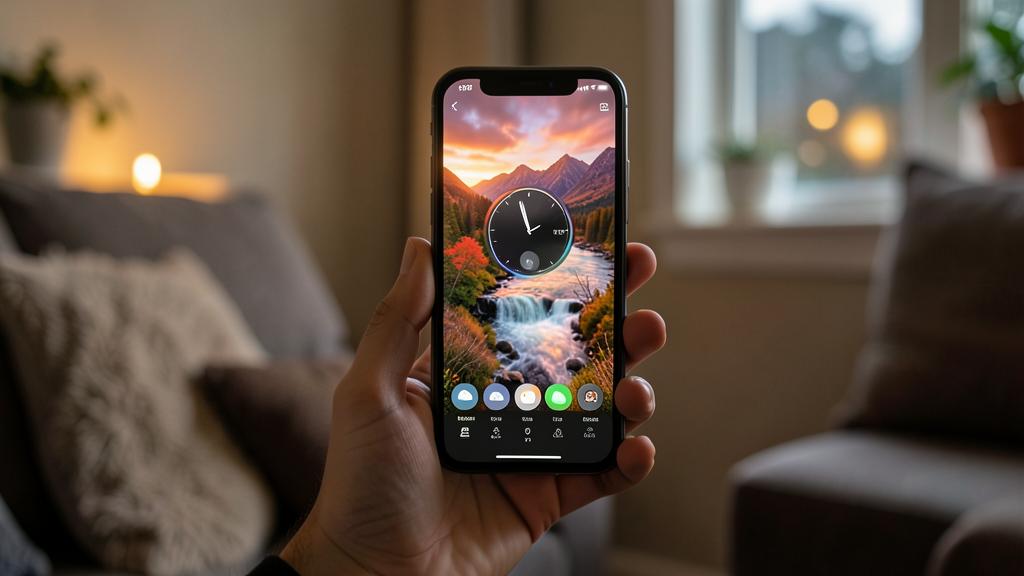
Imagine your iPhone shows a beach photo as the background, with a sleek digital clock in the corner. Below, you have a weather widget showing “22°C, Sunny” and a calendar widget reminding you of a “Meeting at 3 PM.” This setup lets you check the weather and your schedule without unlocking your phone.
How to customize your lock screen
Here’s how to make your lock screen your own. Access CUSTOMIZATION—usually, a long press on the lock screen (unlocked phone) opens the customization mode, or go through the settings; you can then modify the current screen or create a new one. Choose a BACKGROUND—select a photo (a beautiful memory), an image, or a suggested style; explore the effects (depth, animated photo) for a lively result. Adjust the CLOCK STYLE—change the font, color, and size of the time to match your background and your taste. Add USEFUL WIDGETS—this is the most rewarding step: add the information you want to see at a glance (weather, next appointment, battery of your accessories, reminders); choose those that are really useful to you, without overloading. Create SEVERAL screens if useful—you can have multiple lock screens and switch between them; for example, a sober one for work, one with your photos for the weekend; you can link them to focus modes (our guides on focus modes). Take care of the HARMONY—match the background, the clock color, and the widgets for a coherent and readable whole; avoid overloading (too many widgets or a too busy background impair readability). Adjust the NOTIFICATIONS on the locked screen—decide how your notifications are displayed (visible, counted, hidden); this is also a privacy issue (see below). Check the result—lock the screen and look: is it readable, pleasant, useful? Adjust if needed. Think about the readability of the TIME—make sure the time and widgets remain clearly visible on your background (a too busy background can be distracting). A few TIPS: widgets are the real plus (choose the useful ones); keep readability (not too busy background, good contrast); and have fun, it’s a personal space. In summary: enter customization mode, choose a beautiful background, adjust the clock style, add useful widgets at a glance, create multiple screens if you want, take care of harmony and readability, and adjust the notification display. You get a lock screen in your image, beautiful and practical.
The right reflex. The most PLEASANT customization of the lock screen is the background and the clock style; but the most USEFUL one, the one that really changes your daily life, is the WIDGETS. Take the time to add them: these small information areas are always displayed on your locked screen and allow you to consult, with a simple glance and WITHOUT unlocking, the information that matters to you—the day’s weather, your next appointment, the battery level of your headphones, an upcoming reminder. You thus transform your lock screen into a real dashboard: instead of unlocking and opening several applications to know if it’s going to rain or at what time your meeting is, everything is there, instantly visible. Choose the widgets that you REALLY use (no need to put everything: a few well-chosen pieces of information are better than an overloaded and unreadable screen). Second tip for a beautiful result: take care of READABILITY. A beautiful photo is nice, but make sure the time and widgets remain clearly visible over it: a too busy or too bright background at the clock’s location can make it hard to read; adjust the clock color for good contrast, or choose a background that leaves room for text. Also explore the nice effects (the depth that slides the time behind an element of the photo, the photos that move slightly) and, if you like, create SEVERAL lock screens that you link to your focus modes (a sober and professional screen that activates in work mode, a screen with your family photos the rest of the time). A beautiful background, a clock style to your taste, and above all useful widgets well chosen and readable: this is how your lock screen becomes both a pleasure for the eyes and a practical tool that you consult dozens of times a day.
Security and privacy of the lock screen
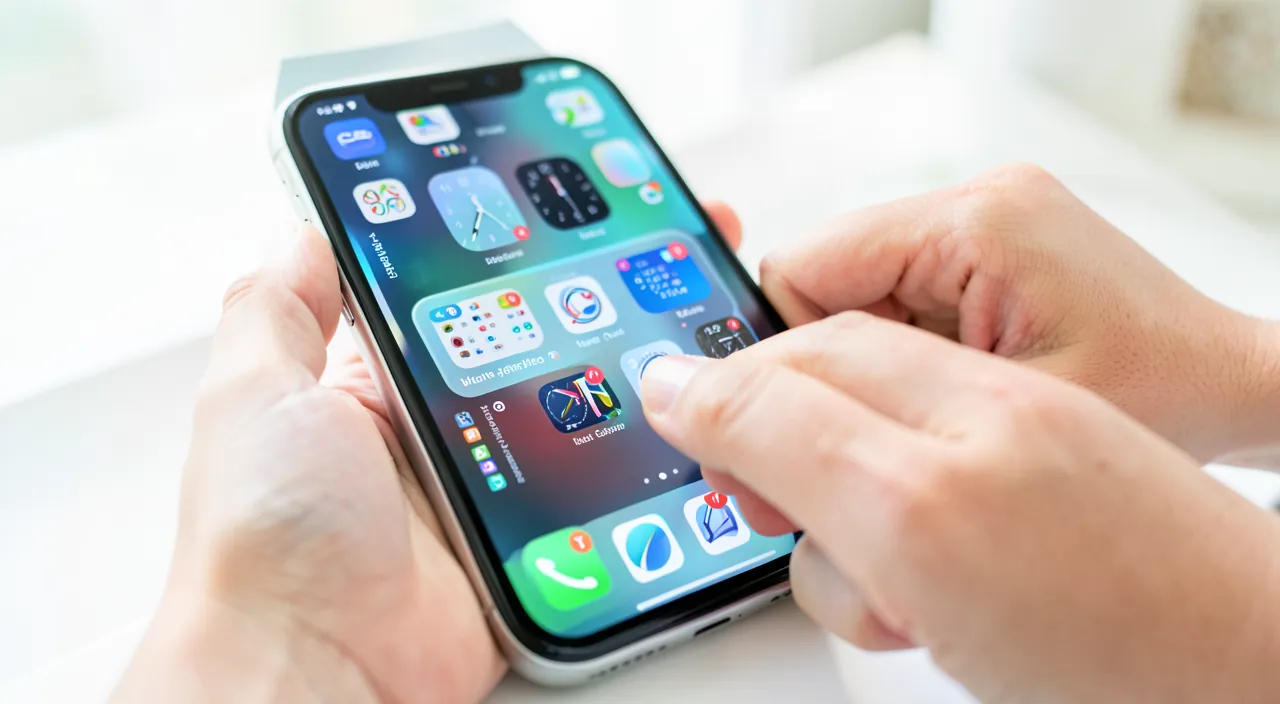
The lock screen is not just a decorative space: it’s the GATEWAY to your phone, which raises security and privacy issues that should not be neglected. The LOCK itself, the essential: before thinking about the decoration, make sure your phone is well PROTECTED by a solid lock code and/or biometrics (face or fingerprint recognition); this is what protects all the content of your phone in case of loss or theft (our guides on choosing a good lock code). What remains VISIBLE without unlocking: this is the key point of privacy; some things are accessible or visible on the locked screen, without unlocking the phone: the NOTIFICATIONS (whose content may appear: a message, a received code, private information), some widgets, and quick accesses; think about what you leave visible. The NOTIFICATIONS on the locked screen: by default, the content of a message can be displayed on the locked screen; anyone looking at your phone placed on a table can then read your messages, or see a security code received; you can adjust this so that the content is only displayed once unlocked, or hidden; an important setting for your privacy. The WIDGETS and privacy: be careful with widgets that would display sensitive information on the locked screen (your detailed schedule, personal information); choose what you are willing to make visible without unlocking. The QUICK ACCESS from the locked screen: some functions remain accessible without unlocking (camera, sometimes others); it’s practical, but be aware of what is accessible; you can often adjust this. The BACKGROUND with information: avoid setting as your lock screen background an image containing sensitive information (visible to everyone). In case of LOSS or theft: a well-protected lock screen (code, biometrics) is your best protection; this is also why you should not expose too much on it (our guides on protecting your phone in case of loss or theft). In summary: the lock screen is the gateway to the phone; first protect it with a good code and biometrics; then control what remains VISIBLE without unlocking—especially the content of notifications (adjust it to preserve your privacy) and widgets or accesses displaying sensitive information. Beautiful and practical, yes; but not at the expense of your privacy: adjust what is displayed with discernment.
Warning: the lock screen can display your messages and private information to anyone looking at your phone. Customizing your lock screen is a pleasure, but never forget that this screen is the GATEWAY to your phone, and that some information remains visible WITHOUT unlocking. This is a privacy issue often underestimated. The most sensitive point: the NOTIFICATIONS. By default, the content of your messages and notifications can be DISPLAYED directly on the locked screen; in concrete terms, if your phone is placed on a table, a desk, or in someone’s hands, that person can READ the beginning (or even the entirety) of your messages, see who is writing to you, and even—this is the most problematic—glimpse a SECURITY CODE received by message (those confirmation codes you receive to log into an account). Someone with bad intentions could thus read your private exchanges or intercept a code without having to unlock your phone. Take the time to ADJUST the display of notifications on the locked screen according to your comfort: you can generally choose that the content of notifications is NOT displayed until the phone is unlocked (you see that there is a notification, but not its content), which preserves your privacy while alerting you. This is particularly recommended if you often leave your phone in view of others. Pay the same attention to WIDGETS and what you display: avoid putting on your lock screen widgets that would reveal sensitive information (a detailed calendar, personal data) visible to anyone, or a background containing private information. But above all, before any aesthetic consideration, remember the ESSENTIAL: your lock screen must be protected by a SOLID code and biometrics (face or fingerprint). This is the protection that keeps the content of your phone safe in case of loss or theft; without it, all the customization in the world is useless. A beautiful lock screen, yes; but first well locked, and adjusted not to expose your messages and private information to everyone who might glance at your phone. Decoration should never come at the expense of privacy.
Frequently asked questions
How to add useful widgets to my lock screen?
Adding widgets is one of the most useful customizations of the lock screen, and it’s simple. The principle: widgets are small information areas that are always displayed on your locked screen, allowing you to consult information at a glance without unlocking. To add them: enter the lock screen customization mode (usually by a long press on the screen, unlocked phone, then by choosing to modify the screen); you will see dedicated spaces for widgets (often an area below the time); press on these spaces to choose from the available widgets. Applications offer different widgets: weather (temperature, day’s conditions), calendar (your next appointment), reminders, battery level (yours or that of your accessories like headphones), activity, world clock, and many others depending on the installed applications. Choose those that correspond to YOUR real needs: think about the information you consult most often during the day, and put it there; for example, the weather and your next appointment are classic and very practical choices. An important tip: don’t OVERLOAD; a few well-chosen widgets are better than a cluttered and unreadable screen; keep clarity. Also think about privacy: avoid widgets that would display sensitive information visible to anyone looking at your locked screen. Once your widgets are placed, check the result by locking the screen: are they readable, useful? Adjust if needed. By getting into the habit of consulting this information on your lock screen rather than opening applications, you save time every day. In summary: in customization mode, press on the widget spaces, choose the useful information (weather, calendar, battery…), without overloading or exposing sensitive data: your screen becomes a practical dashboard.
Can my messages be read without unlocking my phone?
Yes, potentially, if you haven’t adjusted this: by default, the content of notifications (including your messages) can be displayed on the lock screen, and therefore read without unlocking the phone. This is an important privacy point to know and adjust. In concrete terms: when you receive a message while your phone is locked, a notification appears on the lock screen, and depending on your settings, it can display the sender’s name AND the message content. If your phone is placed on a table, a desk, or seen by someone, that person can then read your messages, see who is contacting you, and even glimpse a security code received by message—without needing your code or your face. This is not ideal for your privacy. Fortunately, you can adjust this according to your preference. In the notification settings, you can generally choose how the content is displayed on the locked screen: « Always » (the content is visible), « Once unlocked » (you see that there is a notification, but its content only appears once the phone is unlocked by you—a good compromise), or « Never » (the content remains hidden). The « once unlocked » option is often the best choice for privacy: you remain notified of a message’s arrival, but its content only appears when YOU unlock the phone (by your face or fingerprint). Thus, no one else can read your messages by glancing at your locked screen. This is particularly recommended if you often leave your phone in view of others, at work or in public. In summary: yes, by default your messages can be read on the lock screen, but you can and should adjust the notification display so that their content is only visible once the phone is unlocked; this is a simple setting that effectively protects your privacy.
Can I have multiple different lock screens?
Yes, it’s possible and practical: you can create SEVERAL lock screens and switch between them according to your preferences or context. This is a useful feature for those who like to vary or adapt their phone to their different moments. The principle: instead of a single lock screen, you can configure several, each with its own background, clock style, and widgets; then switch between them easily. For example, you could have a SOBER and professional screen (neutral background, work widgets like the calendar) for your workdays, and a more PERSONAL screen (a beautiful family or vacation photo, different widgets) for your free time. To create a new lock screen: in the customization mode (long press on the lock screen), look for the option to add a new screen; you then configure its background, clock, and widgets as for the first one. You can then switch between your different screens, often with a simple gesture on the lock screen. Even smarter: you can LINK a lock screen to a FOCUS MODE; thus, when you activate your « Work » mode, the professional screen appears automatically, and when you switch to « Personal » mode, your leisure screen appears (our guides on focus modes). The screen then adapts automatically to your context, which is very practical. This is an elegant way to separate your worlds (work and personal) directly on your phone. Of course, this is not mandatory: if a single screen is enough for you, stick with it. But if you like to customize and adapt, the possibility of having multiple lock screens, possibly linked to your modes, offers pleasant flexibility. In summary, yes, multiple lock screens are possible: create as many as you want, and link them to your focus modes so that they automatically adapt to your different moments of the day.
What to remember
The iPhone lock screen, which you see dozens of times a day, has become a rich and customizable space that you can transform into a dashboard that is both beautiful and practical. You can customize the BACKGROUND (a beautiful photo, with depth or animation effects), the CLOCK STYLE (font, color, size), and above all add WIDGETS—the most useful addition—these small pieces of information that can be consulted at a glance without unlocking (weather, next appointment, battery). You can even create multiple lock screens and link them to focus modes so that they adapt to the context. For a beautiful result: choose the widgets that are really useful to you (without overloading), take care of readability (the time and widgets must remain readable on the background), and have fun: it’s a personal space. But never forget that the lock screen is the GATEWAY to your phone, which raises SECURITY and PRIVACY issues. Before any decoration, the essential: protect your phone with a SOLID code and biometrics (face or fingerprint), because this is what keeps its content safe in case of loss or theft. Then control what remains VISIBLE without unlocking. The most important point: the NOTIFICATIONS. By default, the content of your messages can be displayed on the lock screen, allowing anyone looking at your phone to read your exchanges or glimpse a security code received. Adjust the display of notifications so that their content is only visible ONCE the phone is unlocked by you: you remain notified, but your privacy is preserved; this is particularly recommended if you often leave your phone in view of others. Also be careful with widgets or backgrounds that would expose sensitive information. Beautiful lock screen, yes; but first well protected, and adjusted not to reveal your messages and private information to everyone: by combining customization, practicality, and good privacy settings, you make your lock screen a space in your image, useful on a daily basis, and respectful of your privacy.
Want to unlock the full potential of your iPhone, iPad, or Mac? Our Apple training courses will take you to the next level.
Leave a Reply
You must be logged in to post a comment.