
Do you want to send a photo to a friend sitting across from you, transfer a document from your iPhone to your Mac, or share a video with a loved one without going through a message that compresses it? AirDrop is made for this: a way to send files directly from one Apple device to another, wirelessly, without the internet, instantly, and without loss of quality. It’s one of the most practical yet least-known features of the Apple universe. Here’s how to use AirDrop to share with a single gesture, and the few security settings to know to use it confidently.
What AirDrop is and why it’s practical
AirDrop is a feature built into Apple devices (iPhone, iPad, Mac) that allows you to send files directly from one device to another, nearby, wirelessly. How it works (in principle): the two devices communicate DIRECTLY with each other (via a short-range wireless link), without going through the internet or an online service; the file goes directly from one device to another. What you can share: almost everything: photos, videos, documents, notes, contacts, locations, web pages, and much more; as soon as an app offers to « share, » AirDrop is often an option. Its ADVANTAGES: SPEED: the transfer is almost instantaneous, much faster than sending a large file by email; PRESERVED QUALITY: unlike some messaging apps that compress photos and videos, AirDrop sends the ORIGINAL file, in full quality; SIMPLICITY: a few gestures are enough; NO INTERNET: it works even without an internet connection, since the devices communicate directly; and NO INTERMEDIARY: the file does not go through an online service. COMMON USES: sending photos to someone next to you; transferring a document from your iPhone to your Mac (or vice versa); sharing a heavy video without degrading it; giving a contact, an address; passing a file between your own devices. THE LIMIT: AirDrop only works BETWEEN Apple devices; to share with a device from another brand, you need another method. What is it for? TO SHARE quickly and well between nearby Apple devices; to TRANSFER files between your own devices without a cable; and to send without QUALITY loss. The main idea: AirDrop is a simple, fast, and high-quality way to send files directly from one Apple device to another, nearby, wirelessly, and without the internet. Its main advantage over messaging apps: speed and especially PRESERVED QUALITY (no compression). It’s the ideal tool for sharing a photo with someone next to you, or passing a file between your iPhone and your Mac. Its only limit: it remains between Apple devices. Often unknown, it deserves to be adopted—with a few good security settings, which we will see.
AirDrop lets you send files directly between Apple devices without the internet. It’s fast, keeps the original quality, and works instantly when both devices are close and ready.
You take a 4K video (2GB) on your iPhone and want to send it to your friend’s iPad. Instead of uploading to iCloud or compressing it in a message, you use AirDrop. The transfer takes about 10 seconds, and your friend gets the full-quality video instantly.
How to use AirDrop
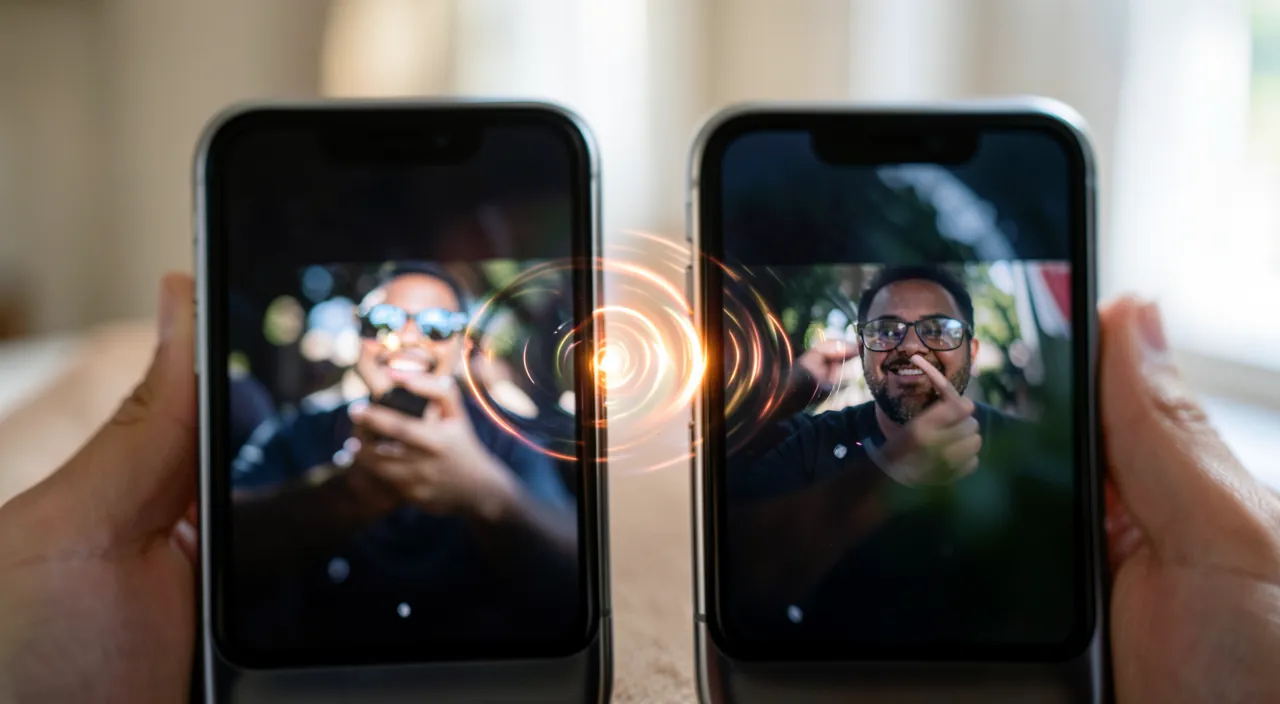
Here’s how to share with AirDrop, simply. Make sure BOTH devices are ready—AirDrop requires that both devices (Apple) be CLOSE, turned on, unlocked, and that their wireless connections are active (the required functions); and that the recipient has AirDrop enabled and set to accept you (see below). Select what you want to SHARE—open the file (a photo, a document), and look for the « Share » option (often an icon of a square with an upward arrow). Choose AirDrop—in the sharing options, select AirDrop; compatible devices nearby appear. Select the RECIPIENT—tap on the device (or the person) to whom you want to send; the transfer starts. The recipient ACCEPTS—on the recipient’s device (if it’s not yours), a request appears to accept the reception; once accepted, the file arrives (between your own devices, this may be automatic). It’s received!—the file arrives in the appropriate app (a photo in Photos, a document in Files), in full quality. To transfer between YOUR devices—it’s even simpler: since both devices are yours and connected to the same account, the transfer is often accepted automatically; ideal for passing a file from the iPhone to the Mac. Set who can SEND you—this is important for security: in the settings, choose who can send you via AirDrop: « Nobody » (disabled), « Contacts only » (only your contacts), or « Everyone » (anyone nearby—avoid keeping this on permanently, see below). If it doesn’t WORK—check that both devices are close, unlocked, with active connections, and that the recipient has AirDrop set to accept you; a closer proximity or unlocking often resolves the issue. A few TIPS: to share, both devices must be Apple, close, and ready; set AirDrop to « Contacts only » for daily security; and use it to transfer between your own devices (very practical). In summary: make sure both Apple devices are close and ready, select the file, choose AirDrop then the recipient, who accepts; set who can send you (preferably « Contacts only »); and use it between your own devices as well. A quick and high-quality share, in a few gestures.
The right reflex. AirDrop has two advantages that make it the preferred sharing tool between Apple devices, and you need to know them to take advantage of it. First advantage: PRESERVED QUALITY. Unlike many messaging apps that STRONGLY compress the photos and videos you send (the image arrives lighter but less sharp), AirDrop transfers the ORIGINAL file, in full quality; it’s therefore the ideal way to share a beautiful photo, a video, or an important document with someone who is near you, without loss. Second advantage, often neglected: AirDrop is perfect for passing a file between YOUR OWN DEVICES. You took a photo on your iPhone and want to edit it on your Mac? You have a document on the Mac to consult on the iPad? AirDrop transfers this in a few seconds, without a cable, without emailing yourself; and since the devices are yours and linked to the same account, the transfer is usually accepted automatically, without even a confirmation to give. It’s remarkably comfortable on a daily basis. But remember especially THE essential security setting: choose who can send you files via AirDrop, and keep this setting on « CONTACTS ONLY » on a daily basis (or « Nobody » if you don’t use it). Why? Because the « Everyone » setting allows any stranger nearby to try to send you something—which, in a public place, can lead to unwanted or unpleasant sends. By staying on « Contacts only, » only people you know can reach you; if you need to receive from a stranger occasionally (a new contact who shares a photo with you), temporarily switch to « Everyone » for the exchange, then go back to « Contacts only. » Preserved quality, easy transfer between your devices, and setting on « Contacts only » for peace of mind: with these reflexes, AirDrop becomes a sharing tool as practical as safe.
Security settings and limitations
AirDrop is safe in principle, but a few settings and precautions deserve your attention, especially in public places. The « who can send me » setting: this is the central security point; three choices: « Nobody » (AirDrop disabled for reception), « Contacts only » (only your contacts can send you— the good setting for daily use), « Everyone » (anyone nearby can send you). The danger of « Everyone » permanently: in a public place (transport, café, crowd), leaving AirDrop on « Everyone » exposes you to receiving requests from STRANGERS; this can range from annoying (spam) to unpleasant (unwanted content sent by pranksters); so keep « Contacts only » by default. You ALWAYS ACCEPT: rest assured, a file CANNOT be sent to you without your consent (except between your own devices); a request appears, and you choose to accept or refuse; NEVER accept a file from a stranger or whose content you don’t know. Do not accept just anything: as with any file reception, only accept what you EXPECT, from a person you know; refuse any unexpected or unknown send. The Apple LIMIT: AirDrop only works between Apple devices; to share with a device from another brand, use another method (message, email, file transfer service). The CONDITIONS for it to work: proximity, unlocked devices, active wireless connections, compatible setting on the recipient’s side; if one is missing, it doesn’t work. PRIVACY: AirDrop, by communicating directly between devices without going through the internet, is rather respectful; but the « Contacts only » setting also limits who can « see » your device available. LARGE FILES: AirDrop handles large files (videos) well, but a very large transfer takes a little time and requires staying nearby until the end. In summary: set AirDrop to « Contacts only » on a daily basis (never « Everyone » permanently in public places); you always accept files, so only receive what you expect from known people; know that it remains between Apple devices; and check the conditions (proximity, unlocking) if it doesn’t work. Thus set, AirDrop is as safe as practical.
Warning: do not leave AirDrop on « Everyone » permanently, and never accept a file from a stranger. AirDrop is a safe function in principle, but a setting deserves all your vigilance, especially in public places. The « who can send me files » setting offers three options, and one of them can cause problems if left active permanently: « EVERYONE. » This setting allows ANYONE, in your immediate vicinity, to try to send you a file via AirDrop. No problem in your living room; but in public transport, a crowded café, a queue, a public place, this exposes you to receiving requests from STRANGERS. This can range from simple annoyance (pranksters sending images to disturb) to frankly unpleasant situations, some individuals taking advantage of this setting to send unwanted or shocking content to strangers nearby—a real phenomenon, especially in transport. The rule is therefore simple: keep AirDrop set to « CONTACTS ONLY » on a daily basis (thus, only people in your directory can reach you), or even to « Nobody » if you don’t use it. If you need to receive a file from someone who is not in your contacts (a new contact who wants to share a photo with you at the moment), temporarily switch to « Everyone » for the exchange, then GO BACK immediately to « Contacts only »; never leave this setting open permanently in public places. Second rule of common sense: rest assured, a file can never be imposed on you without your consent—a request for acceptance always appears (except between your own devices). But precisely, NEVER ACCEPT a file from a stranger, nor an unexpected send whose nature you are unaware of: systematically refuse everything you do not expect from a person you know. As with any file reception, accepting anything from an unknown source is an unnecessary risk. Finally, keep in mind that AirDrop only works BETWEEN Apple devices. By setting AirDrop to « Contacts only » and refusing any send from a stranger, you enjoy all the comfort of this function without ever suffering from unwanted sends: a share that is both practical and perfectly controlled.

Frequently asked questions
Does AirDrop work with phones from other brands?
No: AirDrop is a feature EXCLUSIVE to the Apple universe and only works between Apple devices (iPhone, iPad, Mac). That’s its main limitation. You can therefore use AirDrop to share between two iPhones, between an iPhone and an iPad, between an iPhone and a Mac, etc.; but not to send a file to a phone or computer from another brand, which does not understand AirDrop. If you want to share a file with someone who does not have an Apple device, you must therefore use ANOTHER method. Alternatives are not lacking: you can send the file by MESSAGE or by EMAIL (practical for small files, but beware of photo compression and size limits for large files); use an online FILE TRANSFER service (which allows sending even large files via a link, our guides send files that are too heavy); go through a shared online storage service; or, for small occasional shares, a messaging app that you both use. These solutions work between all brands, unlike AirDrop. Note that on other ecosystems, there are functions equivalent to AirDrop to share wirelessly between devices of the same brand (for example between Android devices), but they are not compatible with Apple either. In summary, AirDrop is excellent and to be preferred WHEN both devices are Apple (speed, preserved quality, no internet); but as soon as a device from another brand is involved, turn to a universal method (email, message, transfer service, shared cloud). Choose your sharing method according to the devices involved: AirDrop between Apple devices, a universal method with others.
Is it dangerous to receive a file via AirDrop?
It is not dangerous as long as you follow two simple rules: the right setting, and never accepting from a stranger. AirDrop is designed to be safe: a file CANNOT be sent and installed without your consent (except between your own devices linked to the same account). When someone sends you something, a REQUEST for acceptance appears on your screen, often with a preview: you choose to accept or refuse. You therefore always keep control. The risk only exists if you lightly accept a file from a source you do not know. The two rules to follow. First, SET AirDrop to « Contacts only » on a daily basis (or « Nobody »); thus, only your contacts can send you something, and you do not receive solicitations from strangers in public places; the « Everyone » setting permanently is to be avoided, as it opens the door to unwanted sends from strangers. Then, NEVER ACCEPT a file that is unexpected or comes from a person you do not know: systematically refuse any surprise send, just as you would not open a suspicious attachment in an email. Only accept what you EXPECT, from an identified person. By following these two rules—right setting and refusal of strangers—receiving a file via AirDrop is perfectly safe, and even more direct than other methods (the file does not go through an online service). Problems only arise when you leave AirDrop open to everyone and accept anything. With a minimum of vigilance, you enjoy the convenience of AirDrop without any risk: setting on « Contacts only, » and you only accept what you expect from known people.
Why doesn’t AirDrop find the other device?
When AirDrop does not « see » the destination device, it is almost always because one of the necessary conditions is not met; check them one by one, this resolves most cases. First condition: both devices must be APPLE devices (AirDrop does not work with other brands). Second: they must be CLOSE to each other (AirDrop has a limited range); bring them closer. Third: both devices must be TURNED ON and UNLOCKED (a locked device often does not appear); unlock them. Fourth: the necessary wireless connections must be ACTIVE on both devices (the functions that AirDrop requires); make sure they are not turned off (for example by airplane mode). Fifth, and often the cause: the RECEIVING SETTING of the recipient. If the device that must receive is set to « Nobody » or to « Contacts only » while you are not in their contacts, it will not appear or will not receive your send; the recipient must set AirDrop to accept you (at least « Contacts only » if you are in their contacts, or temporarily « Everyone » otherwise). So check this setting on the recipient’s side. Other leads if it persists: a focus mode or a restrictive setting may block AirDrop; a simple restart of the devices can unlock; disabling then reactivating the wireless connections sometimes helps. In practice, in the vast majority of cases, it is enough to bring the two devices closer, unlock them, check that the recipient has AirDrop set to accept you, and everything works. If you check these conditions in order, you will quickly identify what was missing. In summary: Apple devices, close, unlocked, active connections, and correct receiving setting on the recipient’s side: meet these conditions, and AirDrop will find the device.
What to remember
AirDrop is one of the most practical yet least-known tools in the Apple universe: it allows you to send files directly from one Apple device to another, nearby, wirelessly, and without the internet, instantly. Its main advantages over messaging apps: SPEED (almost instantaneous transfer), and especially PRESERVED QUALITY—unlike many messaging apps that compress photos and videos, AirDrop sends the ORIGINAL file in full quality. It is therefore the ideal tool for sharing a beautiful photo or a video with someone nearby, and for passing a file between YOUR OWN DEVICES (from the iPhone to the Mac, for example), where the transfer is even often automatic. To use it: make sure both Apple devices are close, unlocked, and ready; select the file, choose « Share » then AirDrop, select the recipient, who accepts. But remember the ESSENTIAL security setting: choose who can send you files, and keep AirDrop on « CONTACTS ONLY » on a daily basis (never « Everyone » permanently). Why? Because the « Everyone » setting allows any stranger nearby to send you something, which, in public places, exposes you to unwanted or even unpleasant sends. If you need to receive from a stranger occasionally, temporarily switch to « Everyone » then immediately go back to « Contacts only. » Second rule: you always accept files (nothing is imposed on you without consent, except between your devices), so NEVER ACCEPT an unexpected send or from a stranger: only receive what you expect from known people. Finally, keep in mind the only real limit of AirDrop: it only works BETWEEN Apple devices; to share with another brand, use a universal method (email, message, transfer service). And if AirDrop does not find the other device, check the conditions (proximity, unlocking, active connections, recipient’s receiving setting). Set to « Contacts only » and used with a minimum of common sense, AirDrop becomes a sharing companion as fast and high-quality as perfectly safe: adopt it for all your file exchanges between Apple devices.
Want to unlock the full potential of your iPhone, iPad, or Mac? Our Apple training courses will take you to the next level.
Leave a Reply
You must be logged in to post a comment.