
Eyes that sting after a day of screen time, the glare from a phone checked in the dark, falling asleep that takes longer after an evening of scrolling: our visual comfort pays the price of our digital lives. The dark mode and night display settings promise relief — but how effective are they, and how should they be adjusted? This guide separates real comfort from misconceptions and gives you concrete settings to protect your eyes from morning to night.
What dark mode really does
Dark mode reverses the display logic: dark background, light text. Its most noticeable benefit is comfort in low-light environments: in a dark room, a bright white screen is harsh — the contrast between the screen and the room strains the eyes and causes glare. In dark mode, this contrast is reduced, viewing becomes gentle, and your surroundings are no longer lit up by your screen in bed or on the couch. This is when dark mode truly shines.
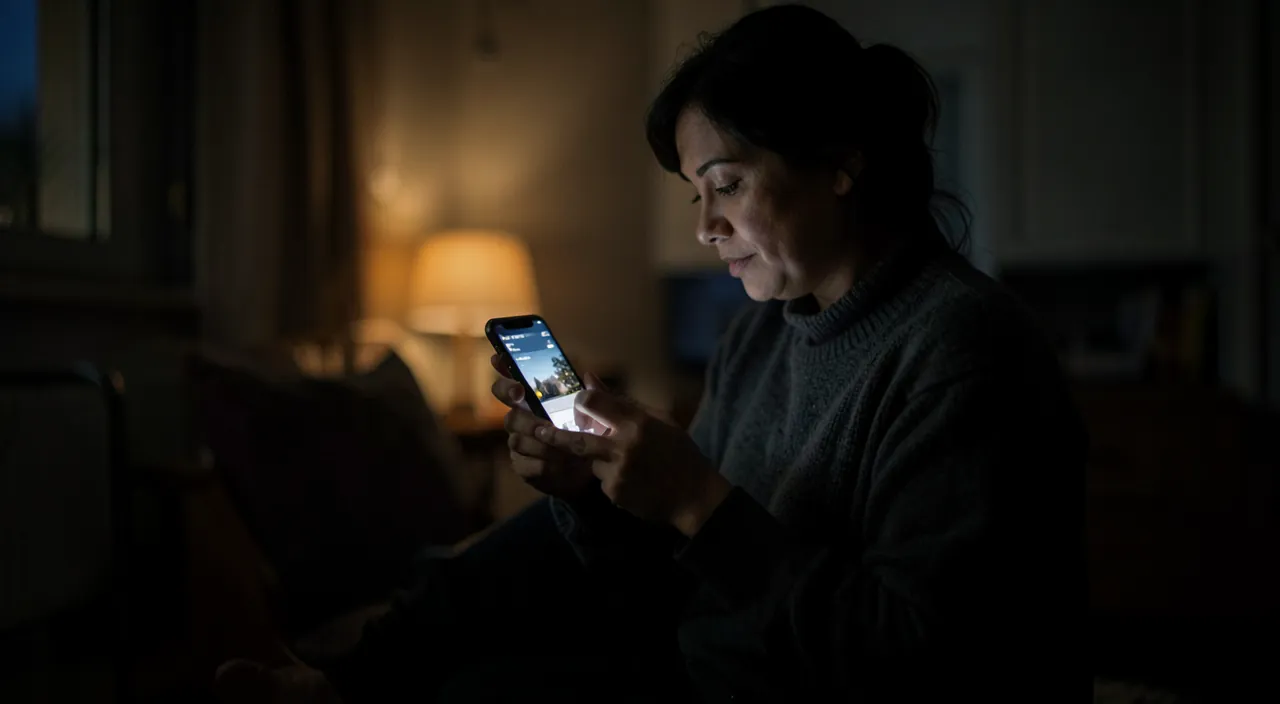
In bright light, however, its benefits are more debated: during a bright day, dark text on a light background often remains more readable. Hence the best practice: not choosing one over the other, but switching based on ambient light.
The right reflex. Enable the automatic toggle: light mode during the day, dark mode at sunset. It’s the ultimate “set and forget” setting: your screen adapts to natural light without you thinking about it, and you get the best of both worlds — readability during the day, softness in the evening.
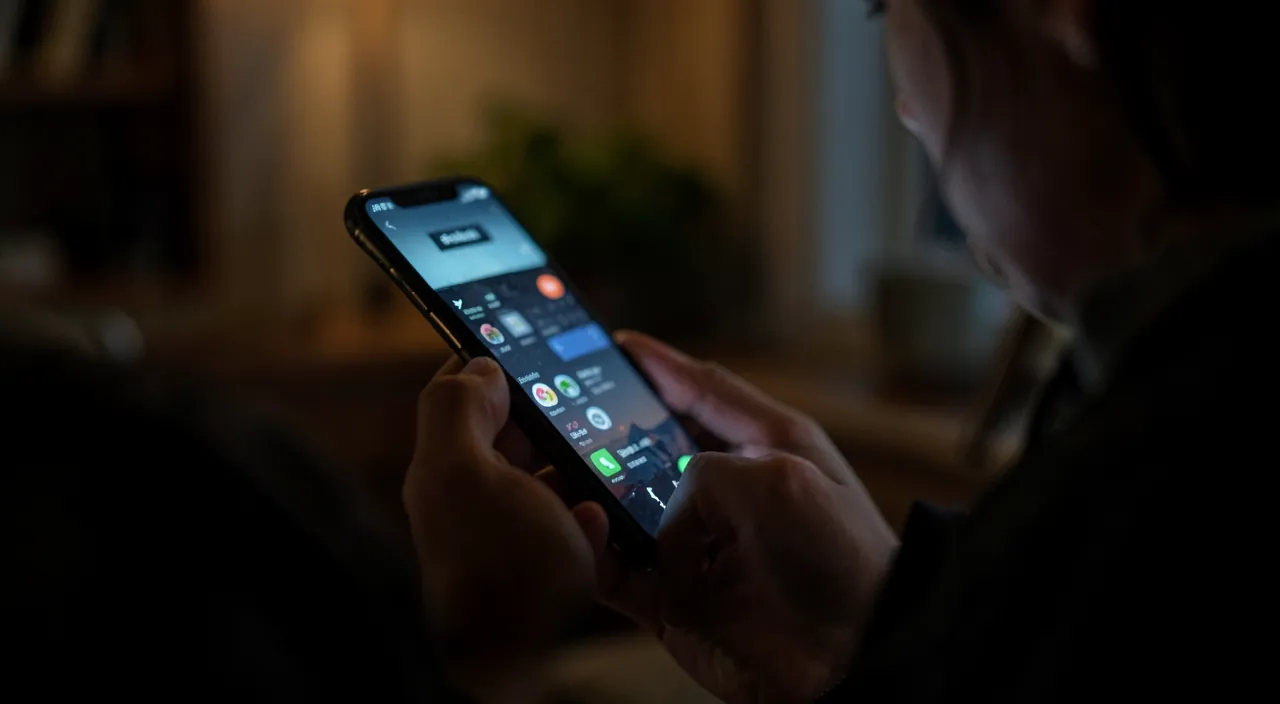
Dark mode helps most when it’s dark around you. In daylight, light mode is often better for reading. The best solution is to let your device switch automatically between the two.
On an iPhone, enable “Automatic” in Settings > Display & Brightness > Appearance. Your screen will switch to dark mode at sunset and back to light mode at sunrise, adjusting perfectly to your environment.
Evening light and sleep
Another aspect of nighttime comfort: the screen color. The light from screens, rich in blue, is suspected of delaying sleep by disrupting the biological clock. Devices offer a setting that warms the screen colors in the evening, shifting the display to softer amber tones. Schedule it from sunset to morning: the evening screen becomes less harsh, and many notice a real improvement — even if the best reflex for sleep, honestly, is to put the screen down a while before bed.
Brightness settings that make all the difference
Beyond the modes, a few settings make a daily difference:
- Automatic brightness: the screen constantly adjusts to the surroundings. Keep it on: it spares your eyes from sudden changes and your battery from overconsumption.
- Text size: if you’re squinting, enlarge the font — it’s a major comfort setting that instantly relieves strain.
- Bold and contrast: enhancing the text improves readability, especially for tired or impaired vision.
- Reduced white point: for nighttime use, it softens the screen even beyond the minimum brightness.
The real best practices for your eyes
No display mode replaces the fundamentals of visual hygiene. The most effective rule is also the simplest: take breaks. Every 20 minutes or so, look away from the screen and focus on something far away for a few seconds: this « reset » relaxes the eye muscles and prevents fatigue. Blink consciously (we blink half as much in front of a screen, hence dryness), keep the screen at a good distance, and ensure proper ambient lighting — working on a screen in complete darkness is the worst scenario. These free gestures do more for your eyes than all the modes combined.
Don’t ignore this. If headaches, tingling, or blurry vision persist despite good settings and regular breaks, don’t blame it all on the screen: prolonged visual fatigue may reveal an uncorrected vision problem. A check-up with an eye care professional is in order — the screen often reveals a need for correction more than it creates it.
Frequently asked questions
Does dark mode save battery life?
Yes, on OLED screens: dark pixels consume less, and the savings are real with prolonged use. On LCD screens, the effect is negligible. A nice bonus, depending on your device.
Is dark mode better for reading?
In a dark environment, yes, it’s more comfortable. In bright light, dark text on a light background often remains more readable. Hence the advantage of automatic switching over a fixed choice.
Do blue light filters protect sleep enough?
They reduce screen harshness in the evening, which helps with comfort. But the content itself (stimulation, scrolling) matters just as much as the light: nothing replaces screen-free time before bed.
Key takeaways
Visual comfort on screens relies on a trio: automatic dark mode toggle (light during the day, dark in the evening — the best of both worlds), scheduled warm tones in the evening to soften the light, and readability settings adjusted — automatic brightness, sufficient text size, contrast. But modes aren’t everything: regular breaks, blinking, proper distance, and good ambient lighting remain the true protectors of your eyes. And if discomfort persists, consult a professional: the screen often reveals a need for correction. A few settings tonight, a few habits tomorrow — your eyes will thank you every day.
Need advice for comfortable screen use?
Leave a Reply
You must be logged in to post a comment.