
You use Messages every day to send texts: that’s already good, but the iMessage app (Apple’s messaging service, those blue bubbles between Apple devices) hides many functions that most people never use. Correcting a sent message, reacting with a tap, pinning a conversation, sending an effect, finding a shared link: all these little tricks make your exchanges more practical and lively. Here are the hidden functions of iMessage to get the most out of your Messages app without being an expert.
iMessage: More Than Just Texts
On Apple devices, the Messages app uses iMessage when you write to other Apple users (those famous blue BUBBLES; green bubbles are regular SMS to other phones). iMessage offers much more than just texts: it’s a rich messaging service with many functions often ignored. Here’s what it can do. MODIFY or CANCEL a sent message: you can correct a typo in a message already sent, or even cancel it (remove it), within a short time after sending — a much appreciated function to catch an error (provided your correspondent also has a recent version). REACT with a tap: you can react to a message with a small symbol (thumb, heart, etc.) without writing — handy for acknowledging receipt or quickly approving. REPLY to a specific message: in an animated conversation, you can quote a specific message to reply to, which clarifies exchanges in a group. EFFECTS: send a message with a visual effect (bubbles, full screen, confetti…) to make a message more expressive or festive. RICH ATTACHMENTS: photos, videos, but also location, contacts, documents, voice messages; sharing is easy. GROUP CONVERSATIONS: discuss with several people, with a group name, mentions, targeted replies. PIN conversations: keep important discussions at the top of the list. SEARCH and RETRIEVE: search through your messages, and find shared photos, links, and documents in a conversation (grouped for easy retrieval). VOICE MESSAGES: send a small audio clip when writing isn’t practical. DELIVERY RECEIPTS: see if a message has been read (if enabled). SYNCHRONIZATION: your messages on all your Apple devices (reply from your Mac to a message received on your iPhone). A security advantage: iMessage (blue bubbles) exchanges are end-to-end encrypted (protected — our secure messaging guides). The main idea: iMessage is much more than a text app; modifying a sent message, reacting with a tap, replying to a specific message, sending effects, pinning, retrieving shared links… all these functions make exchanges more practical and lively, and that most people never use. Discovering a few of them really improves the daily use of your messaging.

iMessage isn’t just for sending texts. It has special features like editing messages, adding reactions, and sending effects that make conversations more fun and organized. These features only work between Apple devices (blue bubbles), not regular SMS (green bubbles).
You send a message to your friend Sarah with a typo: “Let’s meet at 3pm!” instead of “Let’s meet at 3pm!”. You can hold the message and edit it to fix the mistake before she sees it. If you accidentally send a message to the wrong person, you can cancel it within a few seconds.
Tricks to know for your messages
Here are the most useful hidden functions of iMessage, to try today. MODIFY or CANCEL a sent message — after sending, hold the message: you can MODIFY (correct a typo) or CANCEL (remove it) within a short time — ideal for catching an error or accidental send; note: this works fully between recent Apple devices (your correspondent will see the modification/cancellation if they have a compatible version). REACT to a message with a tap — hold a message and choose a reaction (thumb, heart, « ha ha »…): quick for acknowledging receipt or approving without writing. REPLY to a specific message — to quote a specific message (useful in a group or a busy conversation): reply directly to that message, your reply attaches to it, clarifying who replies to what. Send EFFECTS — for an expressive or festive message: send it with an effect (bubbles, full screen, confetti…); perfect for an anniversary or good news. PIN important conversations — keep important discussions at the top of the list (close ones, active groups): you find them with a glance. RETRIEVE photos, links, and shared documents — in a conversation, access shared photos, links, and documents, grouped: no more scrolling through months of messages to find a shared link or photo. SEARCH your messages — use the search to find a message, a contact, an info by keyword. Share more than text — easily share your location, a contact, a document, or a VOICE MESSAGE (when writing isn’t practical). Manage GROUPS — name your groups, mention someone, reply to a specific message: group conversations become clearer. Enjoy SYNCHRONIZATION — reply to messages from your Mac or iPad, not just your iPhone. Some TIPS: explore by holding a message (where the most useful options appear — react with a tap, reply to a specific message, modify or cancel a sent message); start with ONE or two tricks (modifying a sent message and reacting with a tap are daily discoveries that serve everyone); and know the difference between blue bubbles (iMessage between Apple devices, with all these functions) and green bubbles (classic SMS, more limited — some functions don’t apply). A practical point: the « cancel send » function has saved many situations (a message sent too quickly, an embarrassing typo)— memorize it, it’s very useful. In summary, the tricks to know: modifying/canceling a sent message, reacting with a tap, replying to a specific message, sending effects, pinning conversations, retrieving shared links and photos, searching your messages, and using synchronization. Explore by holding messages, adopt a few, and your Messages app will become much more practical and lively.
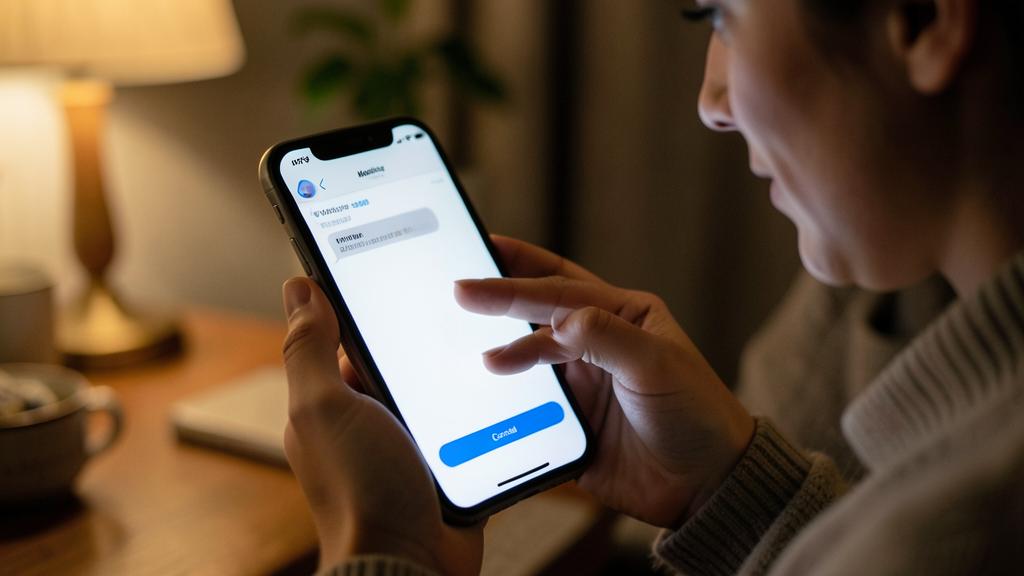
The good reflex. The gesture that reveals most of iMessage’s hidden functions: HOLD a message. It’s there where the most useful options appear — REACT with a tap (thumb, heart… for acknowledging receipt or approving without writing), REPLY to a specific message (your reply attaches to it, clarifying exchanges in a group or a busy conversation), and especially MODIFY or CANCEL a message you just sent (correct a typo, or remove a message sent too quickly — within a short time after sending). This last function is very useful: memorize it, it catches many mistakes. Discover also the EFFECTS (send a message with bubbles, confetti, or full screen for an anniversary or good news), PIN important conversations (they stay at the top of the list), and learn to RETRIEVE shared photos, links, and documents in a conversation (they are grouped: no more scrolling through months of messages to find a shared link). Use SEARCH to find a message by keyword, easily share your location, a contact, or a VOICE MESSAGE, and enjoy SYNCHRONIZATION to reply from your Mac or iPad. A useful reference: these rich functions concern blue bubbles (iMessage between Apple devices); green bubbles are classic SMS, more limited (some functions don’t apply). Start with one or two tricks that serve daily (modifying a sent message, reacting with a tap), and let them become reflexes. A few seconds to explore by holding your messages, and your already-used daily app will become much more practical, clear, and lively.

More practical and lively exchanges
Mastering these functions transforms a daily app into a really pleasant communication tool. A few reflections. DAILY COMFORT: you write dozens of messages a day; each small function (correcting an error, reacting quickly, retrieving a link) saves time and avoids frustrations; it’s cumulative comfort. EXPRESSIVENESS: reactions, effects, voice messages make exchanges more LIVELY and nuanced than a simple text; they add tone, warmth, spontaneity. CLARITY in groups: replying to a specific message, mentioning someone, naming a group make group conversations much more readable; no more confusion about who replies to what. ERROR CORRECTION: modifying or canceling a sent message is a real safety net (an embarrassing typo, a message to the wrong recipient, a too-rapid send); it’s a must-know. SECURITY: iMessage exchanges are end-to-end encrypted — a plus for the confidentiality of your conversations (our secure messaging guides); stay vigilant against phishing (fake SMS/messages exist: don’t click on suspicious links, even in Messages — our guides to recognize phishing). PROGRESSIVE DISCOVERY: there’s no need to learn everything at once; adopt a trick, let it become a reflex, then another. In summary, iMessage is much more than a text app: modifying or canceling a sent message, reacting with a tap, replying to a specific message, sending effects, pinning conversations, retrieving shared photos and links, sharing location and contacts, using synchronization — all these functions make your exchanges more PRACTICAL and LIVELY, and that most people never use. The key gesture to discover: hold a message. Start with one or two useful tricks daily, adopt them progressively, and distinguish blue bubbles (iMessage, rich) from green ones (classic SMS, limited). Your exchanges gain in comfort (time saved, errors corrected), expressiveness (reactions, effects), and clarity (readable groups), all in a secure framework. An app you already use daily hides much more than what you do with it: a few minutes to explore its hidden functions, and you’ll communicate more effectively and pleasantly. The potential is there, at the tip of a long press.
Warning: modifying a message has its limits, and be wary of phishing even in Messages. A few points. LIMITS OF MODIFICATION/CANCELLATION — modifying or canceling a sent message is very practical, BUT: it only works in a SHORT TIME after sending (past this time, it’s too late), and fully only between recent Apple devices (if your correspondent has an old or non-Apple device — green bubble, SMS — they may have seen the original message, or a trace of the modification); don’t rely on it as a guarantee — it’s a useful safety net, not an infallible erasure — always think before sending. PHISHING IN Messages — even if iMessage exchanges are encrypted, the Messages app is still a channel for phishing attempts: fake delivery, bank, or government SMS with links that seek to steal your information; never click on a suspicious link received by message, don’t give personal or banking information, and be wary of unexpected messages pressuring you to act (our guides to recognize phishing); encryption protects the confidentiality of your exchanges, not against malicious messages sent to you. Other points: distinguish blue bubbles (iMessage, all functions) and green ones (classic SMS, limited — don’t be surprised if a trick doesn’t work on an SMS), respect others’ PRIVACY (don’t share received messages, photos, or information without consent), and keep in mind that READ receipts, if enabled, inform the other party that you’ve read (activate or not according to your preference). iMessage is an excellent communication tool, rich and secure, provided you know its limits (modification is not a magical erasure) and remain vigilant (phishing also passes through messages). Use its hidden functions for more comfort, but use common sense: think before sending, don’t click on suspicious links, and respect everyone’s privacy.

Frequently Asked Questions
Can you modify or cancel a sent message?
Yes, in iMessage (blue bubbles, between Apple devices), and it’s a very appreciated function. After sending a message, hold it: you can MODIFY (correct a typo) or CANCEL (remove it), within a short time after sending. It’s ideal for catching an error, an embarrassing typo, or a message sent too quickly. Two limits to know: it only works for a short time after sending (past this time, it’s too late), and fully only between recent Apple devices; if your correspondent has an old or non-Apple device (green bubble, SMS), they may have seen the original message, or a trace of the modification. Don’t rely on it as a guarantee: it’s a very practical safety net, but not an infallible erasure — always think before sending. For daily small errors between Apple users, it’s a valuable function that has saved many situations. Memorize the gesture: hold the message.
How to react quickly to a message without writing?
Use REACTIONS. Hold the message and choose a reaction among those offered (up thumb, heart, « ha ha », exclamation point, question mark…): it appears on the message without you having to write. It’s perfect for acknowledging receipt, approving, or responding with a tone without writing a full message (« I saw », « okay », « great »). In the same menu (holding the message), you’ll also find the possibility to REPLY to this specific message (useful for quoting a message in a busy conversation or a group) and, for your own messages, to modify or cancel them. The gesture — holding a message — is really the key that unlocks iMessage’s hidden functions: reactions, targeted reply, modification. Quick reactions are one of the tricks that serve the most daily: they make exchanges smoother by avoiding « okay » and « received » messages. Try them: you’ll adopt them quickly.

How to find a photo or link that was sent to you?
Without scrolling through months of messages: iMessage groups shared content. In a conversation, access the details of the discussion (by touching the contact’s name or photo at the top): you’ll find the PHOTOS, LINKS, and shared documents in this conversation, grouped by type. It’s much faster than scrolling through the entire history to find a link sent to you last week or a photo from a month ago. You can also use the SEARCH feature of the Messages app: type a keyword to find a message, a contact, or a shared content by its text. These two methods — grouped shared content in the conversation details, and keyword search — help you find what you’re looking for in just a few seconds. Many people ignore this and laboriously scroll: it’s one of the hidden functions that save the most time. Think of it whenever you’re looking for a shared photo, link, or information in a conversation.
What to remember
The Messages app, which you use every day, hides via iMessage (blue bubbles between Apple devices) many functions that most people never use — and which make exchanges more practical and lively. The most useful ones: MODIFY or CANCEL a sent message (correct a typo, remove a message sent too quickly, within a short time — a valuable safety net), REACT with a tap (up thumb, heart… for acknowledging receipt without writing), REPLY to a specific message (to clarify exchanges in a group), send EFFECTS (bubbles, confetti, for a festive message), PIN important conversations, RETRIEVE shared photos, links, and documents in a conversation (grouped — no more scrolling through months of messages), SEARCH by keyword, share location, contacts, and voice messages, and use SYNCHRONIZATION (reply from your Mac or iPad). The key gesture to discover most of these functions: HOLD a message (reactions, targeted reply, modification are hidden there). Start with one or two useful daily tricks (modifying a sent message, reacting with a tap) and adopt them progressively. Distinguish blue bubbles (iMessage, rich and end-to-end encrypted) from green ones (classic SMS, more limited — some functions don’t apply). Two precautions: modifying/canceling has its LIMITS (short time, fully effective only between recent Apple devices — it’s not a magical erasure, think before sending) and be wary of PHISHING, which also passes through messages (fake delivery, bank SMS with links — never click on a suspicious link). Your exchanges gain in comfort (time saved, errors corrected), expressiveness (reactions, effects), and clarity (readable groups), in a secure framework. A familiar app hides much more than what you do with it: a few minutes to explore its hidden functions, and you’ll communicate more effectively and pleasantly.



Want to fully exploit the potential of your iPhone, iPad, or Mac? Our Apple training courses will take you to the next level.
Leave a Reply
You must be logged in to post a comment.